Monitoring site performance
Zoom out from a single optimization
So far, you’ve looked at results one optimization at a time.
The Optimize overview page in the Insights tab gives you a higher-level view of how your optimization program is performing across the site. Instead of opening individual reports one by one, you can monitor overall conversion performance, live optimization activity, company engagement, and other program-level signals in one place.
.png)
Enterprise plan required. The Optimize overview is available on Enterprise plans with at least one site goal configured.
Start with your site goal
The Optimize overview page is organized around your site goals. Choose the site goal you want to monitor, and the rest of the overview updates to show performance for that outcome.
Only site goals are available in the Optimize Overview. Goals created for an individual optimization stay in that optimization’s report and won’t appear here.

At the top of the Optimize overview page, you can also:
- Change the date range
- Switch between site goals
- Apply filters like audience, region, or device type
By default, the Optimize overview page shows the last 30 days of data.
Review your overall impact
The metrics and performance areas give you the big-picture view of how the selected site goal is performing.
Use them to answer questions like:
- How is our site goal performing overall?
- Is conversion rate trending up or down?
- Did performance change during a particular period?
- Does the pattern change when we filter to a specific audience, region, or device?
The conversion-rate chart lets you view performance over time and switch between daily, weekly, and cumulative views.

The goal here isn’t to react to every small movement. Look for patterns that persist over time, then use the individual optimization reports when you need to understand what may be driving them.
See what AI is learning
For AI-optimized experiences, the Optimize overview page surfaces the strongest and weakest variations based on Strength.
.png)
This gives you a quick way to spot ideas worth investigating.
A strong variation might suggest a message or approach worth expanding on. A weak variation might be a candidate to rethink or replace.
For the deeper read, return to the individual AI Optimize report you learned about in the last lesson.
Understand who’s engaging
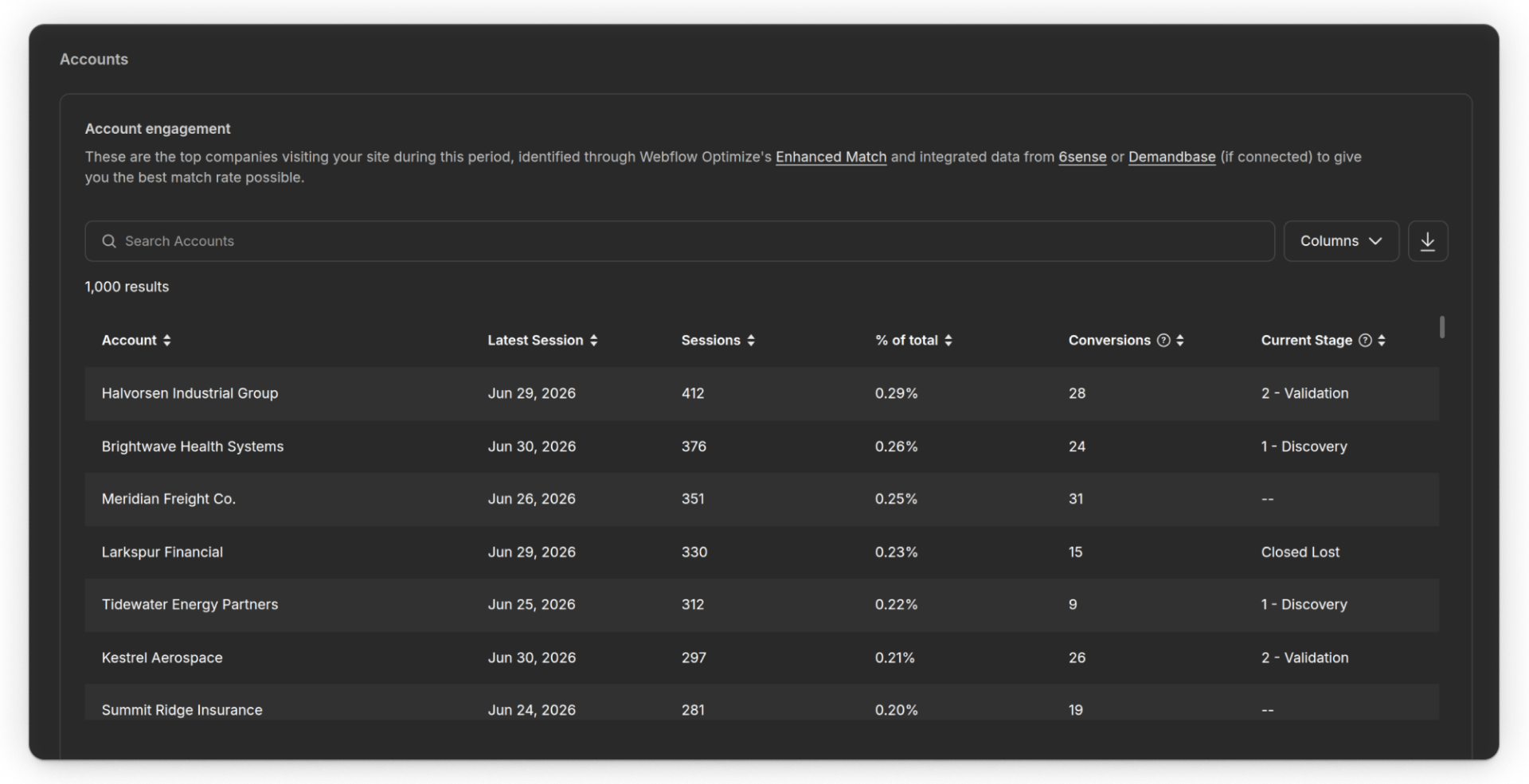
If company-identification data is available, the Accounts area shows which companies are visiting your site and how they’re engaging. Optimize can associate some visitors with company details through Enhanced Match, with integrations like 6sense or Demandbase potentially improving match coverage.
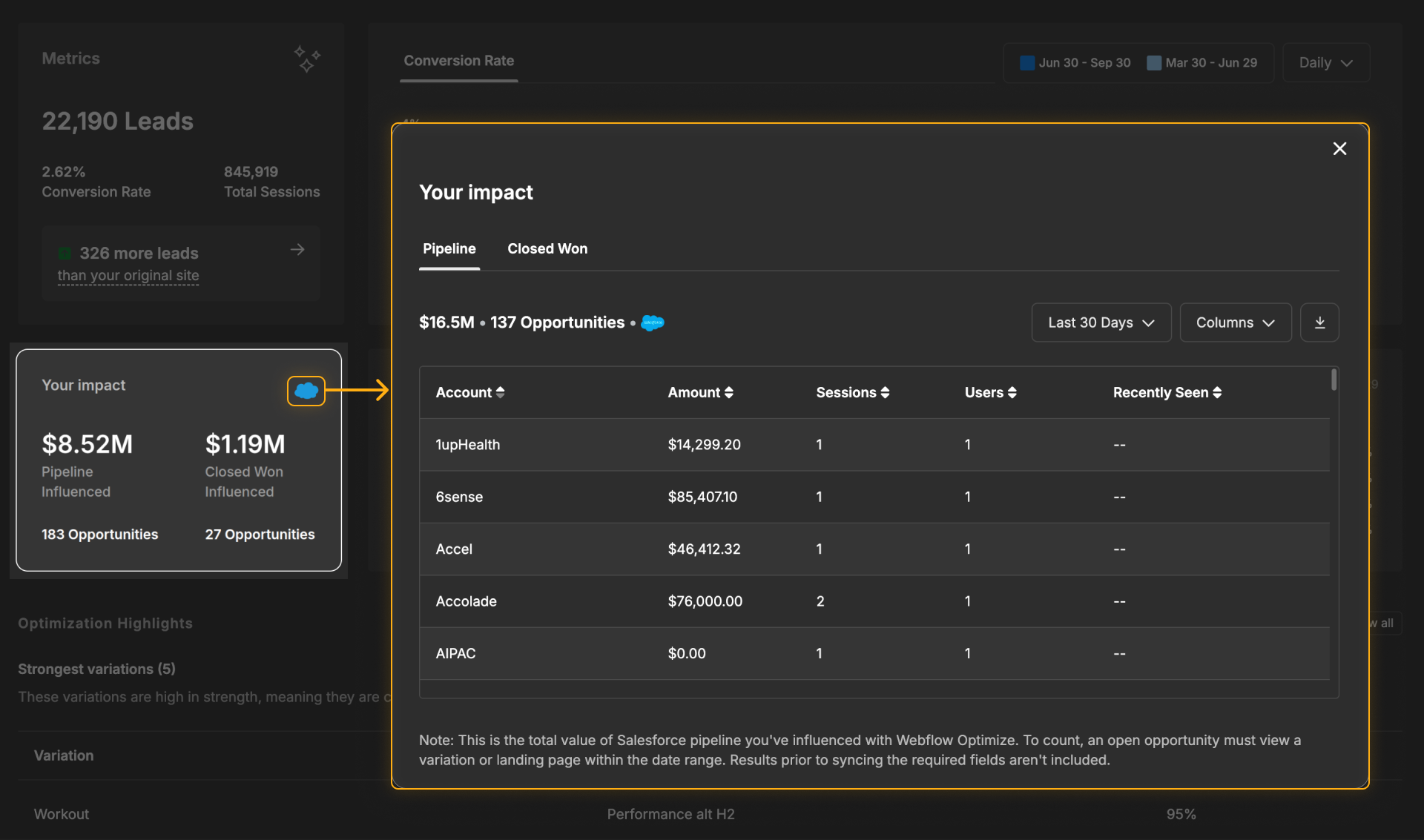
If your site is connected to supported CRM data, the Overview can also surface opportunity metrics that help show how optimization activity relates to your pipeline. These metrics require the relevant HubSpot or Salesforce setup.
These areas are especially useful for B2B teams that want to connect site engagement with account-level activity.
Explore the “what if?” with the ROI simulator
The ROI Simulator helps you compare your actual optimization performance with modeled scenarios.
You can use it to ask:
- vs. Original Site: What if you hadn’t run optimizations?
- vs. A/B Testing: What if you only used traditional A/B tests?
- vs. Untested Ideas: What if you shipped ideas directly to the site without testing them first?
Click the “more leads than your original site” metric to open the ROI Simulator.
.png)
The simulator shows how Optimize estimates incremental conversions for each scenario, giving you another way to understand and communicate the potential impact of your optimization program.
The ROI Simulator requires at least 25 days of data and 5,000 sessions.
Monitor trends, not snapshots
The Optimize overview page is most useful when you return to it over time. Use it to:
- Track progress against your site goal
- Watch for sustained changes in conversion performance
- Understand the scale of your active optimization program
- Spot strong or weak AI variation ideas
- Identify audiences, accounts, or periods worth investigating further
When something catches your attention, drill back into the relevant optimization report to understand the details. The two views work together:
Individual optimization reports
Individual optimization reports tell you what happened inside a specific optimization.
Optimize overview page
The Optimize Overview helps you understand what your optimization program is doing across the site.
Feeling good?
Continue on to the next section where we'll bring everything together with the best practices that help keep your optimization program focused and useful over time.