What forms are in Webflow
Forms in Webflow offer a way to connect with real users on your site. They're how visitors ask questions, request demos, sign up for updates, or send messages that can lead to actual follow-up.
Quick demo --> Filling out and submitting a form on a live Webflow page.
In Webflow, forms aren't just visual elements you place on a page. They're also systems that manage what gets submitted, where that information goes, and what feedback someone sees after they click Submit.
A form controls several things at once:
- Which data is shared when someone submits the form, based on the fields included in the form
- Whether the form can be submitted, based on things like required fields or basic validation
- What the person sees right after they submit, such as a confirmation message or an error
Because of this, a form can appear complete on the page while still needing additional setup to handle submissions correctly. In this course, we'll look at forms as a complete system, rather than as a single element on a page.
The core parts of a Webflow form
Every native Webflow form is built from the same set of pieces, working together as one unit.
The Form block
This is the must-have element that enables submission behavior. Inside the Form block is the div that holds the form itself, the inputs people interact with, the submit button they click, and the feedback shown after submission.
Input fields
These are where visitors enter information. Each field inside the Form block becomes part of the submission data, based on its settings and field name.
The submit button
The submit button triggers the submission. Without it, the form can't be submitted, even if all required fields are filled out.
Built-in success and error states
Every Webflow form includes success and error states. These handle feedback after someone submits the form. They're not decorative add-ons. They're part of the form's behavior and determine what users see when submission succeeds or fails.
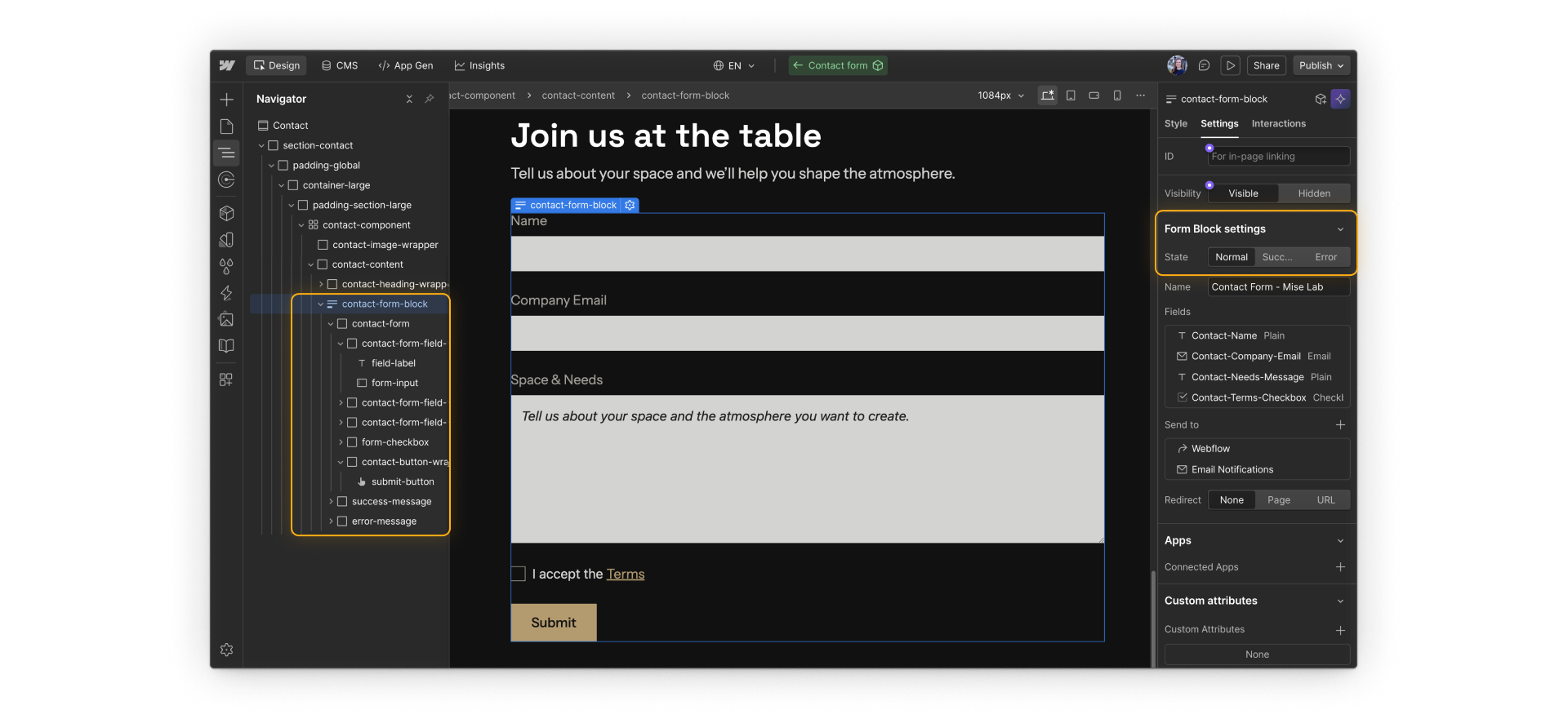
All of these pieces must live inside the same Form block. If a required piece is missing or moved outside the Form block, the form may look fine visually, but it won't submit correctly.
Native forms and embedded forms
Webflow supports two broad approaches to forms, and choosing between them early can save a lot of rework.
Native Webflow forms are built entirely with Webflow's form elements. They're a strong fit when you want Webflow to handle submission storage, notifications, success and error states, and basic spam protection.
Embedded forms come from third-party tools like Typeform or HubSpot. They're usually added using embed code and are often used when a form needs more custom behavior, such as multiple steps, conditional logic, or direct submission into another system.
We'll look closer at native and embedded forms later in the course.
Need help finding your way around? Learn how to navigate Webflow University lessons, courses, and learning paths, including how to mark items complete.
Ready to dive in?
Click Continue to next lesson to head to the next lesson, where we'll walk through what actually happens when someone submits a form.