Notifications, spam, & data basics
Once submissions are stored, the next thing to check is whether they’re actually noticed and handled. Things like notification emails, spam filtering, and basic data practices all affect what gets attention and what gets missed.
Notifications are alerts, not the source of truth
Notification emails are used to signal that a form has been submitted. They’re configured per form within the Form block element settings and are meant to help the right people notice new submissions quickly.
What’s included in a notification
Notifications can be customized for each form and give you control over a few key details:
- Who receives the email, such as a team inbox or a specific teammate
- The sender name, which controls how the message appears in inboxes
- How replies are handled, whether they go to a no-reply address, a specific recipient, or the form submitter
- The subject line and body content, so you can customize the message for internal recipients or external replies
Quick demo → Setting up form notifications and viewing the resulting email.
These choices shape how notifications fit into a team’s workflow.
Who should be notified
Notifications work best when they’re treated as alerts rather than records. They’re meant to surface activity to the right people, not necessarily to store or manage submissions over time.
Sending notifications to inboxes owned by the team responsible for follow-up helps keep responses consistent. Limiting notifications to people who need to act reduces noise and makes it easier to spot important submissions.
Replying to notifications
Notification emails include a reply-to setting that determines where responses go. Depending on how it’s set up, replies might go to a no-reply address, a specific teammate or team inbox, or back to the form submitter. In simple cases, like a contact form managed by one person, replying directly to the notification can be a fast way to respond.

That said, replying to a notification doesn’t update the submission record in Webflow and may limit visibility for teammates unless the message is shared. For that reason, email replies work best for quick, lightweight follow up, not for tracking or collaboration.
When you reply to a notification email, the exchange stays in your inbox. It doesn’t create or update a record in Webflow.
Spam handling
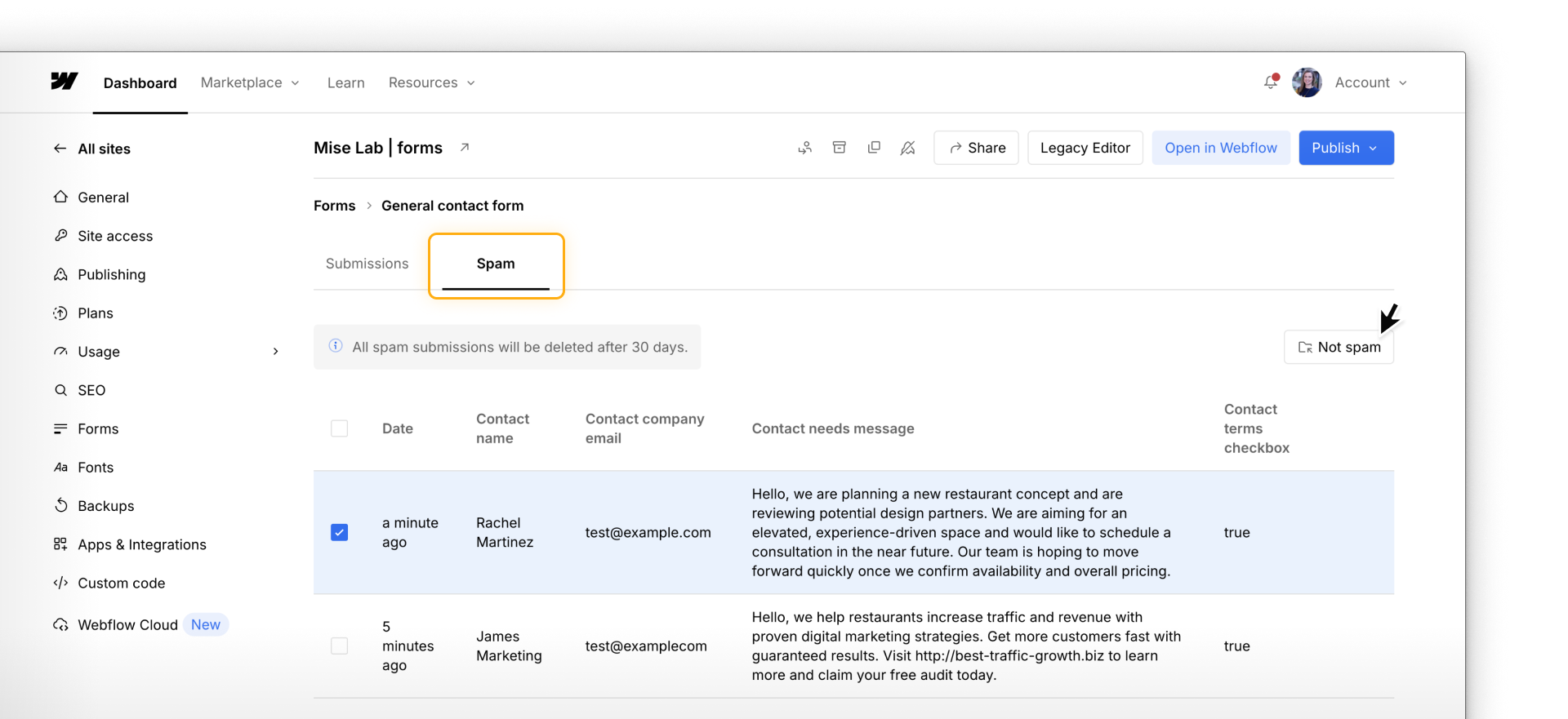
Webflow includes automatic spam filtering to reduce junk submissions. When a submission is flagged, it’s moved out of the main list into a Spam view, which you can find alongside other form submissions in Site settings.
Because spam handling happens during submission, a “missing” submission is often not missing at all. It may simply be filtered. This is especially important to keep in mind for high-value forms, such as sales inquiries or support requests.
From the Spam view, you can review flagged submissions and move legitimate ones back into the main list. Checking this view regularly helps prevent real messages from being overlooked.
Adding a reCAPTCHA element
In addition to automatic spam filtering, you can add a reCAPTCHA element inside a Form block if you need an extra layer of protection before a form can submit. When it’s added, visitors see a quick check like “I’m not a robot.”
This can be helpful if a form starts getting a lot of spam or if the submissions are especially important, like demo requests or sales leads.
Adding reCAPTCHA requires connecting the form to Google reCAPTCHA in your Site settings. Learn how to Add a reCAPTCHA element.
Data practices for trust and clarity
Form submissions often include personal information, which means teams need to be intentional about how that data is handled once it’s received.
Limiting access to submissions helps ensure only the right people can view sensitive information. Collecting data with a clear purpose makes submissions easier to review and act on. Establishing a regular habit for reviewing and exporting submissions helps prevent messages from being missed or sitting unattended.
Getting closer
With submission handling in place, the final section pulls everything together. Next, we’ll review best practices for building forms that are clear, reliable, and appropriate for their purpose.