Submission storage & review
After someone submits a form, what happens next determines whether messages are seen, followed up on, or quietly missed. Knowing where submissions live and how teams review them helps ensure follow-up doesn’t fall through the cracks.
Where submissions are stored
When a native Webflow form is submitted on a published site, Webflow stores that submission automatically and associates it with the form it came from. Those submissions live in Site settings, under the Forms area.
Each form appears as its own entry, and clicking into a form shows only the submissions for that specific form. This is where earlier naming decisions start to matter. Clear, purpose-driven form names make it much easier to identify which form a submission came from, especially on sites with multiple different forms.
Quick demo → Opening the Forms area with multiple forms, and clicking into individual submissions.
What submission data includes
At a minimum, each submission includes basic metadata, like submission time or IP address, and the values a user entered into the required field on the form.
This is where clear field names come into play. If field names are vague or inconsistent, submissions are harder to read and interpret later.
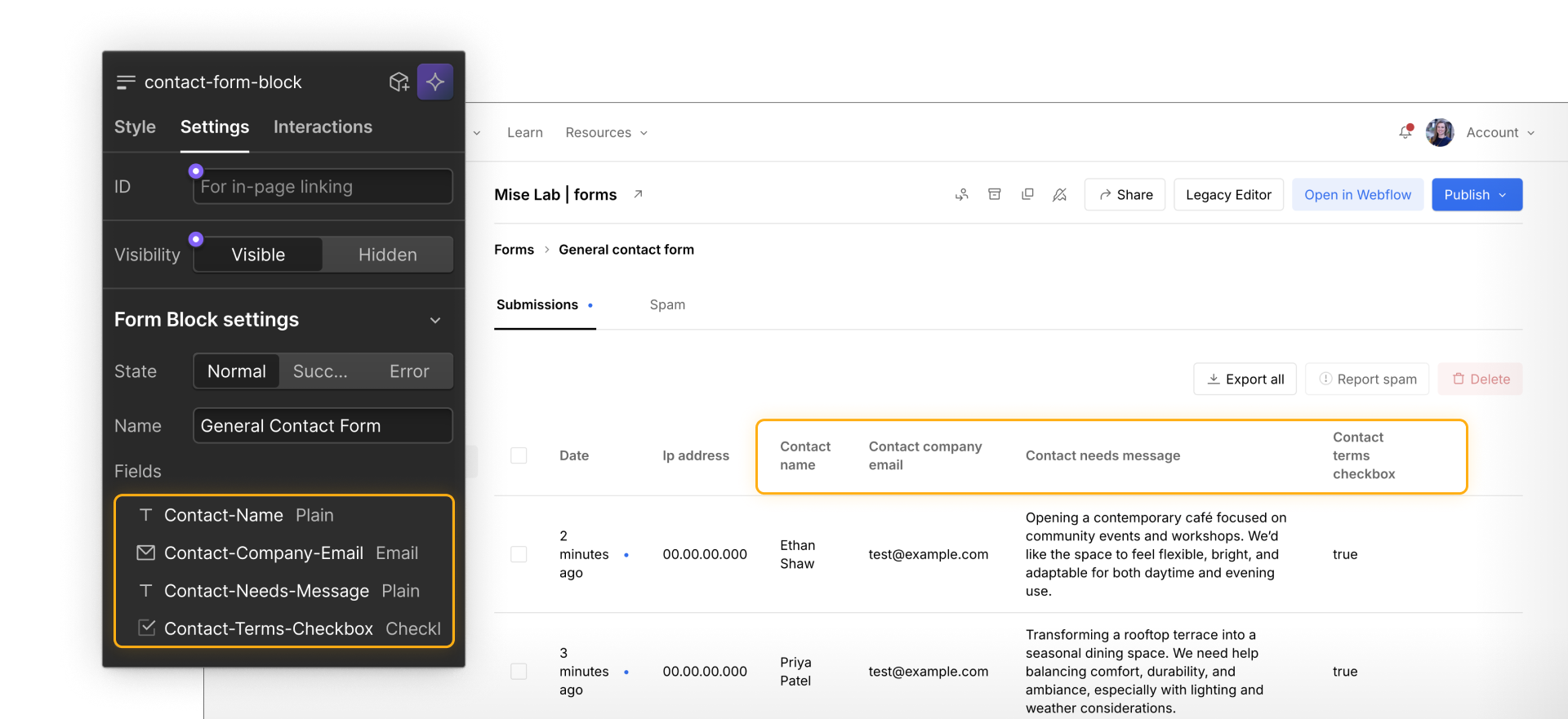
Reviewing submissions one at a time
Reviewing submissions directly in Webflow is most useful when follow-up needs to happen quickly or feels more personal.
This usually means opening a form in Site settings, clicking into individual submissions, and reading them one at a time so you can decide how to respond, such as replying by email or following up in another tool.
This approach works well for:
- Contact forms, where messages may need a quick reply
- Lead or demo request forms, where someone is waiting to hear back
- Support or feedback forms, where messages often vary and need to be read closely
Viewing submissions individually is useful when context matters, the volume is manageable, or a small team is handling follow-up.
Exporting submissions for broader use
Webflow also lets you export form submissions as a CSV file, which you can open in tools like Excel or Google Sheets. Each column in the file matches a field name from the form, which is another reason why clear naming matters.
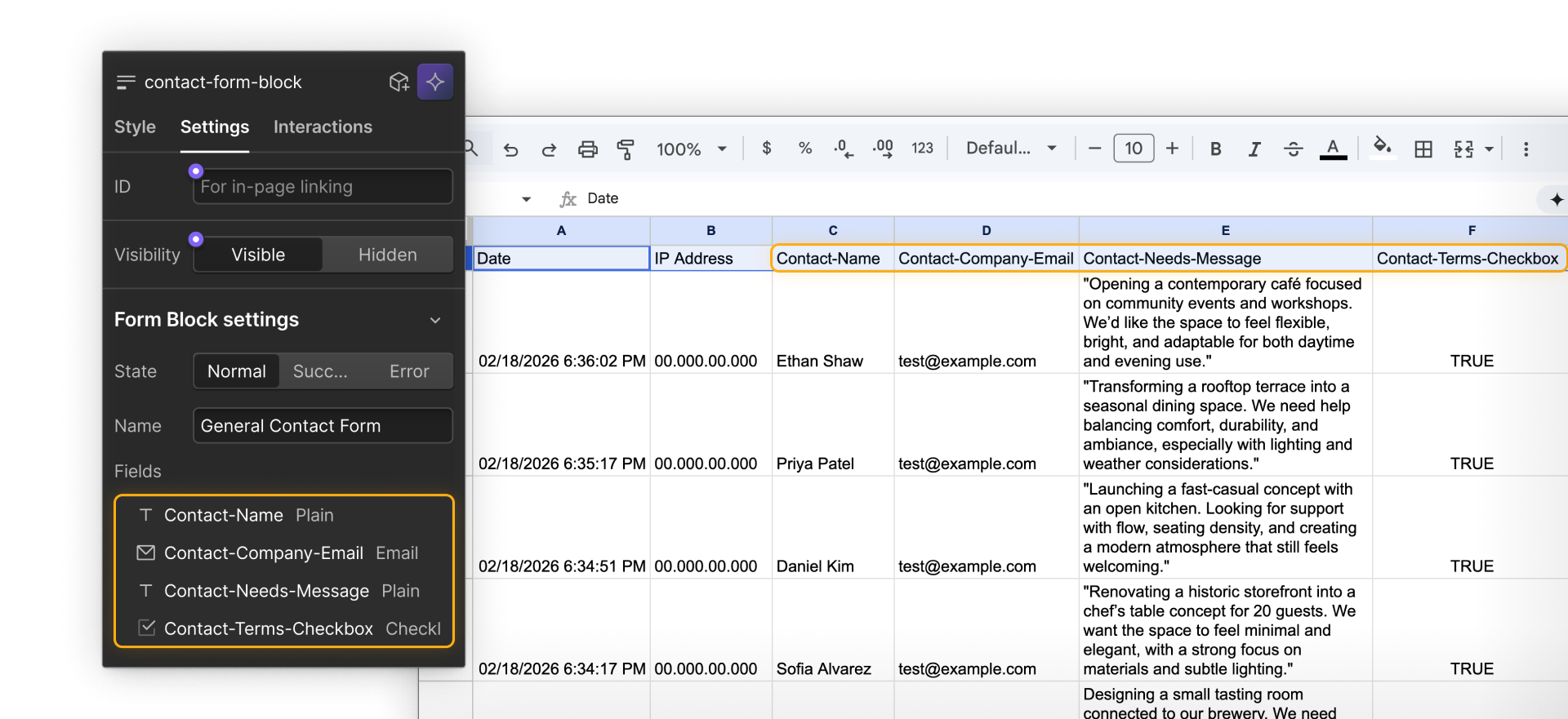
Exporting submissions is useful when:
- More than one person needs access, such as sharing leads with a sales team
- Submissions need to be reviewed in bulk, like sorting or filtering responses in a spreadsheet
- Records need to be saved long term, for reporting or reference
- Data needs to be passed to another system or team, such as importing into a CRM
Webflow stores submissions reliably, but exporting gives teams more flexibility in how that data is shared, analyzed, or used over time.
Routing submissions beyond Webflow
In many workflows, Webflow serves as the collection point rather than the final destination for form data. Webflow reliably collects submissions, while other tools handle what happens after submission based on how and where follow-up takes place.
Teams often route submissions outside of Webflow when:
- Submissions need to trigger follow-up automatically, such as sending a confirmation email or creating a task
- Data needs to live in another system, like a CRM, help desk, or internal database
- Multiple tools or teams are involved in responding to requests
This routing can happen in a few common ways, such as exporting submissions on a schedule, connecting forms to automation tools, or using embedded forms that send data directly to another platform.
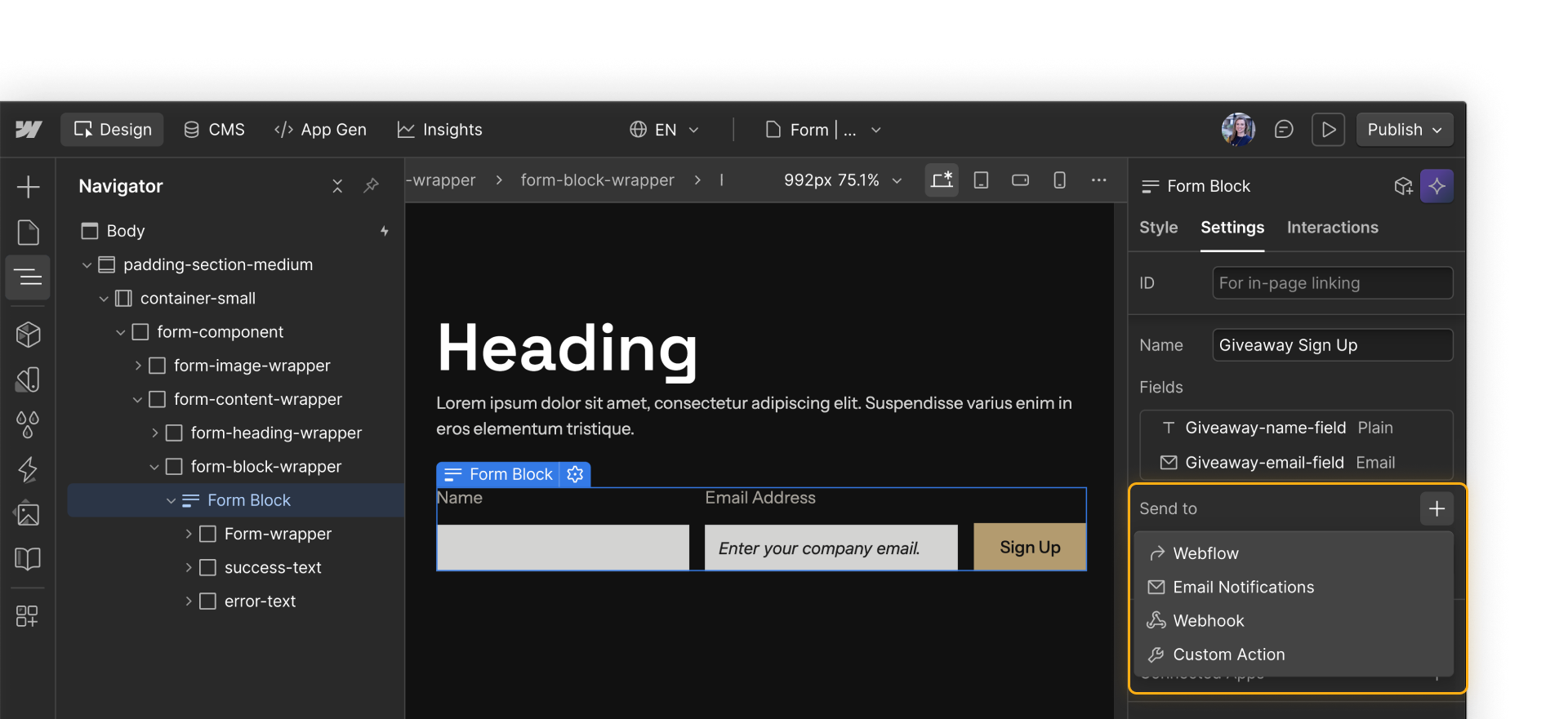
Learn more about connecting to external tools in the final section of this course.
When submissions seem to be missing
It’s common to hear something like, “Someone submitted the form, but we didn’t get it.” In most cases, submissions aren’t lost. They’re usually blocked, filtered, or never submitted in the first place.
Common reasons include:
- The form was tested in Preview mode, instead of on a published page
- Required fields prevented submission, so the form was never sent
- The Form block structure changed, breaking what gets included in the submission
- Spam handling filtered the submission, moving it out of the main list
Knowing where to look makes troubleshooting simpler and keeps teams from assuming something is broken across the site.
Establishing a review habit
Forms work best when there’s clear ownership around follow-up.
Teams usually benefit from deciding a few basic things:
- Who checks submissions, and where they check them
- How often submissions are reviewed, especially for time-sensitive forms
- When exports are created, if data needs to be shared or archived
- Where follow-up happens, such as email, a CRM, or another tool
Without this clarity, even well-designed forms can lead to missed messages or unclear handoffs.
Continuing on
Once submissions are stored and reviewable, the next step is making sure they’re surfaced, filtered, and handled clearly.