Extending beyond native forms
Native Webflow forms follow a familiar cycle: someone submits a form, Webflow stores the submission, and your team follows up. That setup works well for many sites.In other cases, forms connect to additional tools or use third-party setups, which changes where data lives and how follow-up happens.
Imagine your team just launched a new contact form. Submissions are coming in, but your sales team works out of HubSpot, your support team uses a ticketing system, and no one wants to manually copy data between tools.
Where should those submissions actually go?
The answer depends on how your form is set up and how your team handles data after someone submits. There are three main approaches:
- Collect and manage in Webflow: Use a native Webflow form and review submissions directly in Webflow.
- Collect in Webflow, route elsewhere: Use a native Webflow form, but send submission data to an external tool for follow-up.
- Fully external: Use a third-party form tool and embed it into your Webflow site.
Let's look at each one.
1. Collecting and managing in Webflow
With native forms, Webflow acts as the central place for collecting, reviewing, and exporting submissions.
This approach is commonly used when:
- The same fields and layout work well for all visitors who interact with or submit the form
- Reviewing and exporting submissions from Webflow works well for your team
- You can provide the right feedback with Webflow’s built-in success and error states
- Notifications and spam handling support the team’s workflow
.png)
Native forms are often a good solution for contact forms, simple lead forms, or feedback forms where the team checks submissions directly in Webflow.
2. Collecting in Webflow, then routing elsewhere
In some workflows, the form experience can remain unchanged, but submission data needs to be routed to, and processed or interpreted in other systems after it’s collected. Here, Webflow still collects the data, but other tools handle what happens next.
In this setup:
- A user submits a Webflow form
- Webflow stores the submission in Site settings
- Another tool receives that data and handles follow-up actions
For example, a lead form might be designed and collected in Webflow, then routed into a CRM like HubSpot or Salesforce for sales follow-up. A support form might send submissions into a ticketing system, or trigger automated responses using tools like Zapier or Make.
Webflow remains the source of truth for submissions, while other tools support downstream workflows.
Form and submissions outside of Webflow
Some form experiences place more emphasis on interaction, flow, or conditional behavior than on simple collection. You might set up a form where questions change based on earlier answers, the form spans multiple steps, or the experience guides someone through a longer process.
In this setup:
- The form is created and configured in an external tool
- The tool provides embed code or a script
- The embed is placed into the Webflow layout
- Submissions are sent directly to the external system
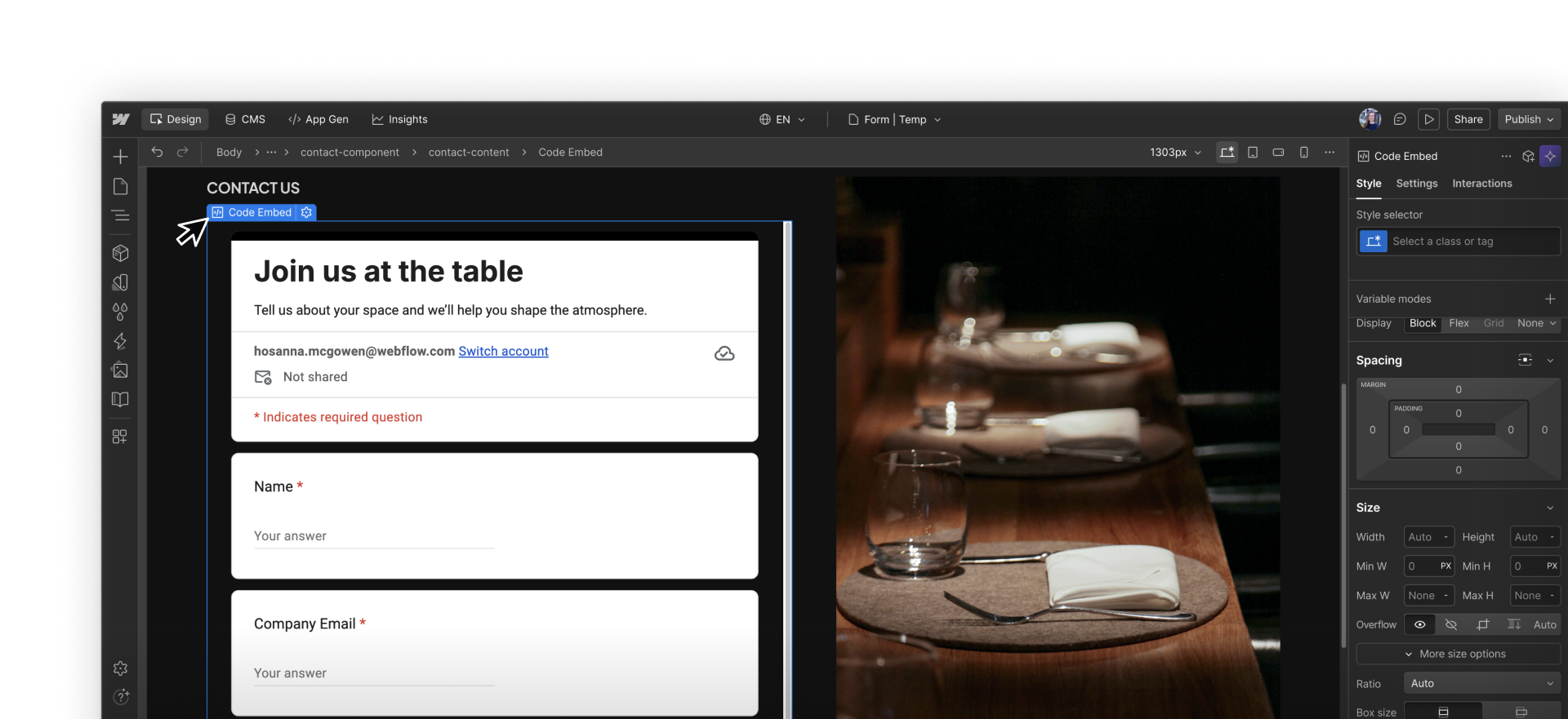
This approach often looks like using tools such as Typeform, Jotform, or HubSpot forms for multi-step experiences, surveys, or application flows. Webflow controls layout and placement, but the form itself, along with submission handling, validation, notifications, and storage, lives in the external platform.
Choosing a setup that fits your needs
Rather than thinking in terms of “native versus external,” it’s more useful to think about data flow and ownership.
A few practical questions help clarify the right setup:
- Where should submissions be stored and reviewed?
- Which system should trigger follow-up actions?
- Who owns maintenance as requirements change?
It’s common for a single site to use more than one setup. One form might collect and manage submissions entirely in Webflow, while another routes data elsewhere or uses an embedded experience.
Pause & reflect: Think about the forms on your current site. Where do those submissions need to go? Who needs to act on them, and in which tool? Those answers will point you toward the right setup.
Almost there
Extending beyond native forms isn’t about replacing one approach with another. It’s about choosing a setup that aligns with how your forms work and how your team handles submissions afterward.