Page building overview
How page building works
Building pages in Webflow as a user with the Marketer role is less about constructing things from scratch and more about assembling them from a system someone else (likely your design team) has already built.
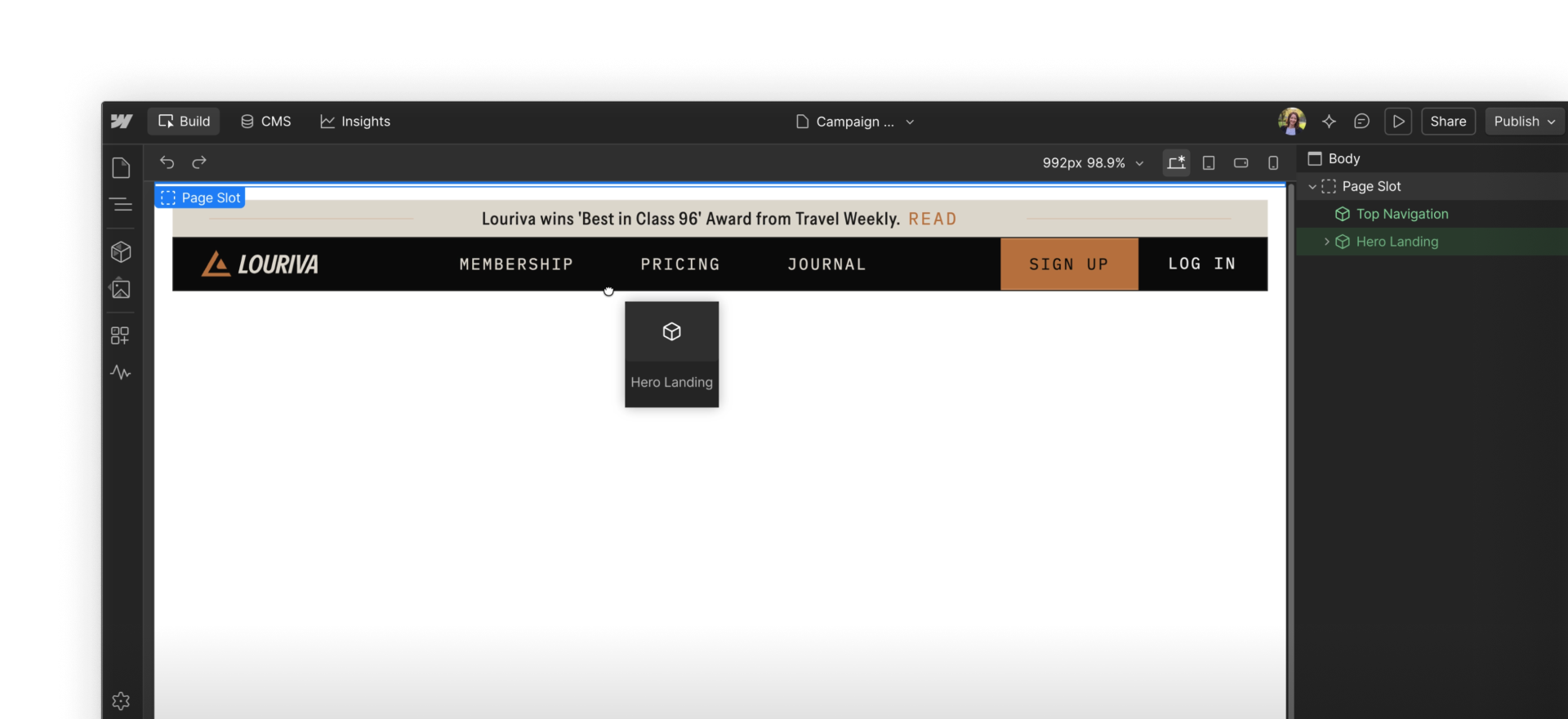
Want to see how Designers set up Marketers for success? This video walks through the full setup process from the Designer side.
Components are your building blocks
In Webflow, components are reusable, pre-built design elements. For example: things like hero sections, feature cards, CTAs, testimonial blocks, and forms.
Your Designer builds and maintains these components. Your job is to use them.
This isn't a limitation. It's what makes page building fast and consistent. Because the structure and styling are locked inside each component, you can build new pages confidently without worrying about accidentally breaking the design or drifting off-brand.
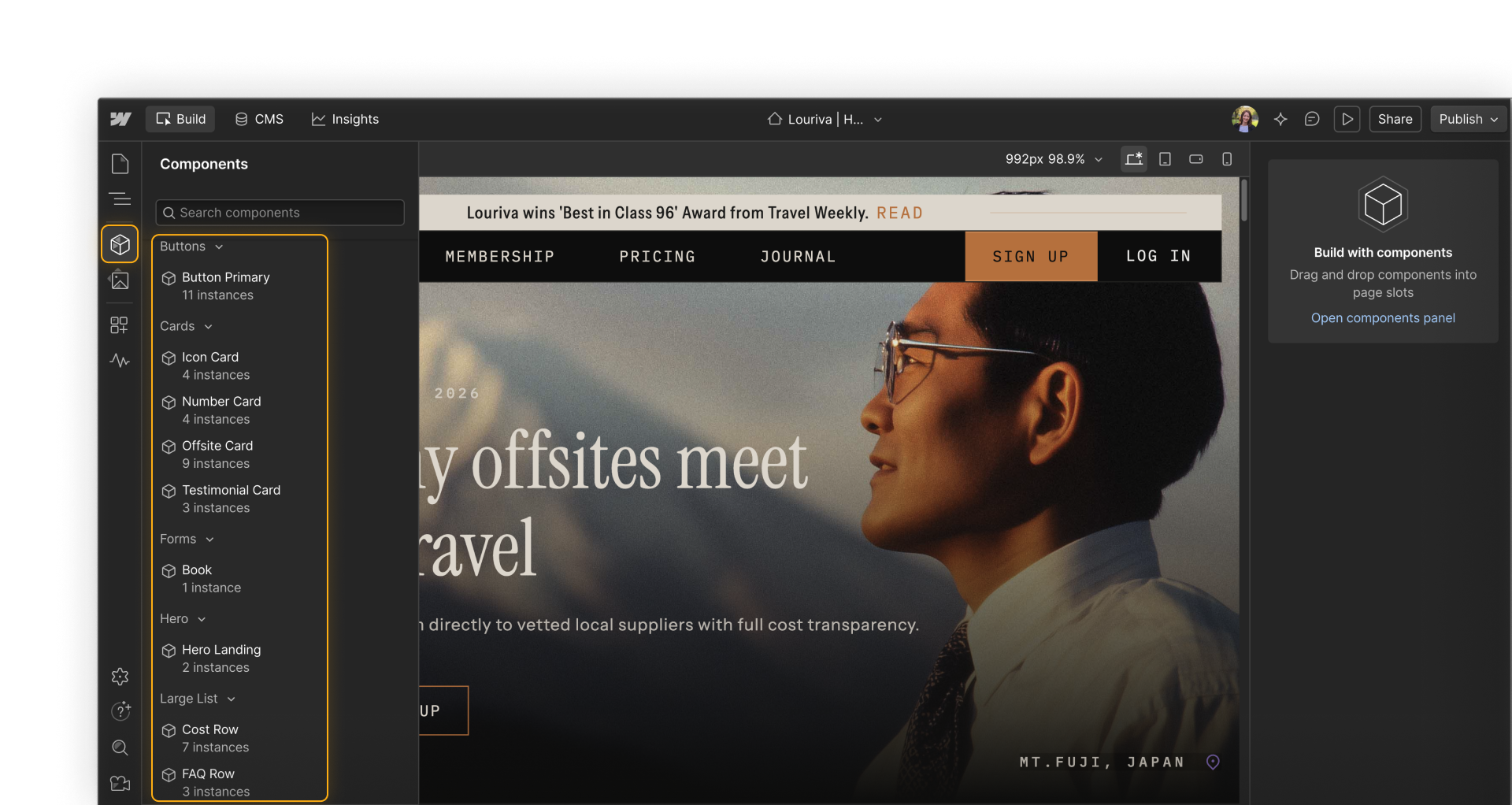
Editing within a component
Once a component is on the page, you'll configure it through its properties — the editable fields the Designer has intentionally exposed. These typically include things like headline copy, body text, images, button labels, and link destinations.
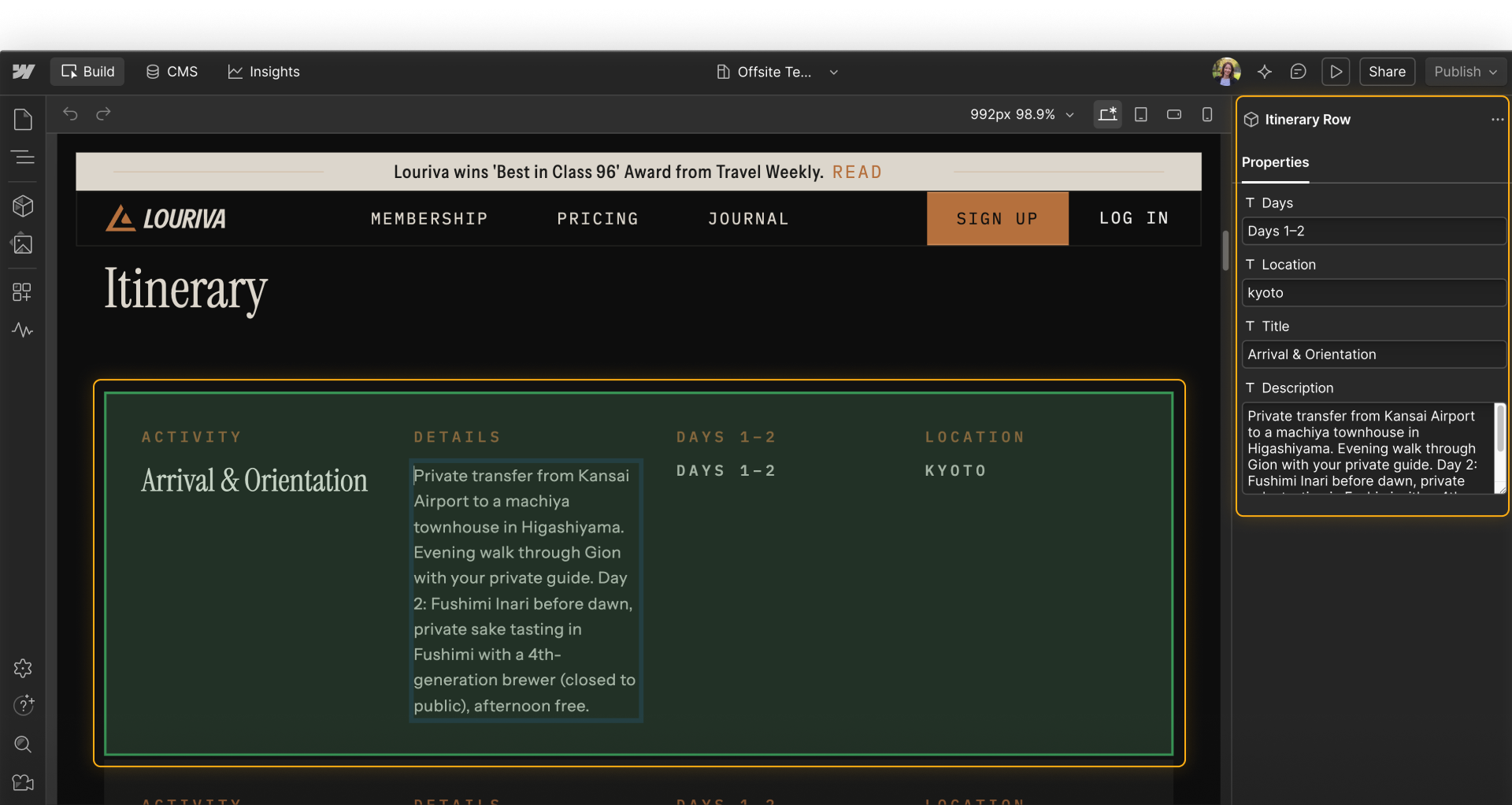
What you won't be able to change is the component's underlying structure, layout, or styling. Those are intentionally locked. If you need something that isn't available in the properties panel, that's the right signal to flag it to your Designer, not to try to work around it.
Building a page from a static page template
When you need to build a new page, the first question to ask is: does a template exist for this?
Static page templates are pre-built page structures your Designer has set up for common page types — landing pages, event pages, campaign pages, and so on. Starting from a template means the layout is already in place, the right slots are already positioned, and you're ready to add components and fill in content.

Page slots in page templates
When a Designer creates a static page template, they designate specific areas of the page where components can be placed. These areas are called page slots.
Think of a page slot as a drop target — a clearly defined space on the page that accepts components. Slots keep the page structure intact while giving you flexibility to add, remove, or rearrange the components inside them.
If you try to place a component outside a page slot, it won't work. That's intentional. The boundary exists to protect the parts of the page that aren't yours to modify.
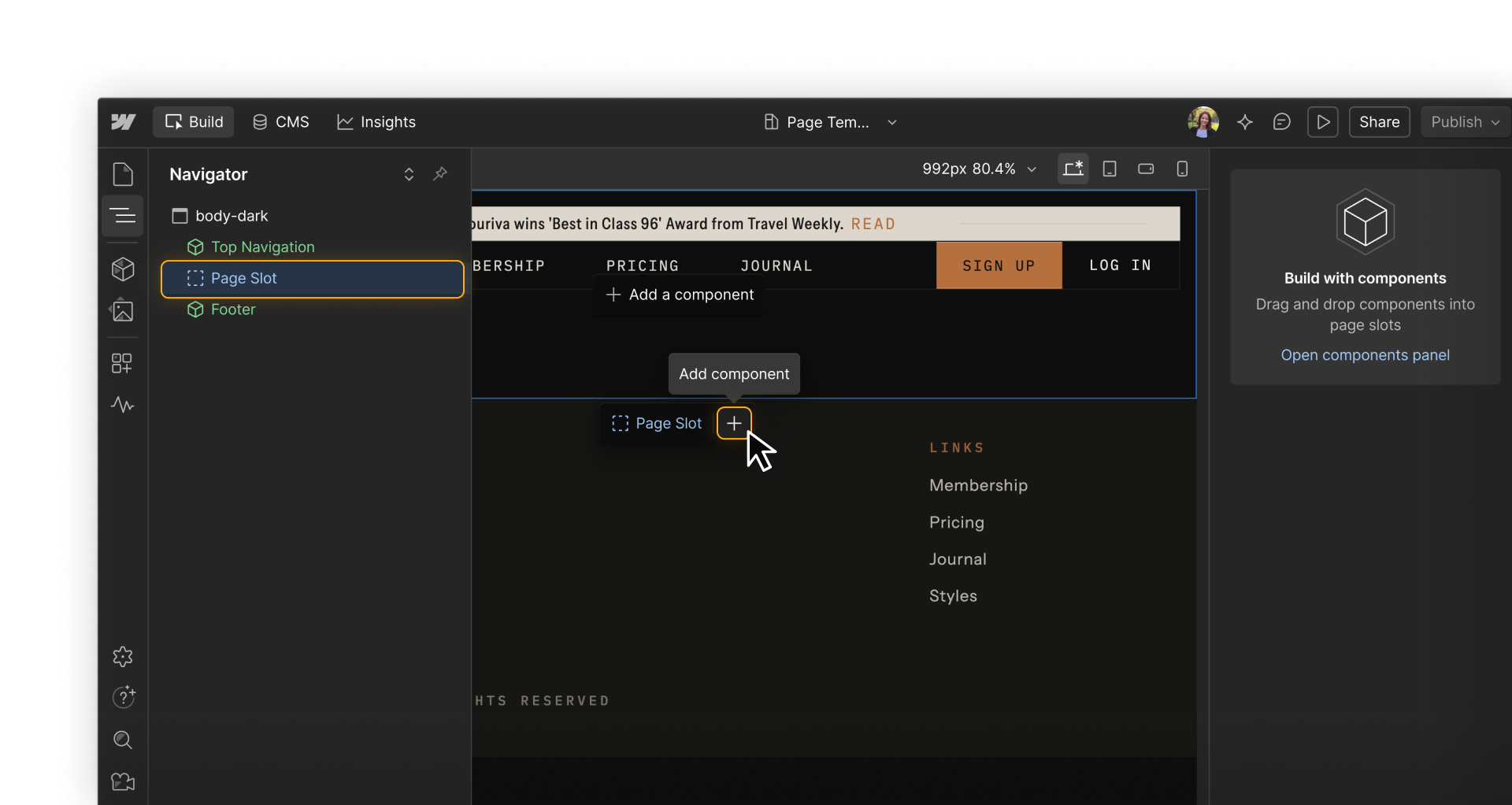
Building a page from scratch
If no template exists for what you're building, you can start from a blank page. A blank page with a page slot works the same way — you're just assembling the structure yourself rather than starting from a pre-built one.

Ready to move on?
Now that we’ve covered the basics of how page building works in general, let’s walk through in more detail how to actually build pages as a Marketer using components and page templates.