Use your system with AI
If you’ve created a strong design system with variables, classes, and components, you’ve likely already improved the results you’re getting from AI agents. To take it further, use clear prompts and Agent Instructions to explain how your team uses that system.
Start with a clear prompt
When asking an agent to build with your design system, include four things:
- Context: Name the site and page, along with existing components, classes, or variables it should use.
- Action: Describe what to build or update, including the content and component options you want.
- Constraints: Explain what should stay unchanged, such as main components or shared styles, and whether it can create new resources.
- Approval: Tell it when to pause for review, such as before changing a shared class or creating a component.
On the campaign page, add a Steps Section to the Campaign Content page slot. Add four Step Cards using the Base variant and the content below. Update the instance properties without changing the main components, shared classes, or variables.
If the existing options don’t fit, explain what’s missing and propose an approach for approval before making other changes. Leave the page unpublished and summarize what you changed.
Agent Instructions
Some guidance applies every time your team builds. You shouldn’t have to explain your naming convention or component choices in every prompt.
Agent Instructions are Markdown-based skills and rules stored on your Webflow site. They give agents connected through MCP guidance they can reference across requests.
The two types serve different needs:
Skills
Skills explain how to approach a particular kind of work, such as building pages with your design system. Agents reference them when relevant to a request.
Rules
Rules state expectations that apply across tasks, such as following your class naming convention.
In the Instructions panel, you can write a skill yourself or autogenerate a Design system skill from your existing site. Review the generated guidance, add your team’s decisions, and turn the skill on when it’s ready.
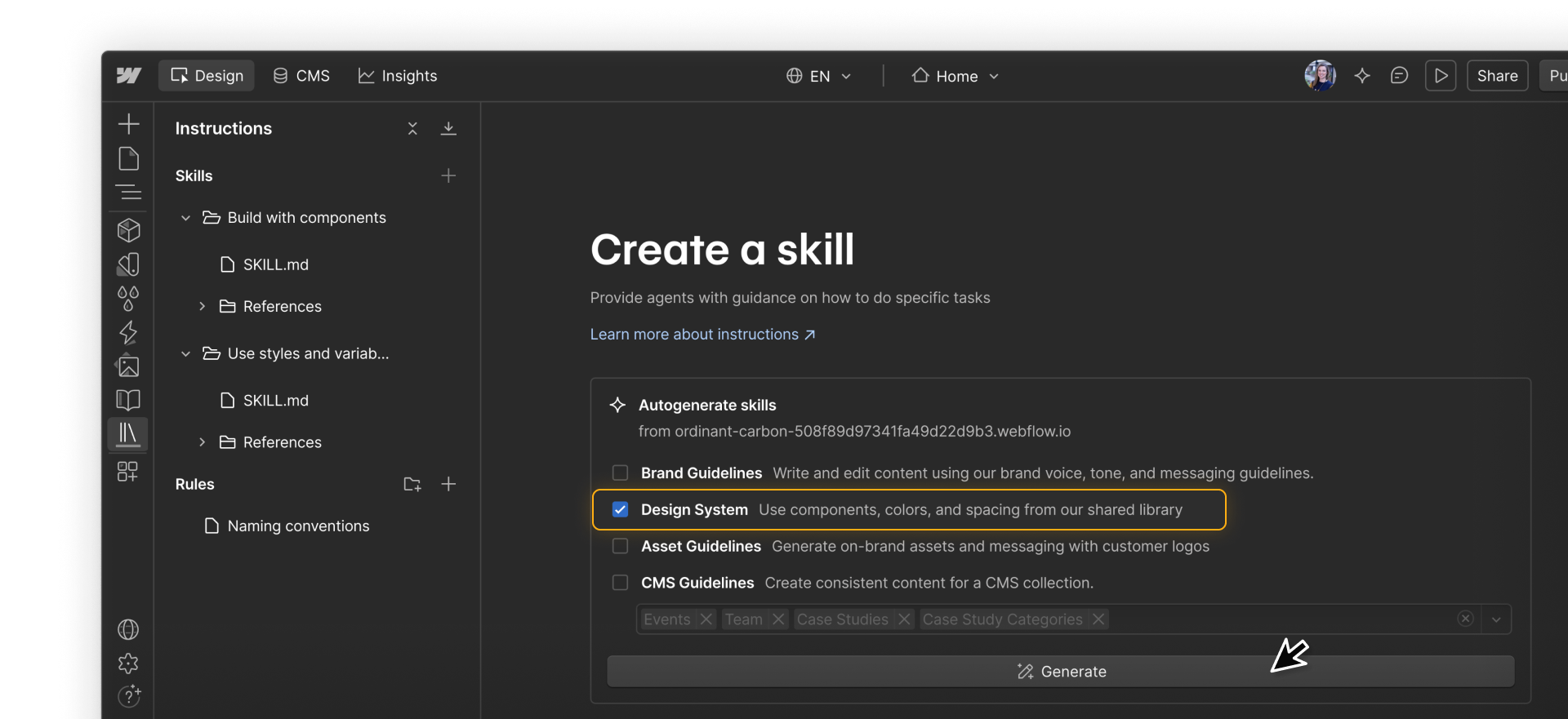
Site managers and designers can create or edit instructions. Marketers and content editors can read them, but can’t change them.
Explain your component choices
Start with the decisions someone would otherwise need to ask you about. For a design-system skill, that could include:
- When to use a component: Use Steps Section for content that explains a process, with Step Cards in its Cards slot.
- Which options to choose: Use Horizontal when a section has one or two Step Cards, and Base when it has three or more.
- What to customize: Change the heading, description, number, and image through instance properties.
- What to do when something doesn’t fit: Explain the gap and propose a change before editing a main component or creating a replacement.
Resource references link instructions directly to components, styles, and variables on your site. If you rename a component or change its properties, the reference still points to it and gives the agent its current details.
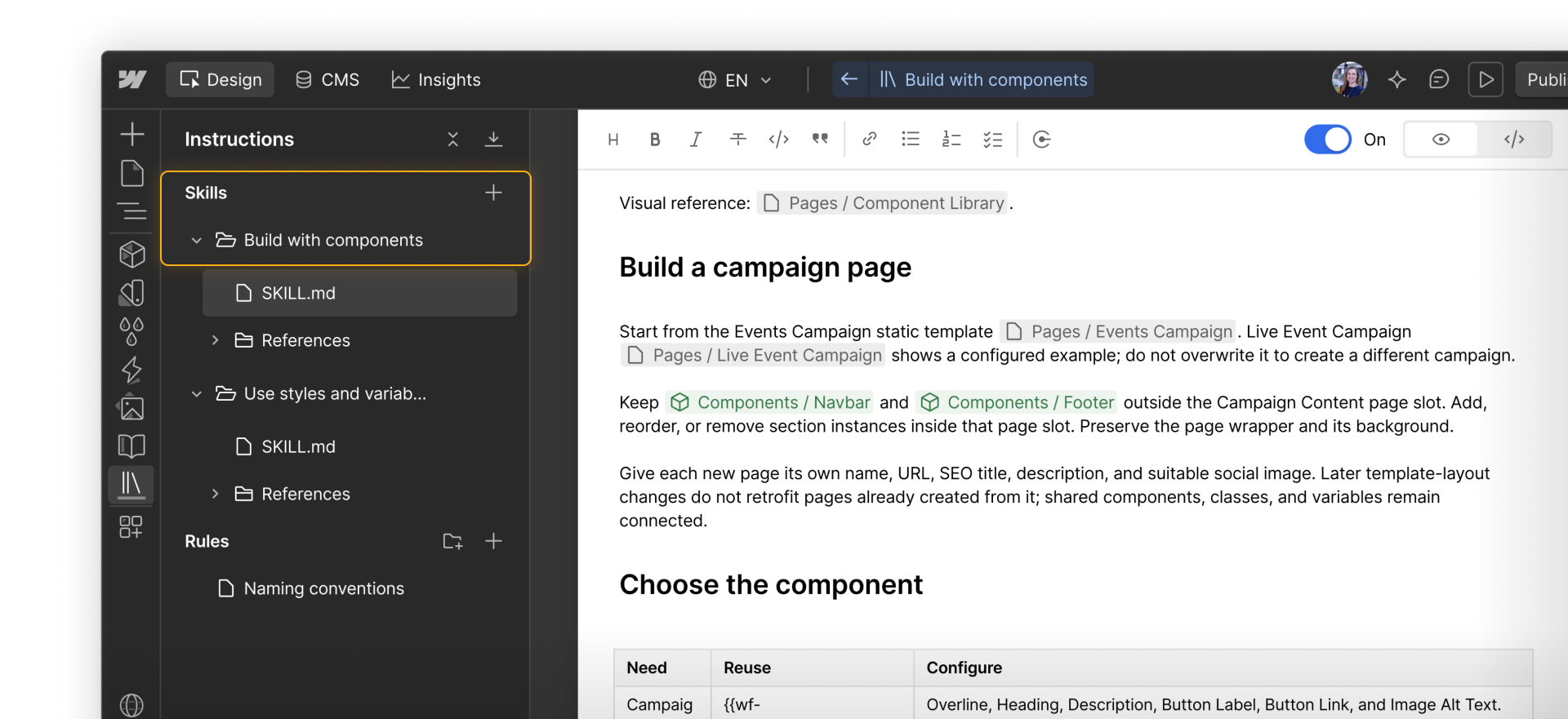
Tip. Connected agents can access your site’s instructions, but it’s a good idea to ask yours to read and follow them at the start of a new session. Mention the relevant skill by name so it knows which guidance to use.
Review the result
Ask the agent to summarize what it reused, created, and changed. Then inspect the result in Webflow:
- Did it use the intended components, properties, and variants?
- Did it reuse existing classes and variables?
- Did any changes reach shared resources or other pages?
If the same mistake keeps happening, check whether the instructions need clarification or the component needs an option it doesn’t currently offer.
Almost there
Continue to the final lesson to plan shared changes and keep your system current.