Bring in an existing site
Your design system may already exist in Figma, brand guidelines, or parts of your site. Some pieces may be ready to reuse. Others may be outdated, incomplete, or disconnected from how your team builds today.
Whether you’re building a new site, migrating, or improving an existing Webflow site, start with what you have.
Choose your starting point
The goal is to turn what you already have into resources your team can reuse in Webflow. How you get there will differ.
Starting from Figma
An agent connected to Figma and Webflow can inspect a design and use that information to create Webflow variables, styles, and components.
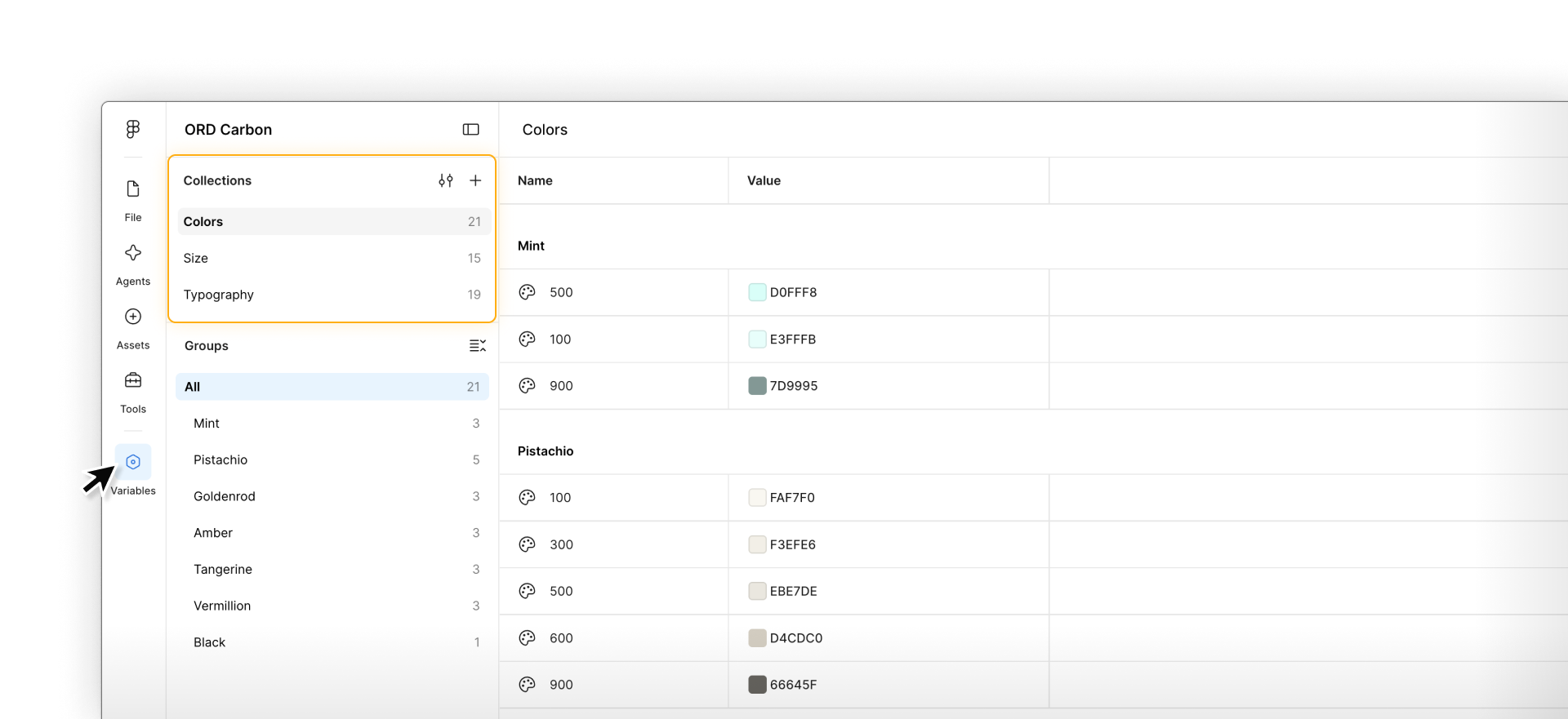
The Figma file’s structure gives it more to work with than visible styling alone:
- Variables identify shared values, such as colors and spacing. Their names, aliases, and modes can help explain how those values relate.
- Auto layout describes how elements are arranged and resize. A gap might use a spacing variable: the layout describes the arrangement, while the variable supplies the value.
- Components, variants, and properties identify repeated pieces, their design options, and content that changes between instances.
- Names and annotations explain purposes and behavior that may not be obvious from the design.
Tip. Before asking an agent to build from Figma, check layer names, reusable components, variable connections, and auto layout. Add notes for behavior the design doesn’t show.
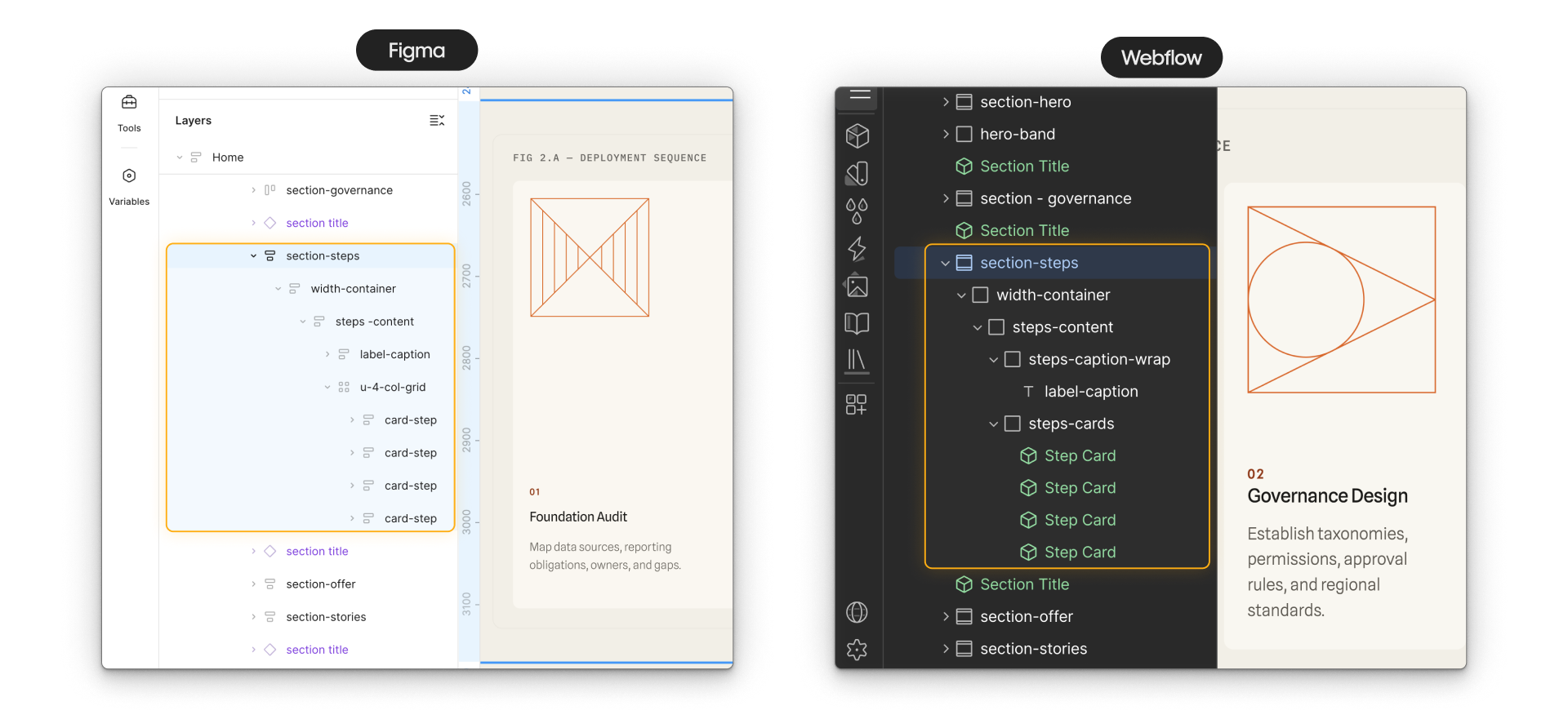
Before the agent builds, ask for a plan explaining how it would translate the design into Webflow variables, styles, and components, including editable properties and responsive behavior.
Inspect the approved Figma designs at [frame or component links] and the existing resources in Webflow site [site name or ID]. Use [guidelines link] for naming and brand requirements.
Identify the variables and styles used, repeated components, variants, editable content, and layout behavior. Propose which Webflow variables, classes, and components to reuse, adapt, or create. Preserve the purpose of aliases and modes where supported, and flag anything that needs a different approach.
List conflicts, missing information, and assumptions. Recommend a first set of reusable foundations and one representative section to build and review before expanding. Return the plan without making changes.
Migrating a site
If you’re moving a site into Webflow, you’ll probably want to keep some of its styles and layouts but update or leave behind others. Use the existing site as a reference, and tell your agent which parts should carry over.
Ask the agent to inspect a few different page types and identify:
- Design values: Colors, fonts, type sizes, spacing, and container widths.
- Repeated structures: Navigation, footers, cards, forms, and section layouts.
- Behavior: Layout changes across screen sizes, interactions, and hover states.
Tip. Give your agent access to browser or site-crawling tools, or provide exported HTML and CSS alongside screenshots. Ask it to report which pages, screen sizes, and interactions it checked, and what it couldn’t verify.
Inspect [representative page URLs] at desktop and mobile sizes, including relevant interactive states. Inventory the recurring design values, structures, and behavior, recording where each appears.
Compare the findings with [approved Figma or guidelines links]. Separate observed values from recommended standards. Flag conflicts, exceptions, and anything you couldn’t inspect.
Propose the Webflow foundations and reusable components needed for the migration. Don’t build yet; return the findings and questions for review.
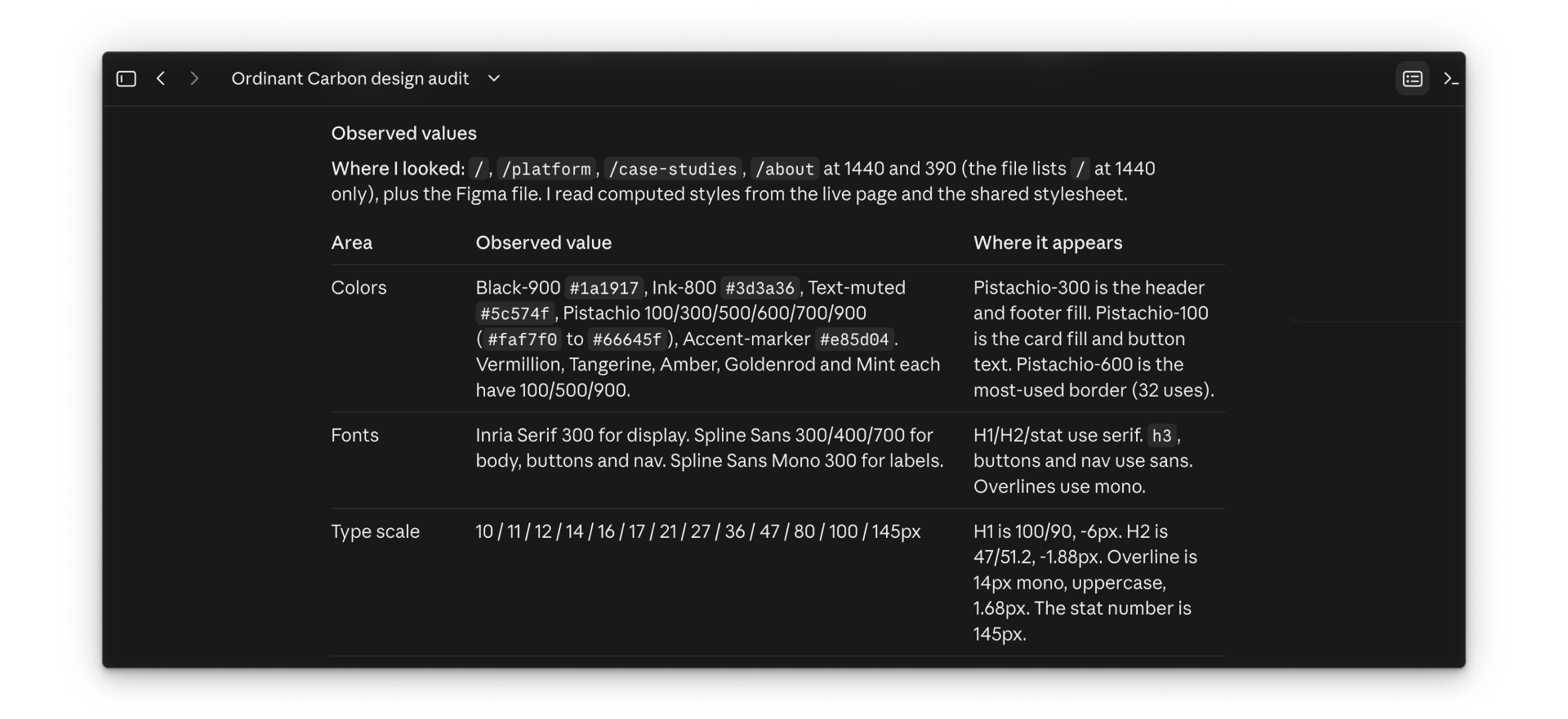
Use the findings to decide what to keep and what to change. If you’re also redesigning the site, point the agent to the approved designs or guidelines for those updates.
Improving a Webflow site
If your site is already in Webflow, check what’s there before creating more. Some components and variables may already work well. Others may be hard to find, duplicated, or missing connections between styles and variables.
Start with something that’s causing repeated issues. If an agent keeps creating new cards, is it overlooking an existing component, or does that component need another layout option? The answer helps you decide what to change.
Inspect the variables, classes, and components used on [pages or sections]. The problem we’re seeing is [specific example]. Compare the current setup with [approved references].
Identify existing resources to keep, gaps that prevent reuse, and possible duplication. Check where affected resources are used. Recommend prioritized improvements, including the first changes to test and their likely impact. Don’t rename, replace, or delete anything yet.
Use the findings to decide what needs changing. You might rename a component, connect styles to existing variables, or add a variant. Before creating something new, check whether you can adapt what’s already there.
Transition in stages
You don’t have to update the whole site at once. Older components can stay in use while you introduce replacements.
- Decide what to keep or replace. Improve an existing component if it still fits the need. Remember that changes to its main component affect existing instances. Create a replacement when the structure needs to be substantially different.
- Make the new choice clear. Mark older components with a description or group such as “Legacy,” and name their replacements. Turn off Show for Marketers if teammates should stop adding them. Existing instances stay in place.
- Replace a few instances first. Bring over their text, images, links, and any CMS connections. Check the result before continuing across more pages.
- Remove what’s no longer used. Delete the old component after replacing all its instances. Check its classes separately, since other elements may still use them.
Ask your agent to identify which pages and components its changes will affect before it starts. A new component may still share classes or variables with the old one, so check those connections before changing their styles.
Next up
Continue to the next lesson to document your system with Agent Instructions and check how an agent uses it.