Best practices for setting up your team
Set your team up for success
Adding team members to Webflow is straightforward. Setting them up well takes a little more thought — but it pays off quickly.
The decisions you make when assigning roles and permissions shape how confidently your team works, how much friction they run into, and how easily you can adapt when things change. These best practices will help you build a team structure that supports collaboration from day one.
Start with responsibilities, not job titles
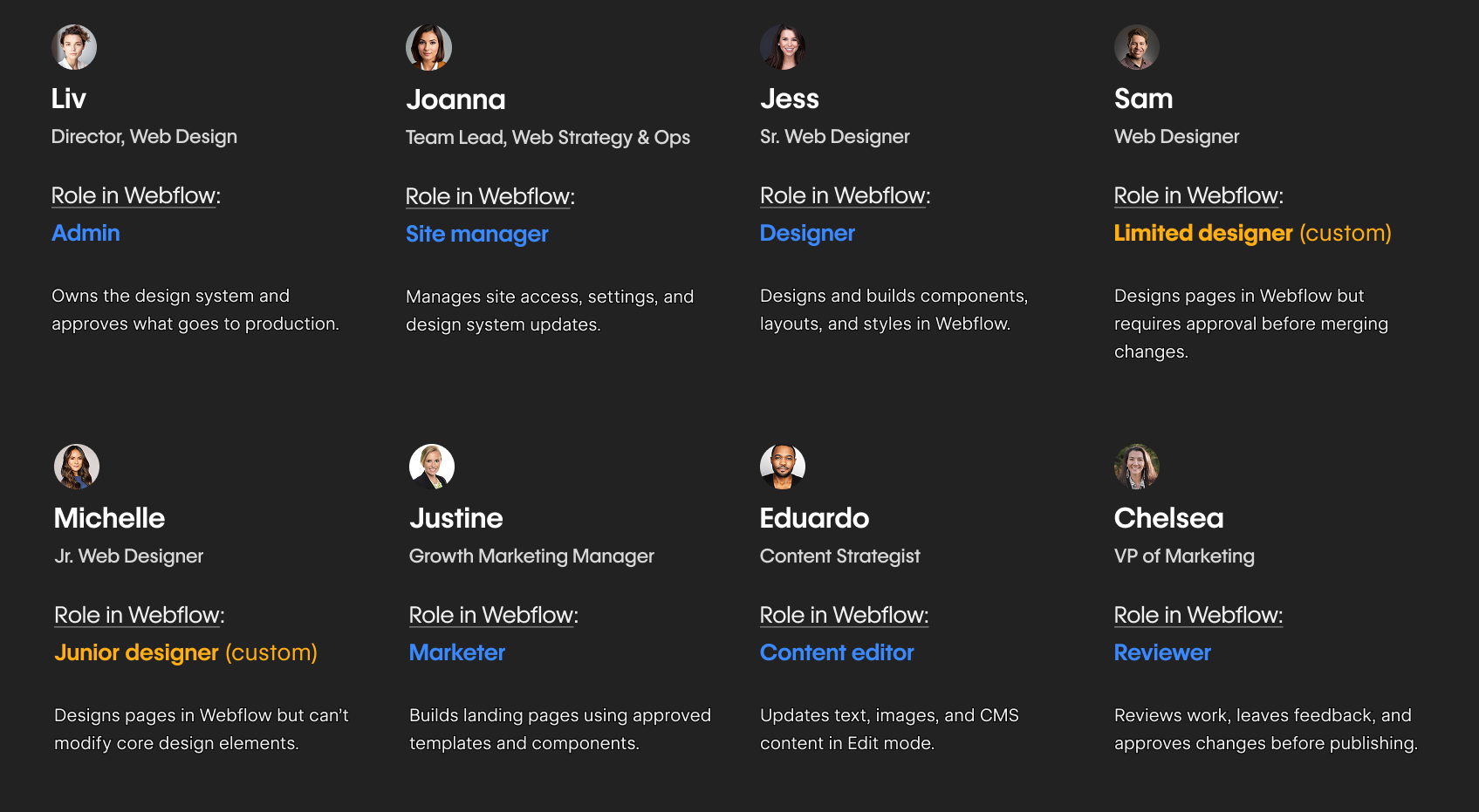
Job titles don't always map cleanly to Webflow roles. A "Marketing Manager" might need to build landing pages, edit content, or simply review and approve, depending on the team.
Before assigning roles, ask: what does this person actually need to do in Webflow?
- Do they need to build pages? → Marketer
- Do they need to update content only? → Content editor
- Do they only need to review and give feedback? → Reviewer
- Do they need full design capabilities? → Designer
Starting from responsibilities (not titles) leads to cleaner role assignments and fewer permission conflicts down the line.
Use least-permission by default
When in doubt, start with less access and add more as needed. It's much easier to expand someone's permissions than to walk back a mistake caused by too much access.
This is especially important for:
- New team members who are still learning Webflow
- External collaborators like freelancers or agency partners
- Anyone working on high-traffic or high-stakes sites
For example, giving someone a Content editor role when they only need to update copy is not a limitation — it's an important guardrail that protects both them and the site.
Avoid role inflation
Role inflation happens when too many people are assigned roles with more access than they need. The most common version: everyone gets the Designer role because it's easier than thinking through what each person actually needs.
This creates real risk. Designers have full access to the site's structure, design system, and publishing settings. When that access is handed out too broadly, accountability gets murky and the risk of accidental changes goes up.
Tip: if someone doesn't need to touch the design system, they shouldn't have access to it.
Revisit roles as your team evolves
Team structures change. People change roles, projects launch, and re-orgs happen. A role assignment that made sense six months ago might not reflect what someone actually does today.
Build in a habit of reviewing roles:
- After a major site launch
- When someone joins or leaves the team
- After a re-org or role change
- When a new project or site is added to the Workspace
A quick audit of who has access to what (and whether it still makes sense) can prevent a lot of problems before they start.
Consider your current setup
Now that you have a framework for setting up your team, take a moment to think about where things stand today:
- Are there teammates with more access than they actually need?
- Are roles assigned based on job titles, or based on what people actually do in Webflow?
- When did you last review your team's roles and permissions?
You don't need to overhaul everything at once. Even one or two intentional adjustments can make a meaningful difference in how smoothly your team collaborates.
Ready for more?
Next, we'll shift focus to design workflows, starting with what Designers own and how their decisions set the foundation for everyone else on the team.