Commenting & approval workflows
Feedback works best in context
When feedback lives outside the site (e.g. in emails, Slack threads, or shared docs), things get lost. Comments get misinterpreted without visual context. Changes get made based on outdated feedback. Teams spend more time tracking down what was said than acting on it.
Webflow keeps feedback where it belongs: directly on the canvas, tied to the exact element it's about. That's what makes review workflows actually work at scale.
Everyone has a role in review
Review isn't just for Reviewers. Depending on the change and the team, anyone might participate — a Designer reviewing a branch before it merges, a Marketer checking a page before it goes live, a Content editor confirming copy changes, or a stakeholder signing off before launch.
What changes is the level of access each person has, and the tool they use to give feedback.
The Reviewer role
The Reviewer role is specifically designed for team members whose only job is to look and respond — not to build or edit.
A Reviewer can:
- View the site on the canvas
- Leave, reply to, and resolve comments
- Approve or request changes on page branches (on Enterprise plans)
A Reviewer cannot make any changes to the site — content, structure, or otherwise.
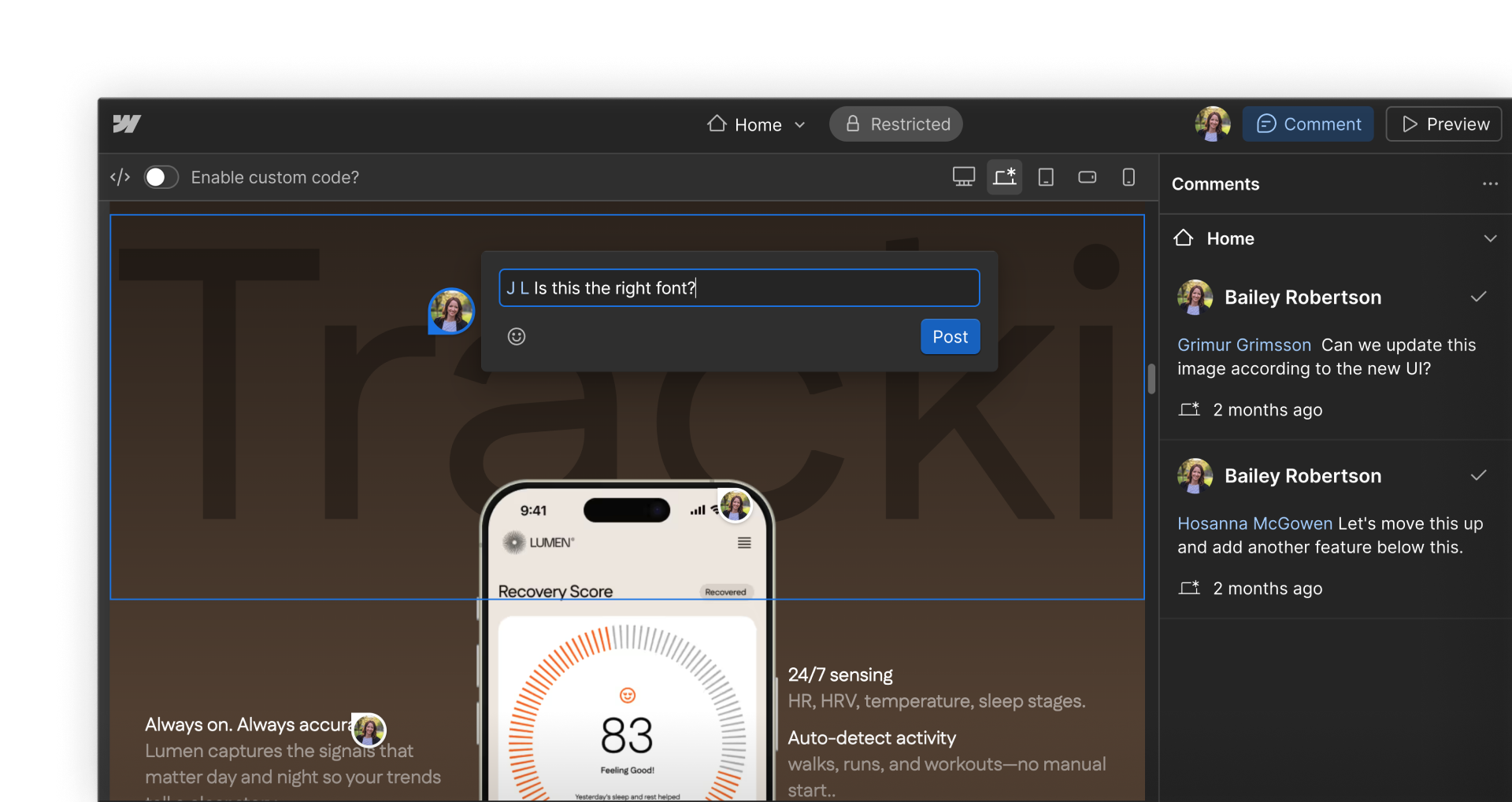
This makes the Reviewer role ideal for stakeholders who need visibility without risk — A CMO who needs to sign off before launch, a legal team member reviewing copy for compliance, or a client who wants to see progress. All of these people can participate meaningfully in the review process without any chance of accidentally changing something.
Enterprise feature: Design approvals are available on Enterprise plans. See our pricing page to learn more.
Comment-only links
Not every reviewer needs a Webflow account. For occasional or one-off reviewers, comment-only links let anyone view the site and leave feedback without signing up.

This is useful for external partners, clients without a Webflow seat, or stakeholders who only need to review once or infrequently. Comment-only links give you a way to include more voices in the review process without expanding your seat count or Workspace access.
Comments vs. approvals
Webflow has two distinct review mechanisms, and they serve different purposes.
- Comments are informal and conversational. They're how teams give and receive feedback asynchronously, directly on the canvas. Flexible, lightweight, and useful for all kinds of changes — big and small.
- Approvals are formal and enforced. They're part of the page branching workflow and require a designated reviewer to explicitly sign off before a branch can be merged. Nothing moves forward without approval.
For most teams, comments handle the majority of review needs. Approvals come into play when the stakes are higher — when changes need a formal gate before they go anywhere near production.
Enterprise feature: Design approvals are available on Enterprise plans. See our pricing page to learn more.
Ready for more?
Now that you have a clear picture of who participates in review and how the tools fit together, let's see commenting in action.