Setting content editors up for success
Best practices
Content editors work within the structure you build. The clearer and more intentional that structure is, the more confidently they can work — without second-guessing what they're allowed to touch, or worrying about accidentally breaking something.
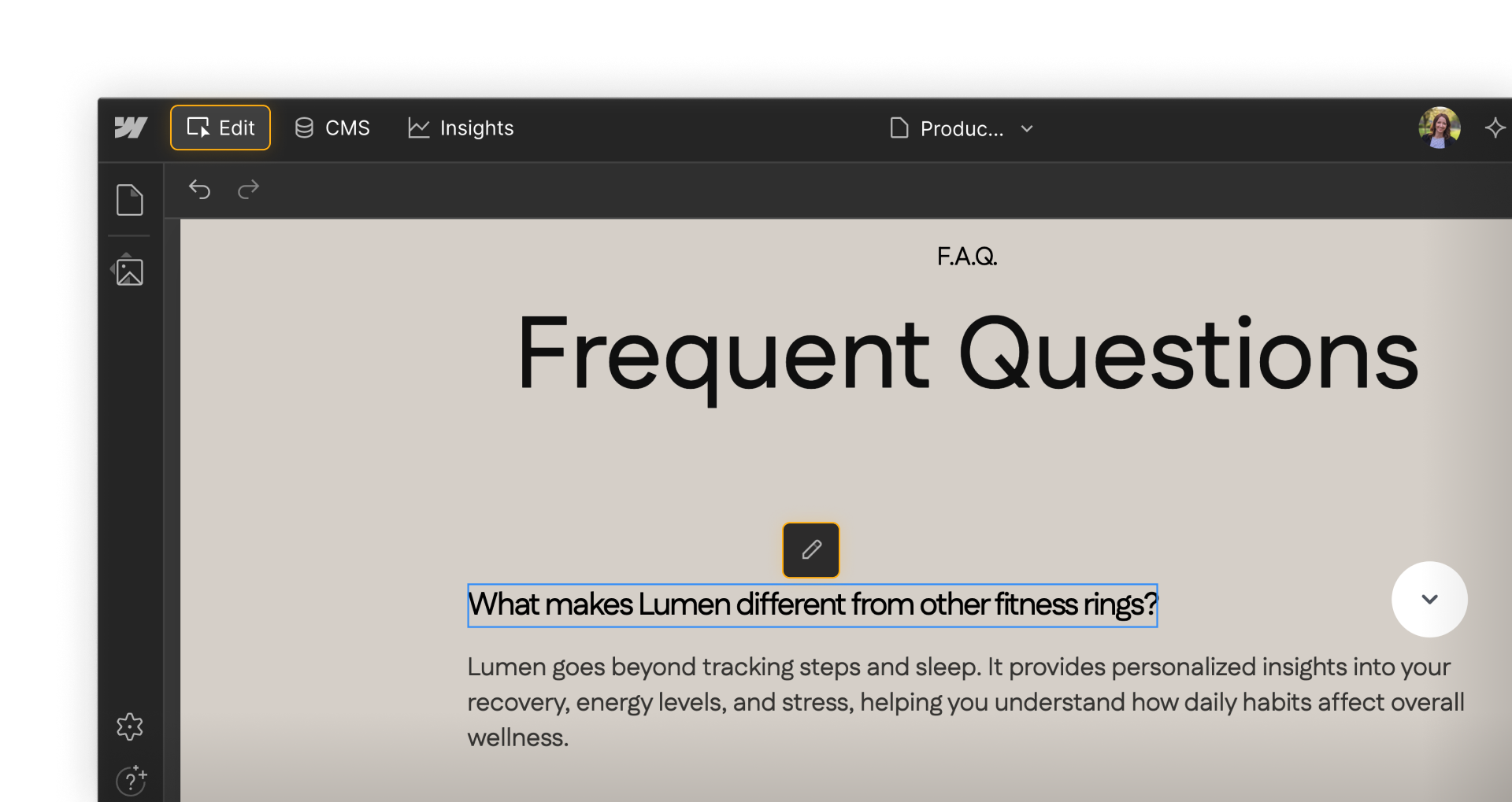
Make editable content easy to find and update
Content editors use content editing, which surfaces editable content directly on the canvas. The easier it is to identify and access that content, the faster they can work.
- Keep static content clearly structured: Content editors can edit any static text or image on a page. If your page structure is complex or deeply nested, it can be hard for a Content editor to find and select the element they need. Clear, logical page structure makes editing faster and less frustrating.
- Connect CMS content to the right collections. Content editors can create and edit CMS items directly in the CMS or on the canvas. Make sure your collections are named clearly and structured logically — a Content editor shouldn't have to guess which collection a piece of content belongs to.
- Use descriptive field names in your CMS. When a Content editor opens a CMS item, they see a list of fields. If those fields are named generically — "Field 1", "Text block", "Image" — it's hard to know what each one is for. Use descriptive, specific field names that make the purpose of each field obvious.
Set clear expectations
Content editors can edit content — but they can't adjust layout, styling, or classes. That boundary is enforced by Webflow, but it helps to make it explicit so Content editors understand why certain things aren't available to them.
Before a Content editor starts working on your site:
- Walk them through the pages and collections they'll be working with
- Show them how to use the CMS and where to find the content they need to update
- Clarify which fields and elements are theirs to edit — and which aren't
- Let them know who to contact if they need something outside their access
A brief onboarding conversation prevents a lot of confusion and builds the confidence Content editors need to work independently.
Think carefully about publishing permissions
By default, Content editors can publish individual CMS items. Whether that's appropriate depends on your team's workflow and risk tolerance.
For teams with a more controlled publishing process, consider restricting CMS publishing permissions so Content editors can draft and queue content without publishing it directly. This keeps a Designer, Site manager, or Admin in the loop before anything goes live.
On Enterprise plans, custom roles give you even more granular control — you can create a Content editor role that can author content but cannot publish anything at all.
Feeling good?
Now that we’ve covered how to set Content editors up for success, let's look at how teams give and receive feedback directly in Webflow.