Setting Marketers up for success
Best practices
The more intentional you are as a Designer, the more independently your Marketer can work. And the more independently your Marketer can work, the less your team relies on you for every page launch.
Here are some best practices to consider to set your Marketers up for success.
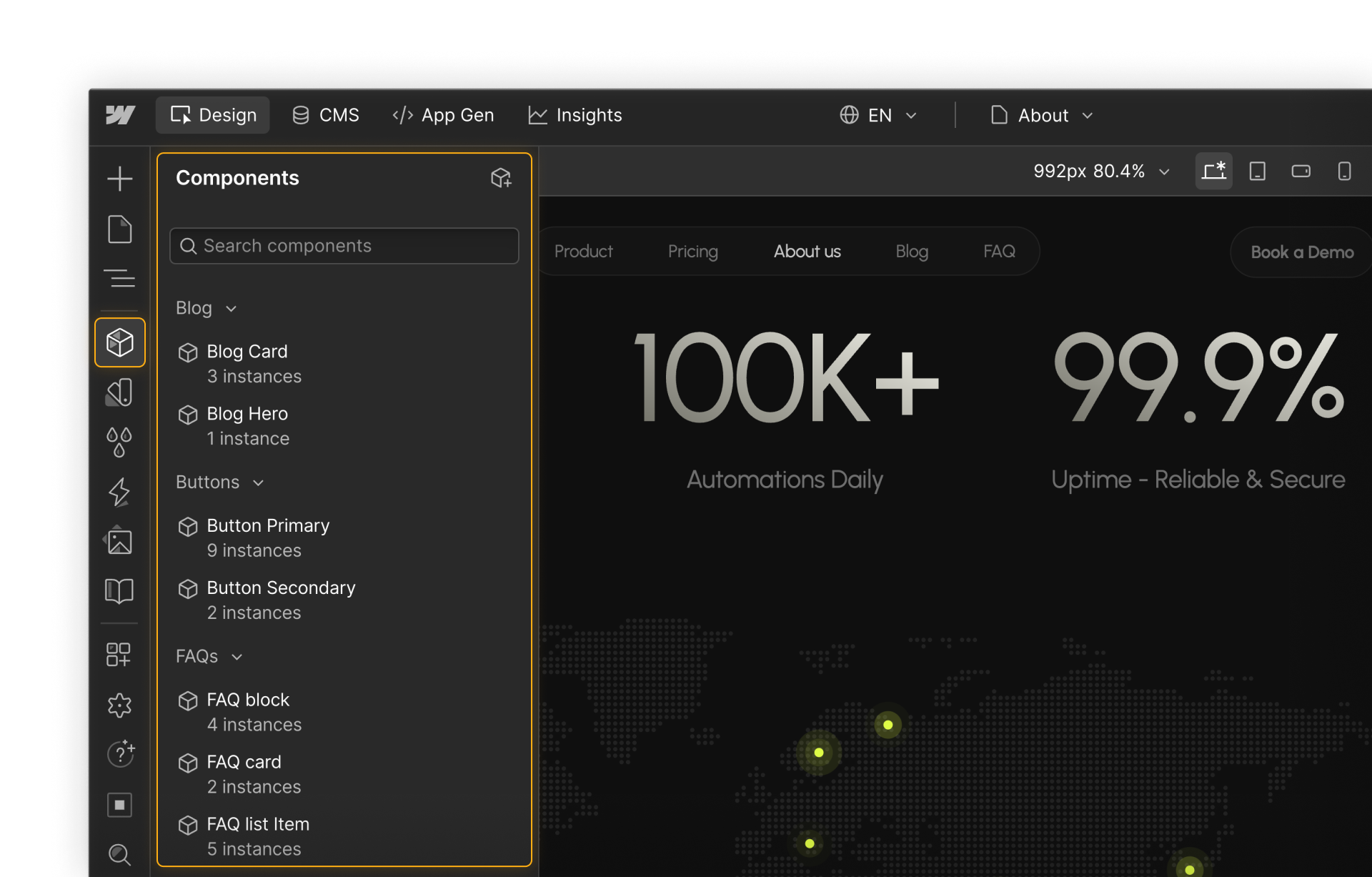
Build a component library your Marketer can actually use
Components are the building blocks Marketers use to assemble pages. How you build them determines how much your Marketer can do on their own.
Before building your component library, it's worth deciding on an approach that fits your team's needs. There are two common frameworks:
- Full sections and layouts: pre-built, complete page sections that give Marketers a fast starting point with stricter brand control
- Modular components: smaller, flexible building blocks that can be combined in more ways, giving Marketers more layout flexibility with a smaller CSS footprint
Both approaches work well. The right choice depends on your team's skill level, how much flexibility your Marketers need, and how tightly you want to control brand consistency.
Think in sections
The most reusable components are self-contained sections — a hero, a feature grid, a CTA, a footer. When each component represents a distinct section of a page, Marketers can mix and match to build layouts without needing design knowledge.
Name and organize components clearly
A component library is only useful if people can find what they need. Give each component a clear, descriptive name that reflects its purpose. Group related components together and add descriptions where the use isn't immediately obvious. When a Marketer opens the component panel, they should be able to identify and use what they need without guessing — or asking.
Create and connect props for editable content
Properties are what make components flexible without making them fragile. Connect props to any element you want your Marketer to be able to edit — headlines, body copy, images, CTAs. Without props, a Marketer can't edit component content independently, which defeats the purpose.
.png)
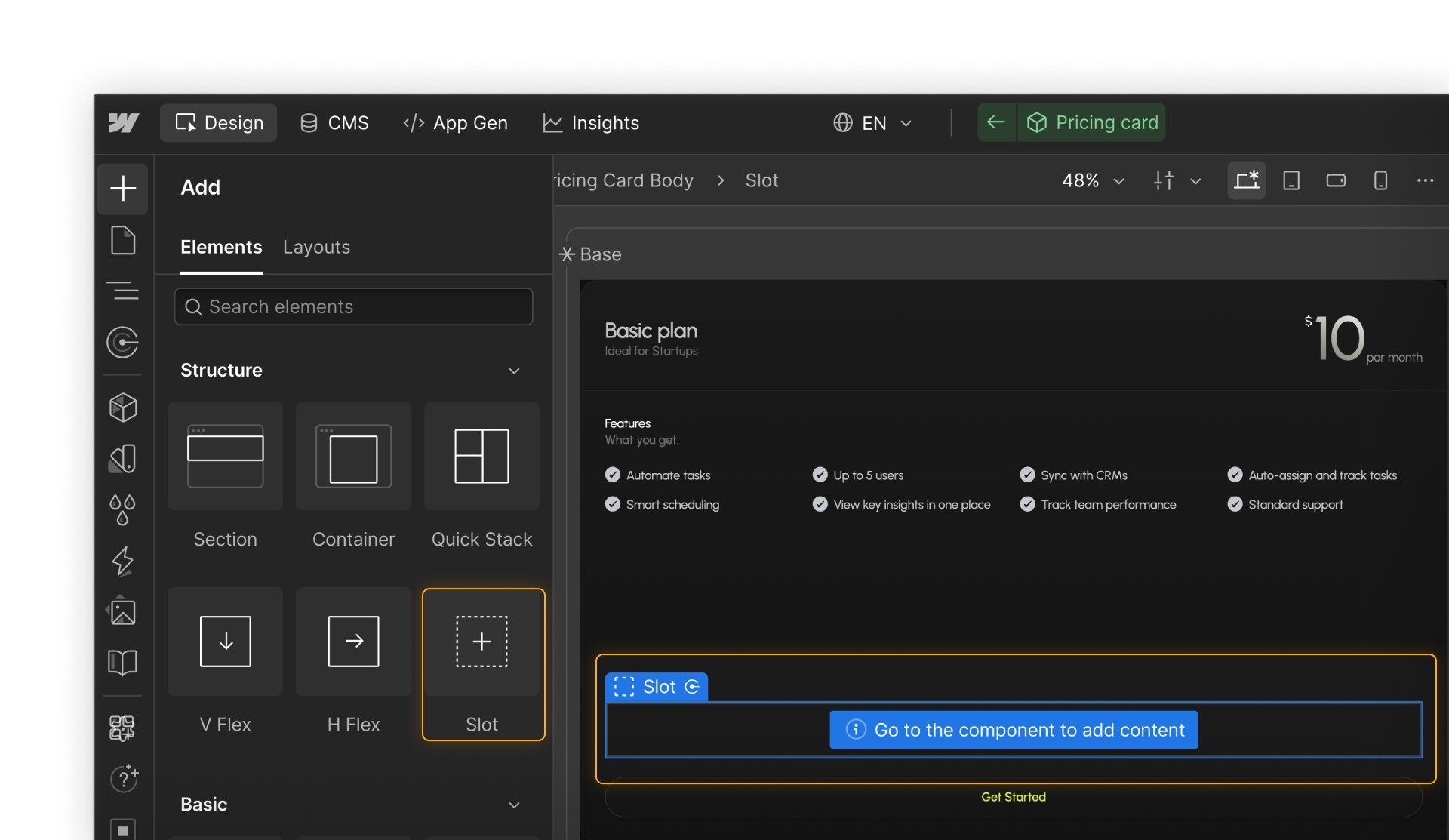
Use component slots for flexibility
Slots allow Marketers to place components inside other components, giving them more flexibility while still working within your design system. Used well, slots expand what a Marketer can build without expanding the risk of design drift.
Set up static page templates for recurring page types
Page templates give Marketers a starting point. Instead of building from a blank page every time, they start from a structure you've already approved — which means faster launches and more consistent results.
This is especially useful for recurring page types: event pages, campaign landing pages, product pages. The template handles the structure. The Marketer handles the content.
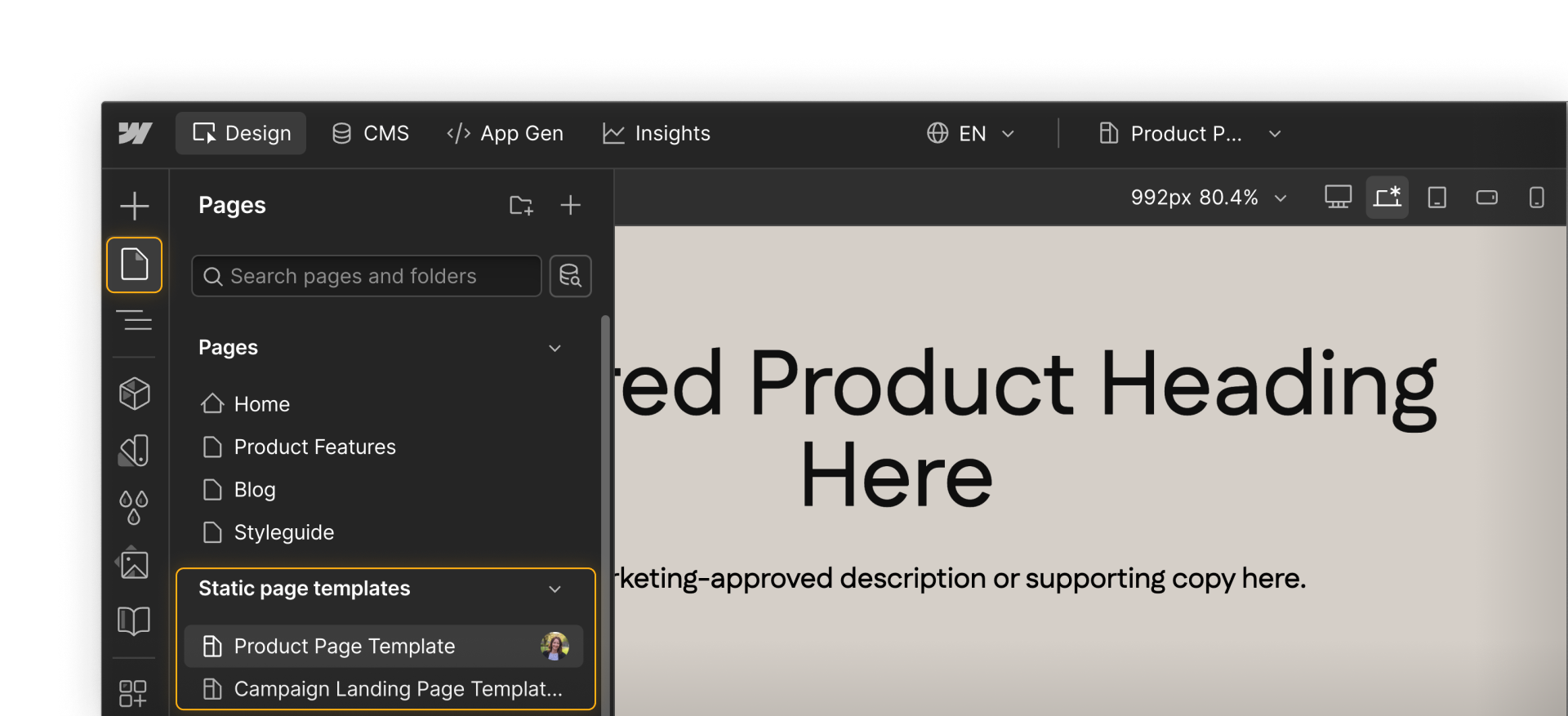
When setting up a template:
- Include components that should always be present — navigation, footer, key brand sections
- Add page slots to indicate where Marketers can place additional components
- Write a clear name and description so the template's purpose is obvious to anyone using it
Starting from a template whenever possible is a best practice — static page templates inherit SEO and meta settings automatically, so you're never missing essentials when launching a new page.
Feeling good?
Now that we’ve covered how to set Marketers up for success, let's look at how content editing works in Webflow.