Staging your changes before production
Preview first, then stage
Preview mode is useful while you’re building. It lets you quickly check layouts, breakpoints, interactions, and animations without leaving the Designer.
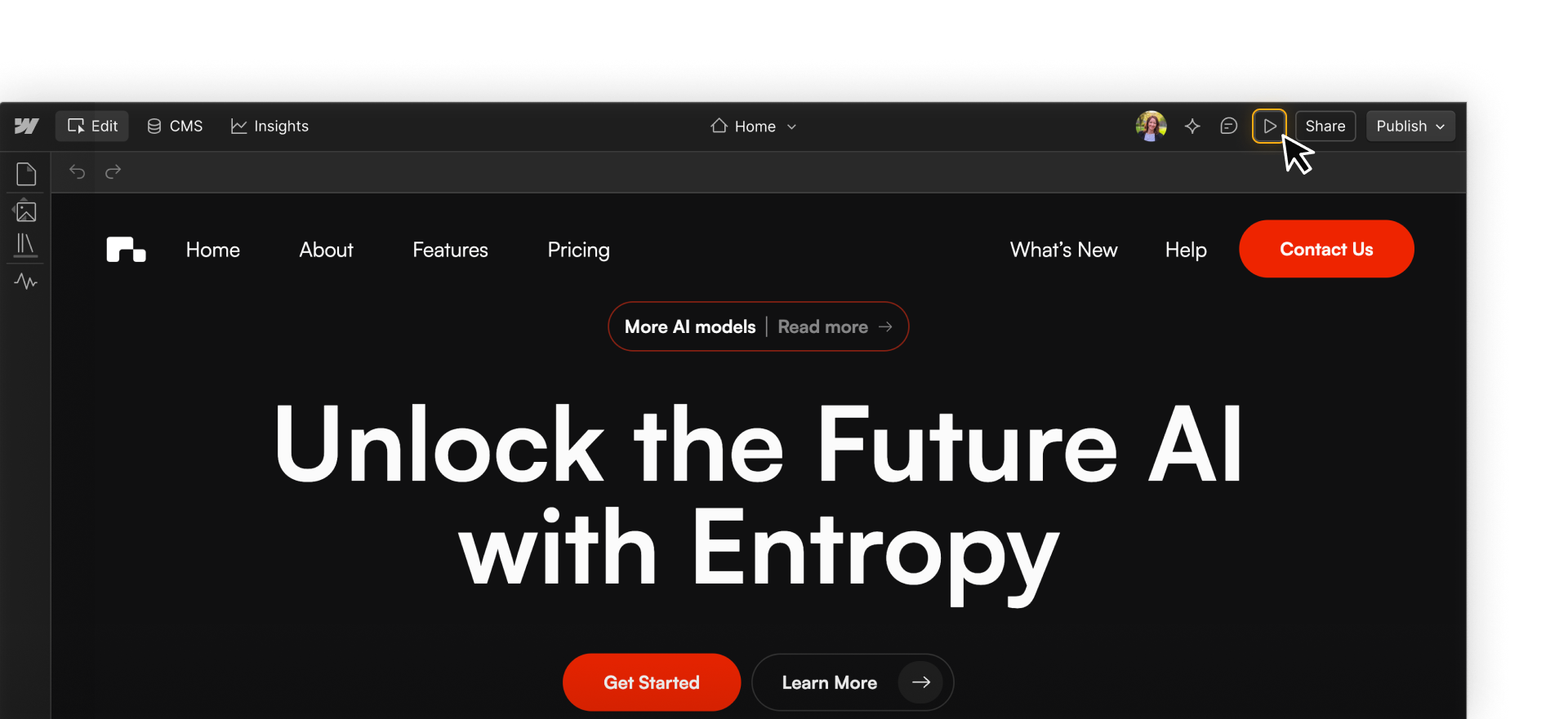
Staging is the next step.
When you publish to staging, Webflow creates a published version of your site that your team can review before anything reaches your production domain.
That makes staging useful for testing things that are easier to evaluate in a published environment like forms, links, interactions, custom code, responsiveness, and performance.
Preview
Use preview while you build to quickly check how the site looks and behaves inside Webflow.
Staging
Use staging when you need to review the site in a published environment before moving changes to production.
Your staging site
Publishing to staging creates a live version of your site on its staging domain without affecting your production site.
That gives your team a place to review changes exactly the way a visitor would experience them before anything becomes public.
You can use staging to click through pages, test links and forms, check responsive layouts across devices, review interactions and animations, and gather feedback or sign-off.
.png)
The important distinction is that your site is published to your staging domain, but not your production domain.
How changes move through Webflow
Think of your publishing flow in three stages:
- Your site: where your team is actively making changes
- Staging: where those changes can be reviewed in a published environment
- Production: the live site your visitors see

Changes don’t move from one stage to the next automatically.
You decide when to publish to staging, and you decide when those reviewed changes are ready to move to production.
That gap between staging and production is useful on purpose. It gives your team a checkpoint to review work before it reaches your audience.
Use staging as a review step
A strong publishing workflow doesn’t treat staging as a formality.
Before moving changes to production, use staging to review anything that could affect the live experience — especially larger updates, changes involving multiple teammates, or work that needs stakeholder approval.
Not every review needs the same workflow.
Teammates and stakeholders can also leave comments directly in Webflow, and Reviewers can preview and provide feedback without editing the site. For work that needs more isolation or formal approval, you can use page branching and approvals.
Preview, feedback, and staging each serve a different purpose:
- Preview while you build
- Gather feedback as work takes shape
- Use staging to check the published experience before production
Staging won’t decide whether a change is ready for you, but it gives your team a safer place to make that decision.
Additional staging controls
For Enterprise users, you can also add more control to your staging environment:
Private staging
Private staging lets you require authentication before someone can view your staged site.
Custom staging domain
Custom staging domains let you use your own staging domain instead of the default Webflow staging domain.
These options can be useful when your team needs tighter control over who can access in-progress work.
Enterprise plan required. Private staging and custom staging domains are available on select Enterprise plans.
Ready to continue?
Next, you’ll see how page branching and approvals give your team another way to isolate and review work before it reaches production.