Key details: Single-page publishing
Single-page publishing
Single-page publishing is useful when one page is ready and the rest of your site isn’t.
You saw the workflow in the previous lesson. Now let’s look at a few details that matter when you start using it.
Before you can use single-page publishing, your site needs to have been published at least once with a full-site publish. After that, you can publish individual pages as needed.
What exactly gets published when I publish a single page?
Say you are working on updating your Pricing page, and you made the following changes:
- Adjusted the design layout of the pricing section to include a new card for another pricing tier
- Updated the SEO meta description to reflect the pricing update
- Updated the text on the cards to reflect the new pricing
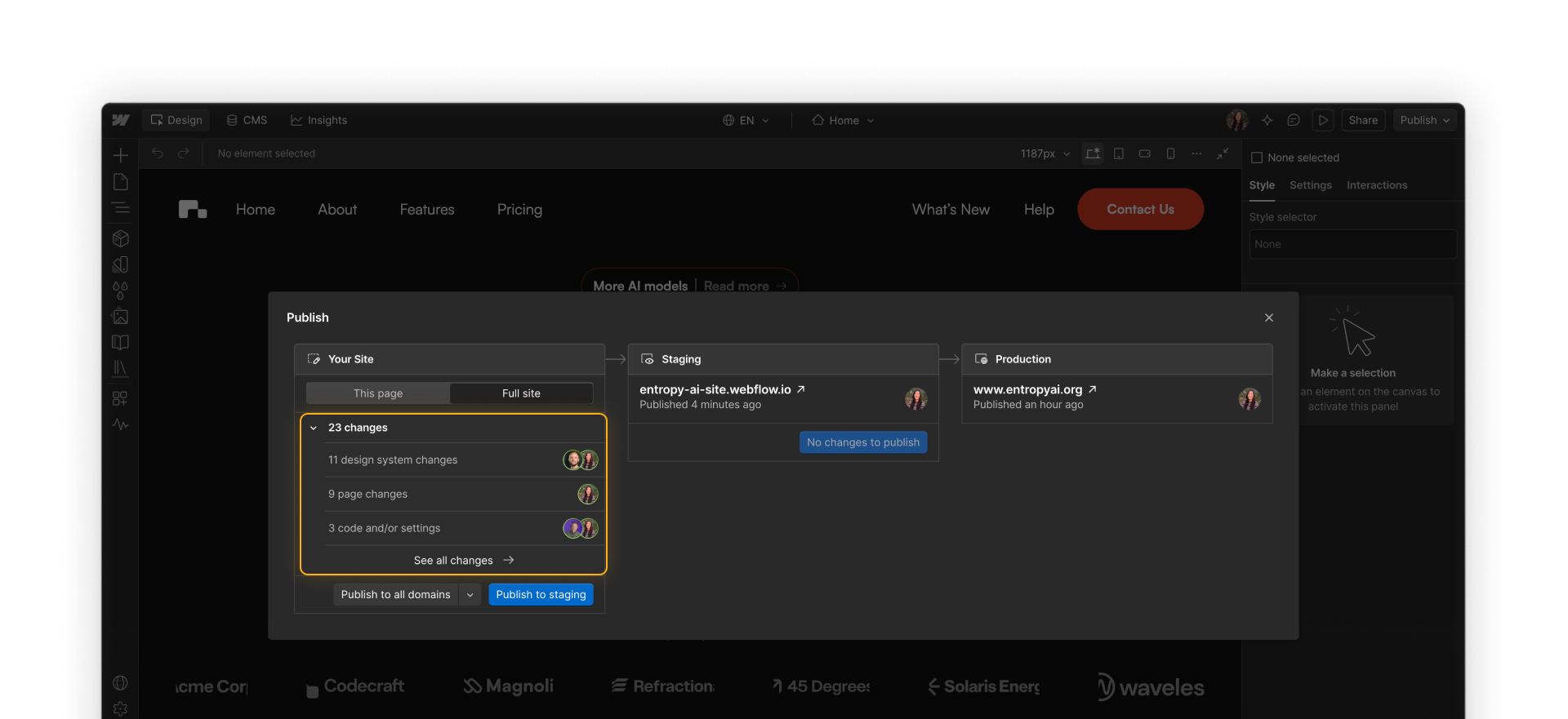
When you publish that page, all of those changes go live with it.
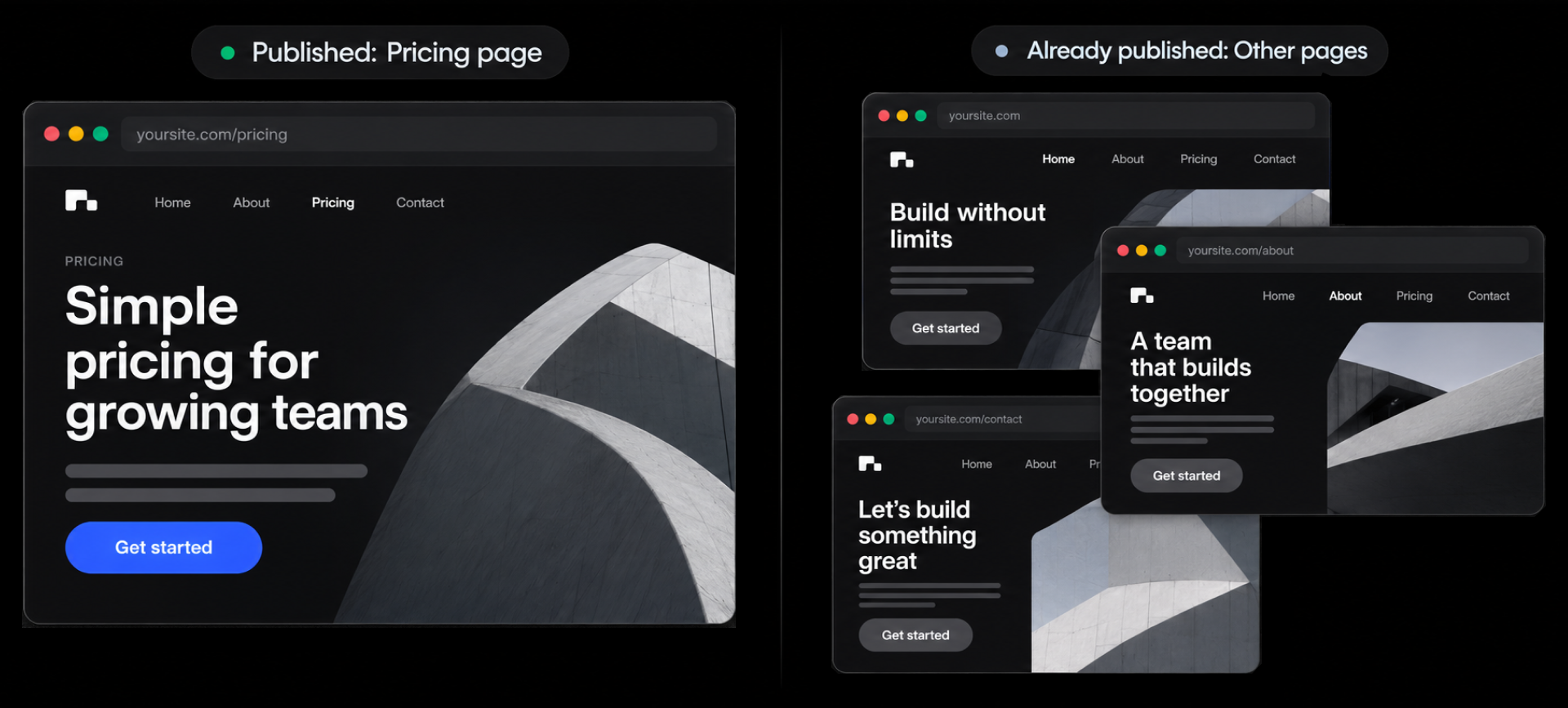
Now say you also change a global button style while working on the Pricing page. That same button might also appear on your Home, About, and Contact pages.
When you publish only the Pricing page, the new button style only goes live on the Pricing page. The Home, About, and Contact pages keep the previously published button style.
Webflow flags shared changes like components, variables, styles, and interactions in the publish summary so you can see when this is happening.

If you want to roll out the change one page at a time, that works. If you want every instance of that shared change updated at once, use a full-site publish.
To recap, here’s a summary of what does and does not get published when you publish a single page:
What gets published
- page content and design changes
- page-level settings, including page-level custom code
- localized versions of the page
- Optimize variations on the page
- shared styles, components, variables, and interactions as they appear on the page you publish
What doesn’t get published
- CMS item data that isn’t set to ‘queue for publish’
- site-level settings, such as fonts and site-wide custom code
- redirects
- updated versions of shared changes on pages you haven’t published
To update CMS content, publish the Collection item or your full site. To publish site-level changes or synchronize shared changes across the whole site, use a full-site publish.
Be intentional when moving from staging to production
You can publish a single page to staging first to review it in a published environment before it goes live.
.png)
But after that review, pay attention to where you publish from.
Say you publish the Pricing page to staging. While you’re reviewing it, other changes may also be published to staging.
When you’re ready to move the Pricing page to production, you have two choices:
Publish only the Pricing page
Return to Your site, select the Pricing page, and publish it directly to production.

Publish everything currently in staging
Choose Publish to production from the Staging column. This sends everything currently staged to production — not just the Pricing page.
.png)
Tab 3 Heading
Lorem ipsum dolor sit amet, consectetur adipiscing elit, sed do eiusmod tempor incididunt ut labore et dolore magna aliqua. Ut enim ad minim veniam, quis nostrud exercitation ullamco laboris nisi ut aliquip ex ea commodo consequat. Duis aute irure dolor in reprehenderit in voluptate velit esse cillum dolore eu fugiat nulla pariatur.
Publishing from Staging publishes everything currently staged. If you only want one reviewed page to go live, return to Your site and publish that page directly to production.
The key distinction is scope:
- Publishing from Your site lets you choose the page you want to send live.
- Publishing from Staging moves the full set of staged changes to production
Use staging to review a focused change, then choose the publishing path that matches what you actually want to send live.
Ready for more?
There’s one more publishing track to understand: CMS content. Next, you’ll see how publishing an individual CMS item works — and why it’s different from publishing the Collection page that displays it.