Publishing options in Webflow
Publishing in Webflow
Publishing doesn’t always mean sending your entire site live at once.
Depending on what changed, you might publish:
- Your full site
- A single static page
- An individual CMS item
You can also choose whether that work goes to staging for review or straight to production.
The key is understanding the scope of each option — what moves, and what stays where it is.
Your publishing interface may look different.
This course primarily shows the Publishing worfklow, which is available on Platform plans.
If you’re not on a Platform plan, you’ll see this publishing modal instead. The core publishing concepts in this course still apply, but some options, labels, and screenshots may differ.
Staging and production
Before you choose what to publish, it helps to know where you’re publishing it.
- Staging gives your team a published version of the site to review before changes reach your public domain.
- Production is your live site — the version visitors see.

You’ll take a closer look at staging later in the course. For now, think of it as a checkpoint before production.
Publish the full site
A full-site publish sends all publishable changes live together.
That can include changes to pages, CMS content, site-level settings, redirects, fonts, etc.
A full-site publish makes sense when your changes need to move together — for example, after a larger redesign, a navigation update, or work that affects multiple areas of the site.

Publish a single page
Sometimes one page is ready before everything else.
Single-page publishing lets you publish that page without publishing the rest of the site.
Say your Pricing page needs an urgent update, but your team is still working on the homepage. You can publish the Pricing page on its own and leave the unfinished work where it is.
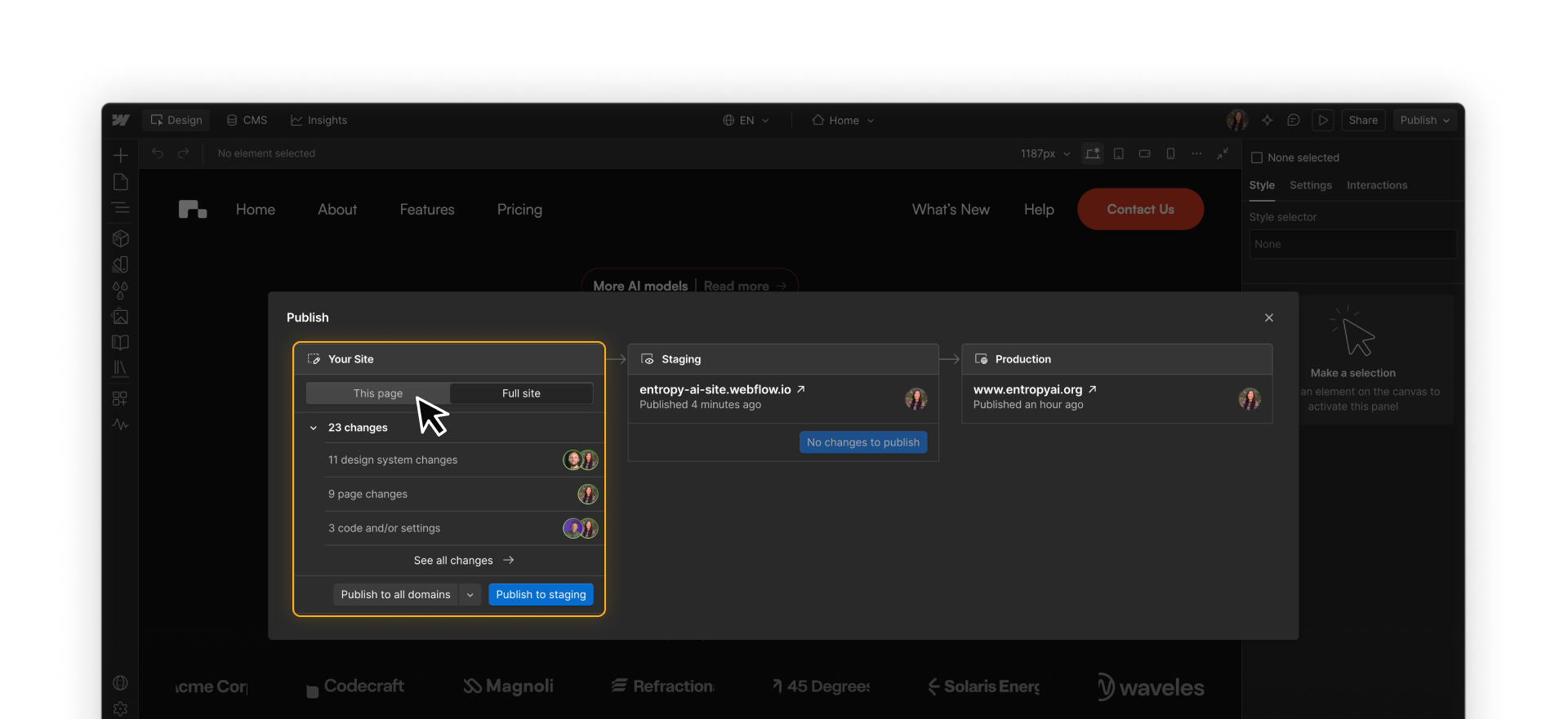
Platform plan required. Single page publishing is available on Platform plans.
Publish a CMS item
CMS items have their own publishing flow.
If your team creates a new blog post, for example, you can publish that Collection item without republishing the Collection page template or Collection list that displays it.

Choosing the right scope
Publish the full site
Use this when changes span multiple areas of the site or need to move together.
Publish a single page
Use this when one page is ready to move forward independently.
Publish a CMS item
Use this when you’re updating CMS content without changing the page template that displays it.
Later in the course, you’ll look at what to do when work isn’t ready to publish yet, including drafts, branching, and staging workflows.
These same publishing options apply when work is published through an AI tool connected to Webflow. The publishing method stays the same, even if the person or agent initiating it is different.
Ready for more?
Next, you’ll look at who can use each of these publishing options and how publishing permissions work across your team.