Monitoring published changes
Use the Site Activity log to trace changes
When something changes on a busy site, the first question is usually: What happened?
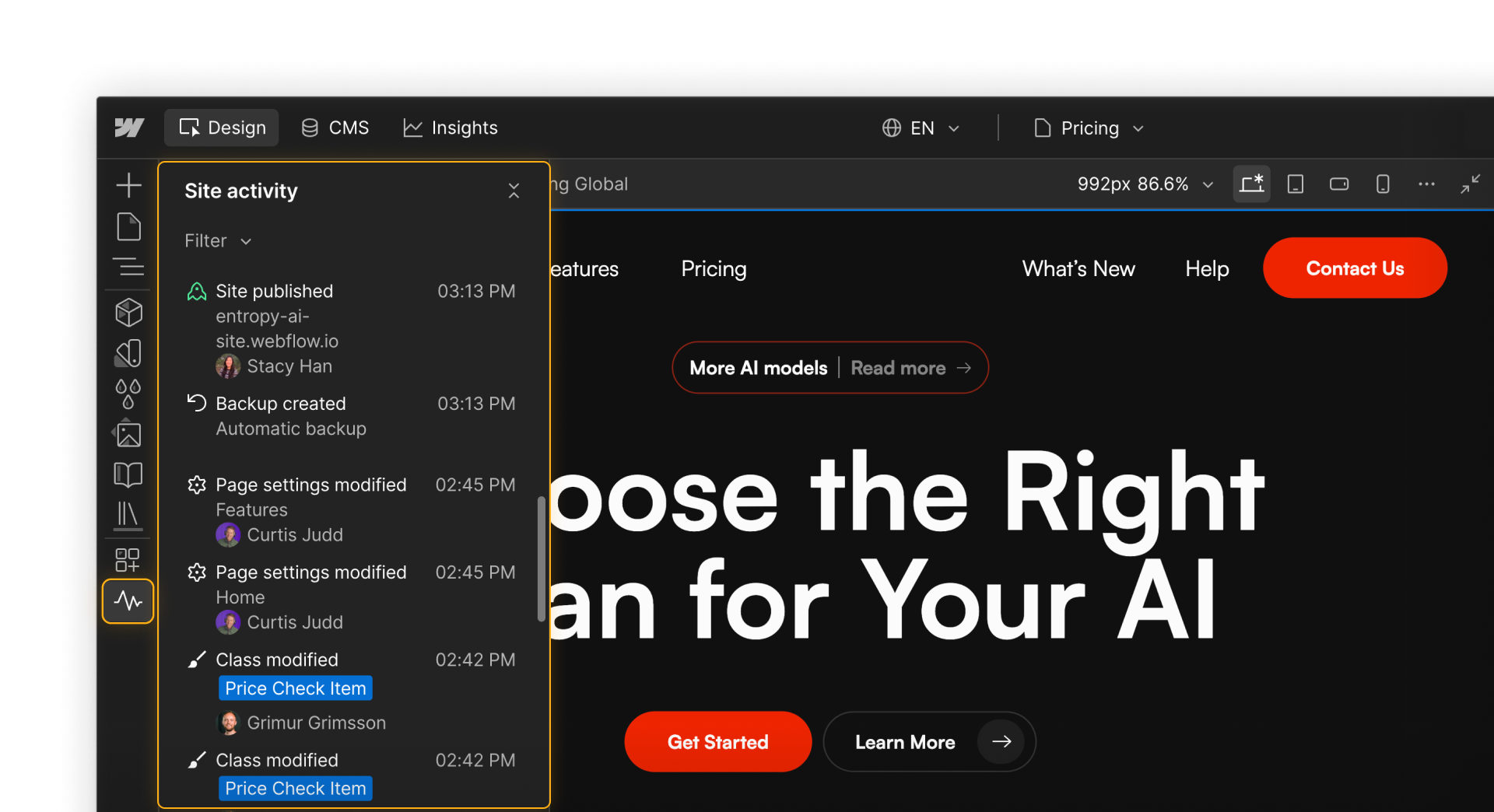
The Site Activity log gives you a running record of major activity across your site, including who made a change and when it happened.
Use it to investigate recent changes, understand publishing activity, and see what different teammates have been working on.
Platform plan required. The Site Activity log is available on Platform plans.
What can I find in the Site Activity log?
The Site Activity log tracks activity across many parts of your site, including design updates, CMS activity, page settings, publishing events, and other site-level changes.
Each entry gives you context about the activity, including when it happened and who initiated it.
That makes the log useful for answering questions like:
- What changed recently?
- Who made the change?
- Was something published?
- Where should I start looking if something seems wrong?
If your team uses AI or MCP-connected tools, source information can also help you understand where activity came from.

Important:
One thing to keep in mind:
The Site Activity log records that an activity happened, but it won’t always show the exact before-and-after value of every change.
If a class was modified, for example, you may see that the class changed without seeing every individual property value that changed.
Use it to narrow down what happened and where to investigate next.
Use filters to narrow things down
On a busy Enterprise site, the full activity stream can get noisy.
Filters help you get from “something changed” to the activity you actually care about. You can filter by things like:
- Location — focus on the page you currently have open
- Changes — see unpublished changes, changes published to staging, or changes published to production
- Activity type — narrow the log to CMS, classes, components, variables, custom code, backups, branches, publishing, and other activity
- Author — see activity from a specific teammate
- Source — distinguish activity from sources such as Webflow AI or Webflow MCP

That makes the log useful both before and after a publish.
Before publishing, it can help you understand what work is still pending.
After publishing, it gives you a place to start if something unexpected appears in production.
The Site Activity log isn’t version control
The Site Activity log helps you understand what happened. It doesn’t replace the tools you use to review or restore work.
Site Activity log
Use it to investigate activity and understand the sequence of events.
Backups
Use them when you need to return the site to a previous state.
For work that still needs feedback or approval, use comments and design approvals before it reaches production.
That distinction matters when you’re troubleshooting: first understand what happened, then choose the right response.
What if something shouldn’t have gone live?
The right recovery option depends on what was published. Start with the smallest recovery action that solves the problem.
Fix it and republish
For many issues, the simplest option is to correct the change and publish again.
Use the Site Activity log to help narrow down what happened, make the fix, test it if needed, and republish.
Unpublish new content
If a newly published CMS item shouldn’t be live yet, unpublish it, make the necessary changes, and publish it again when it’s ready.
If a published page shouldn’t remain live, move it back to draft and use the appropriate publishing workflow to remove it from production.
Restore from a backup
For larger problems, a backup gives you another recovery option.
Backups aren’t only useful before launch. Consider creating a named backup before major changes such as a large redesign, a navigation overhaul, or a high-impact site update.
.png)
Restoring a backup affects more of the site than fixing one isolated issue, so first check whether a smaller correction will solve the problem.
If you do need to restore, choose the backup that represents the site state you want to return to, then review and republish as needed.
Learn how to save and restore backups →
A simple recovery flow
1. Trace
Use the Site Activity log to understand what happened.
2. Assess
Decide whether the problem is isolated content, a page-level issue, or something broader.
3. Recover
Fix and republish, unpublish content, or restore from a backup based on the scope of the problem.
When something goes wrong, don’t start by guessing — and don’t jump straight to a full restore.
Use the Site Activity log to understand what happened, then choose the smallest recovery action that solves the problem.
Sometimes that means fixing and republishing, or sometimes it means unpublishing content. And for larger issues, a backup gives your team a previous site state to return to.
Ready to wrap up?
Next, you’ll wrap up the course with a simple framework for choosing the right publishing workflow and resources to explore next.