Controlling what gets published
Not everything has to ship together
On a busy site, some work will be ready before other work is. For example:
- A new landing page might still be in progress while an urgent pricing update needs to go live today.
- A CMS item might have edits that aren’t ready yet.
- Or a larger redesign might need review before it gets merged back into the main site.
The key is knowing how to keep unfinished work out of the way while the rest of your team keeps moving. Webflow gives you a few different ways to do that.
Keep a new page in draft
If you’re working on a new page that isn’t ready to launch, the simplest option is to leave it in draft.
Draft pages stay out of your publish until you’re ready to change their status. This works well when the page itself is the only thing you need to hold back. There’s no separate review workflow or isolated workspace — it simply stays unpublished.
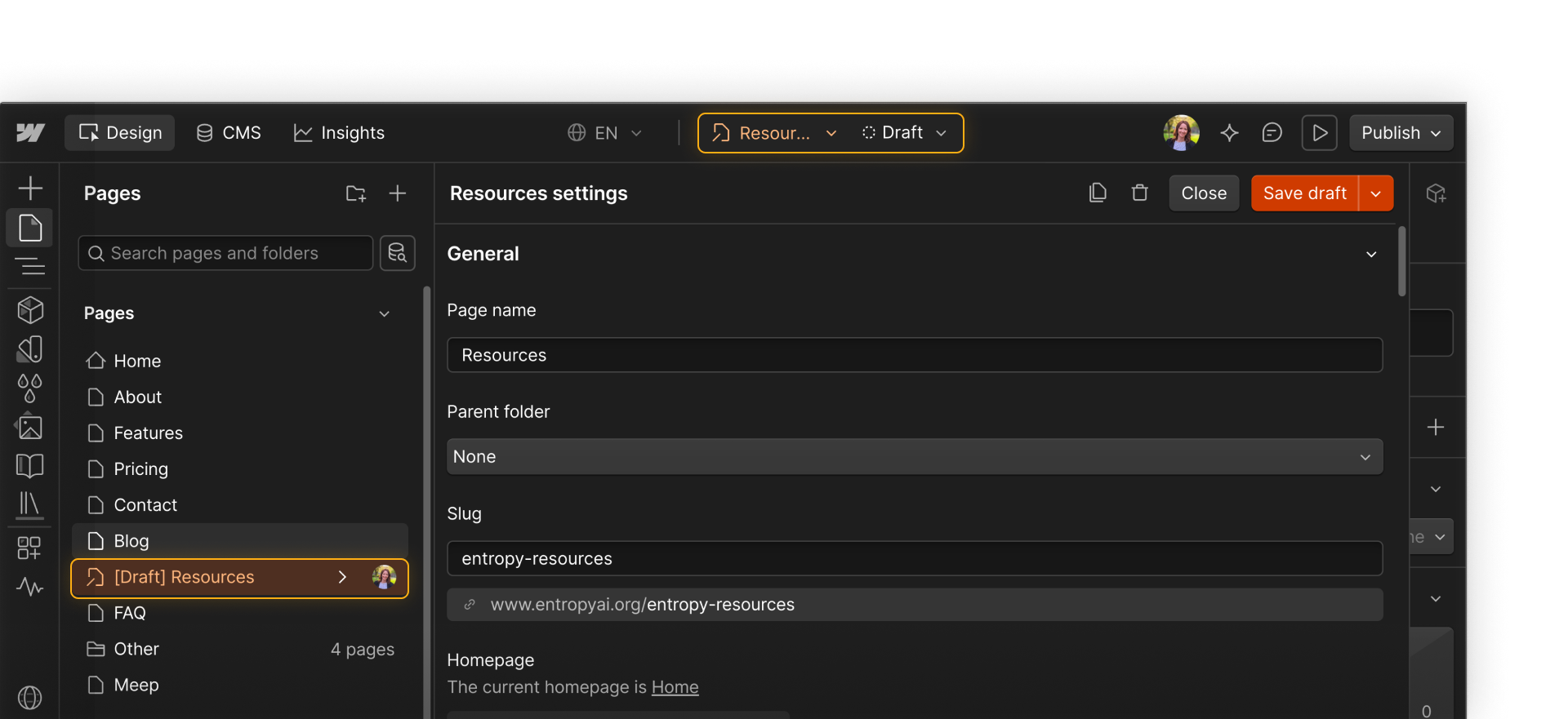
If a page has already been published, changing it to draft doesn’t remove it from the live site immediately. It’s removed the next time you run a full-site publish.
Leave CMS changes unpublished
CMS items work a little differently.
If you edit an existing Collection item and leave the changes unpublished, visitors continue to see the currently published version while your new edits stay in draft.
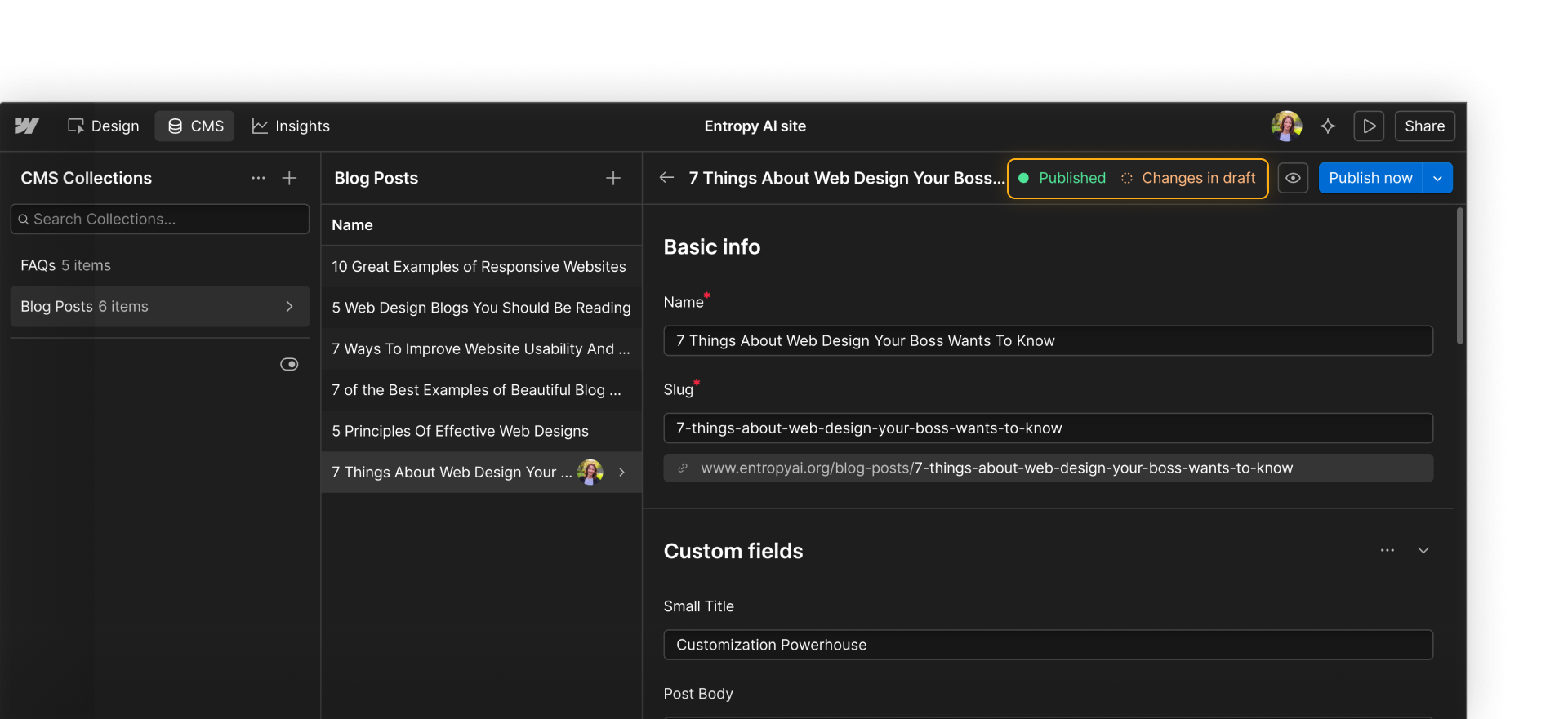
That means you can keep working on the item without replacing what visitors already see.
You’ll look more closely at CMS item publishing later in the course.
Use a branch when work needs isolation or review
A branch is useful when the work itself needs to stay separate from the main site while it’s being developed or reviewed.
That might be because the change takes longer to complete, touches shared styles or components, needs feedback or approval, carries more risk, or should stay isolated while other people continue working.
Unlike a draft, a branch gives the work its own space. As you saw in the previous lesson, you can stage the branch, send it through review, and merge it back into the main site when it’s ready.

Publish only the page that’s ready
Sometimes the unfinished work isn’t the thing you need to isolate.
Instead, you may have one page that’s ready to go live while other changes across the site are still in progress.
That’s where single-page publishing comes in.
Rather than publishing the full site, you can publish only the finished page and leave the rest of the site’s unpublished changes where they are.
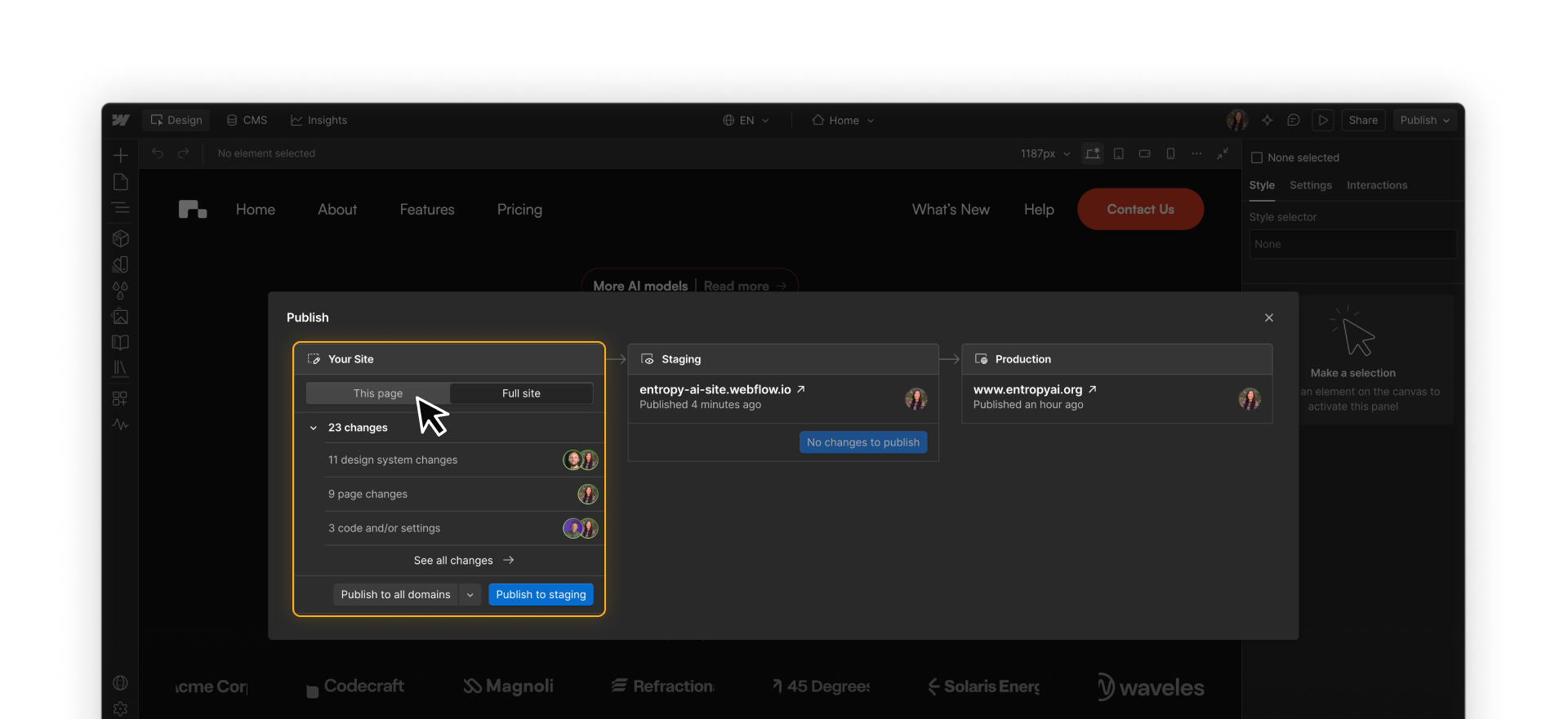
You’ll see the single-page publishing workflow in the next lesson.
Choose based on what you need to protect
A useful way to decide is to ask: What am I trying to keep from moving forward?
A new page isn’t ready
Keep the page in draft.
CMS edits aren’t ready
Leave the item’s changes unpublished.
The work needs isolation or review
Use a branch.
One finished page is ready, but other site changes aren’t
Use single-page publishing.
These tools solve different versions of the same problem: moving ready work forward without accidentally publishing work that still needs time.
Feeling good?
Next, you’ll see how to move approved changes into production using Webflow’s Enterprise publishing workflow.