Optimize page settings for SEO
Page-level SEO settings
Now that your page content is clearly structured and easy to understand, it’s time to control how that page is presented to search engines and users.
Page settings don’t change the content on your page — they shape how your page is described, previewed, and interpreted before someone clicks. These settings help search engines understand what the page is about and help users decide whether it’s the right result for them.
Think of page settings as the page’s headline and summary in search results.
Essential page settings
These are the core settings you’ll configure on every SEO-friendly page.
SEO title tags & meta descriptions
SEO title tags & meta descriptions determine how your pages appear in search results.
- Title tag: the main title shown in search results
- Meta description: a short summary shown below the title
Together, they help search engines understand your content and help users decide whether to click.
Watch this short video to learn how to add title tags and meta descriptions to your pages in Webflow.
What makes a strong title and description?
- Keyword placement: Include your primary keywords in your meta title and meta description, ensuring it reads naturally and isn’t overly stuffed with keywords.
- Length: Keep titles under 60 characters to avoid truncation in search results. Keep meta descriptions between 150-160 characters to ensure they display properly in search results.
- Optimize for click-through: Write clear, compelling summaries of the page’s content that meet your user’s search intent and encourage clicks.
- Branding: Include your brand name in your metadata. For example, you may put “About Us | Company Name”
- Unique content: Each page should have unique metadata to avoid duplicate content issues. For CMS template pages, you can use dynamic data in your SEO settings to pull content from your CMS item’s name or other text fields to ensure metadata is unique per CMS item.
Open Graph settings: social previews
Open Graph (OG) settings control how your page appears when shared on platforms like Facebook, LinkedIn, Slack, or X.
You can customize the Open Graph title, description, and even image.
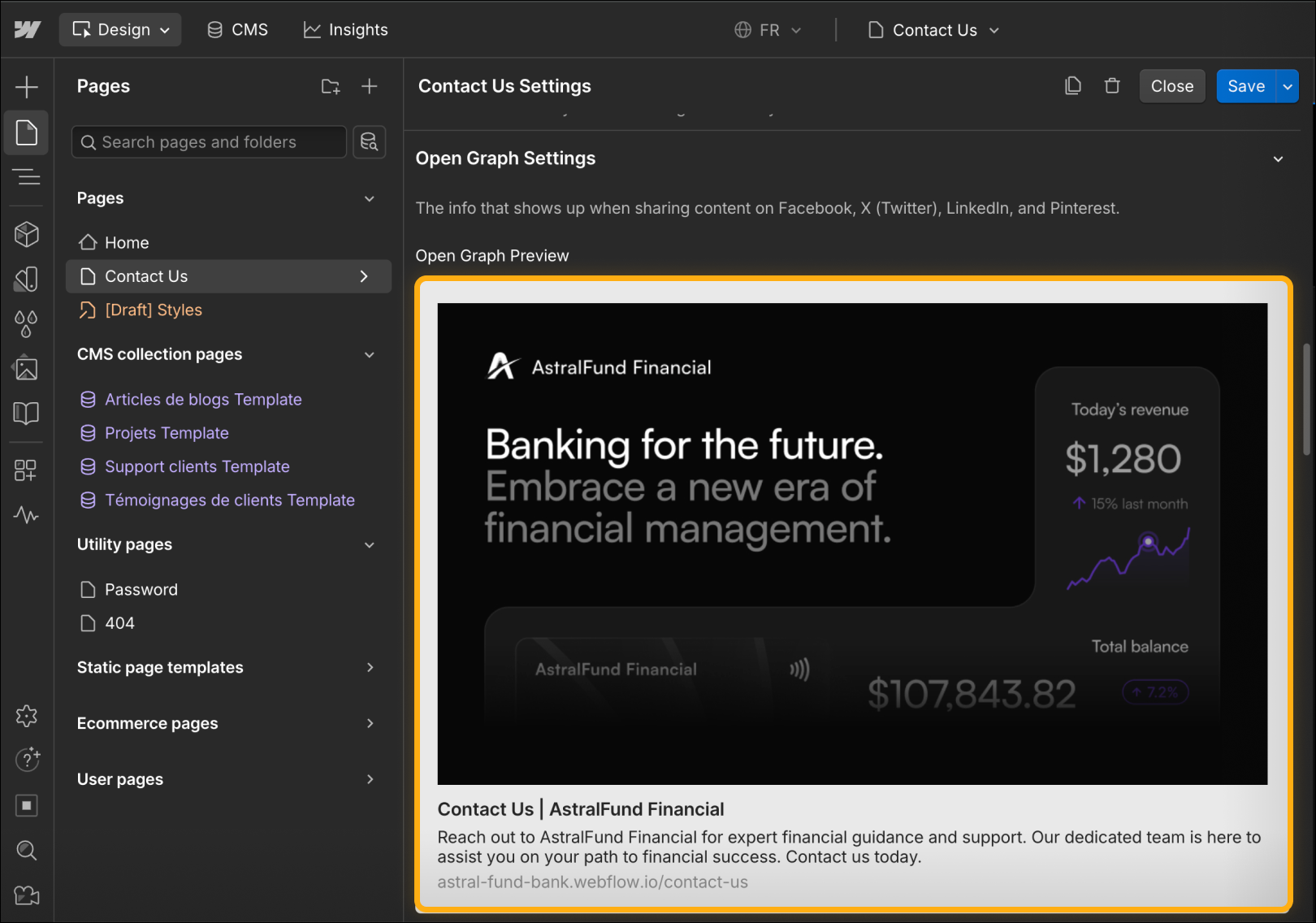
This doesn’t directly affect SEO rankings, but it does influence how your content looks when shared — which can improve engagement and trust.
If you don’t set specific Open Graph fields, Webflow will fall back to your SEO title and description.
URLs, indexing, & canonical tags
Your page settings also include controls you’ve already learned about earlier in the course.
- Your page slug appears in the URL and should clearly reflect the page’s topic, reinforcing the site structure you built previously.
- Your Indexing toggle controls whether the page appears in search results at all — which is useful for pages like thank-you screens or in-progress content.
- You can set page-level canonical tags here as well
Schema markup
Schema markup is structured data that helps search engines and AI systems understand your content more clearly — such as whether a page is a blog post, a product, an FAQ, or a how-to.
Schema can enhance how content appears in search results and answer-based experiences, but it’s optional and not required to succeed with SEO in Webflow. Many sites perform well without adding schema at all.
If you want to explore schema later, it’s covered in more depth in our AEO from Webflow course.
Ready for more?
With your page settings in place, you’ve defined how each page should appear in search results and social previews.
But SEO isn’t a one-time setup — as your site evolves, titles change, new pages get added, and structure shifts.
In the next lesson, we’ll zoom out and learn how to audit your Webflow site, using simple tools and checklists to keep everything aligned, healthy, and performing over time.