Optimize site-wide performance for SEO
Why performance matters for SEO
Performance is one of the quickest ways to improve how both people and search engines experience your site.
Fast, stable pages load quickly, feel smooth to use, and don’t surprise visitors with layout shifts or delays. When people have a good experience, they tend to stay longer, interact more, and bounce less — and those are all signals search systems pay attention to.
Think of performance as your site’s first impression. If a page loads quickly and feels reliable, visitors are more likely to trust your content. This lesson focuses on simple, high-impact settings inside Webflow that improve performance across your entire site.
SSL / HTTPS: trust from the very beginning
Webflow automatically provides SSL hosting, which secures the connection between your site and your visitors.
When a site uses HTTPS, data is encrypted as it travels between the browser and the server. This protects user information, prevents browser security warnings, and signals credibility to search engines.
If your site loads with https:// in the address bar, you’re already starting with a strong trust signal — and there’s nothing extra you need to configure.
Tip: For customers on Enterprise plans, you can upload your own custom SSL certificate to your site for increased flexibility and control over the details in your SSL certificates.
Minify your code for faster loading
Minimizing your website code reduces the amount of data that browsers need to download, parse, and execute, leading to faster page load times and a smoother user experience.
Webflow automatically compiles the HTML, CSS, and JavaScript files for your site, with publishing options in your Site settings to minify each of these separately.
.png)
When you enable the minification settings, Webflow will remove unnecessary characters (such as whitespace, comments, and block delimiters) from these files without affecting their functionality. This process reduces file sizes significantly, enabling quicker file transfer from servers to user browsers. It's considered a best practice because it not only speeds up page loading times but also reduces bandwidth usage, which can be particularly beneficial for users on slower connections.
Optimize images
Images are often the heaviest elements on a page, which makes them one of the biggest performance opportunities.
Image compression reduces file sizes without sacrificing quality, helping websites load faster. Optimized images improve both user experience and SEO rankings.
With Webflow's built-in image conversion tool, you can compress existing image assets (JPEG, JPG, PNG, and WebP assets) by converting them to AVIF or WebP files. This will convert the asset’s file type in both the Assets panel and any instances of that asset on the canvas.
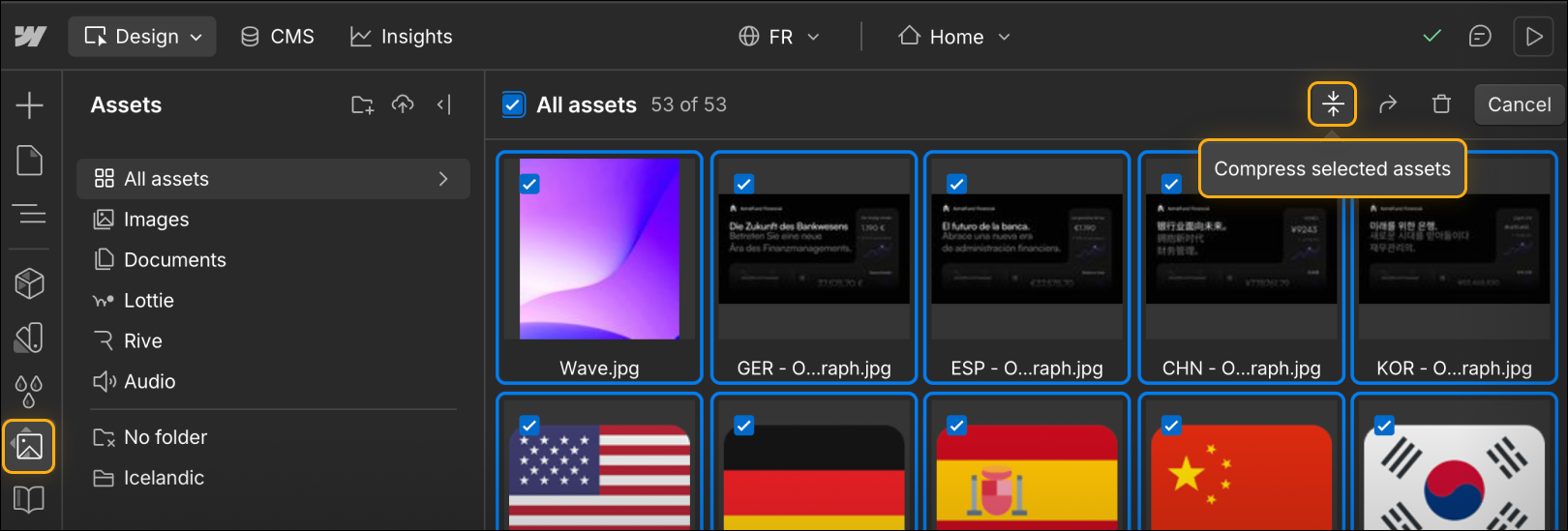
The WebP image file format (e.g., “image.webp”) and AVIF image file format (e.g., “image.avif) retain most of an image’s high quality while compressing it into a smaller file size. This helps web pages load faster and saves website storage space.
Use video thoughtfully
Video can be engaging, but it can also slow things down if it’s not handled carefully. Here are some best practices to consider:
- External hosting: Large video files are best hosted externally on third-party platforms like YouTube or Vimeo, which are optimized for streaming. You can use the custom element to add an externally hosted video to your site.
- Lazy loading: implement lazy loading to defer loading of offscreen videos until they are needed, which conserves bandwidth and accelerates page load times. Use a facade image or a poster frame to display a static image before the video loads, enhancing the visual appeal and preventing layout shifts.
These small choices help keep your pages light, responsive, and pleasant to use.
Keep your project clean (code, classes, interactions)
As you build and iterate, unused styles, interactions, and components can pile up behind the scenes. This extra “baggage” increases file size and gives browsers more work to do.
In Webflow, regularly cleaning up unused classes and interactions — and organizing reusable styles in a style guide page — helps keep your project lean. A cleaner project loads faster, responds more smoothly, and is easier to maintain over time.
Think of this like tidying your workspace. The cleaner it is, the easier it is to move quickly and confidently.
You can clean up unused classes from your Selectors panel and unused animations from your Interactions panel.
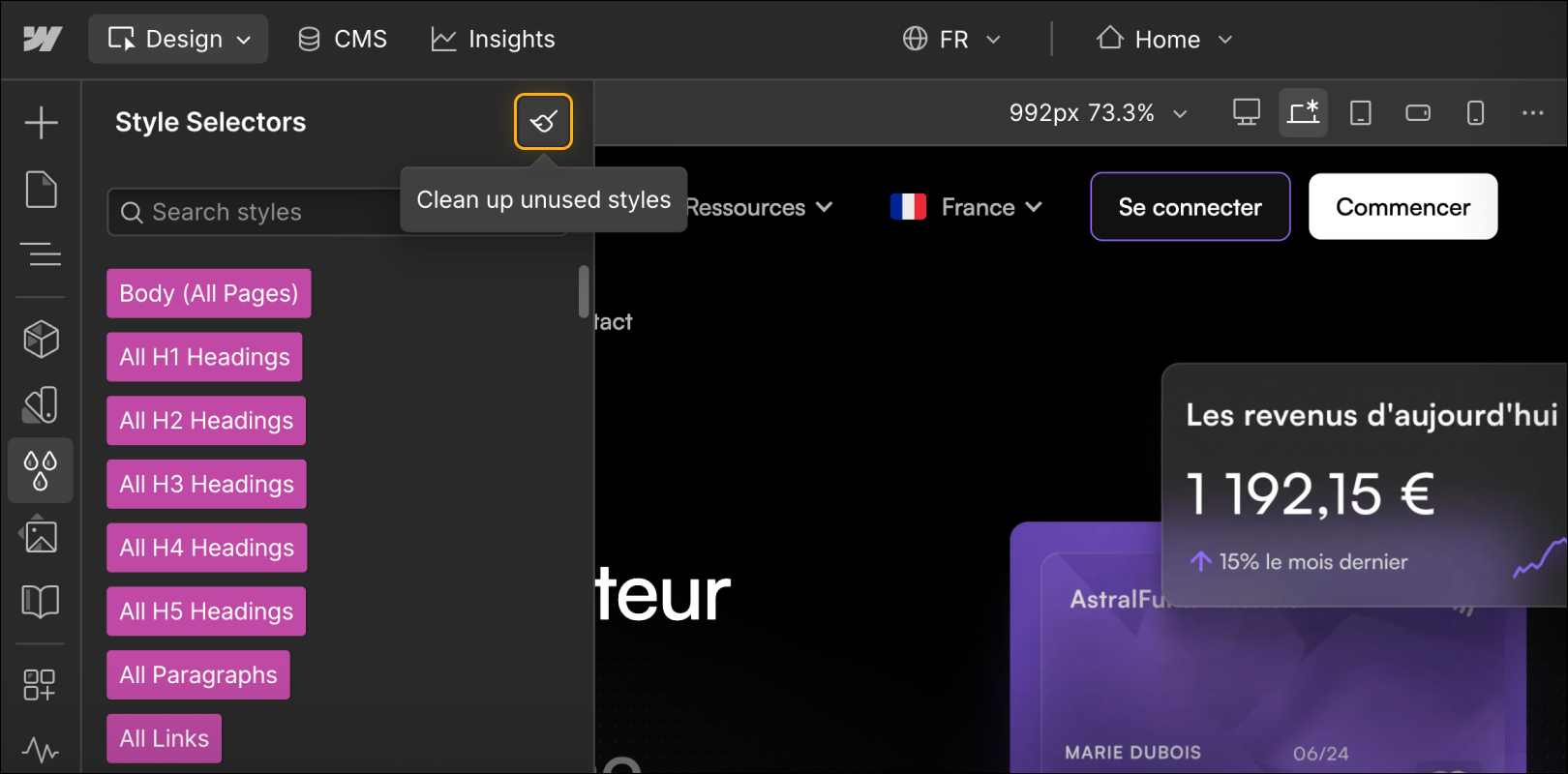
Note: You can only remove classes and animations from your site when they aren’t connected to any elements or pages (draft or live), so this safely protects anything that is actively in use. If you want to save a specific class or animation for use later, you can apply it to an element on your style guide page, which will prevent it from being included during the cleanup process.
Go easy on custom code
Custom code and third-party scripts can add powerful functionality, but they can also slow your site if overused. Less code means less work for your visitors’ devices — especially on mobile connections.
Best practices for custom code:
- Narrow the scope: Minimize what scripts are doing when loaded or fired — try to target specific elements rather than broad sets, which can increase load times.
- Limit amount of scripts: Every additional script increases the number of HTTP requests, subsequently increasing load time.
- Consider load behavior: Render-blocking JavaScript forces the browser to stop and execute scripts before continuing with the page render, while asynchronous scripts, though not render-blocking, compete for bandwidth with other resources. Both scenarios can slow down page load times.
- Manage externally-hosted scripts: Relying on externally-hosted scripts introduces potential points of failure if changes occur to the external server or source code.
Note: Custom code doesn’t get minified by Webflow, so we recommend that you build what you can natively in the platform.
Putting it all together
Performance isn’t about squeezing out every last millisecond. It’s about giving visitors a smooth, stable, and trustworthy experience.
By enabling SSL, minifying code, optimizing images and video, keeping your project clean, and being thoughtful with scripts, you’re building a fast foundation that supports every page on your site.
Feeling good?
In the next lesson, we’ll explore page-level SEO — including metadata, slugs, indexing controls, and Open Graph settings that help individual pages shine in search.