Where you can add custom code
Placement impacts scope
When you add custom code to a Webflow project, the placement of that code determines what it affects on your site. Some code is tied to a specific part of a layout. Other code runs when a page loads, or across the entire site. Webflow gives you different places to add custom code, each designed for a different level of impact.
Where custom code can live in Webflow
Webflow allows you to add custom code at different levels. Each one controls the scope and how far that code reaches.
1. The Code Embed element (layout-level)
The Code Embed element lets you place custom code directly inside your page layout. Its behavior is shaped by where it sits in the layout and the elements around it, not by which pages load it.
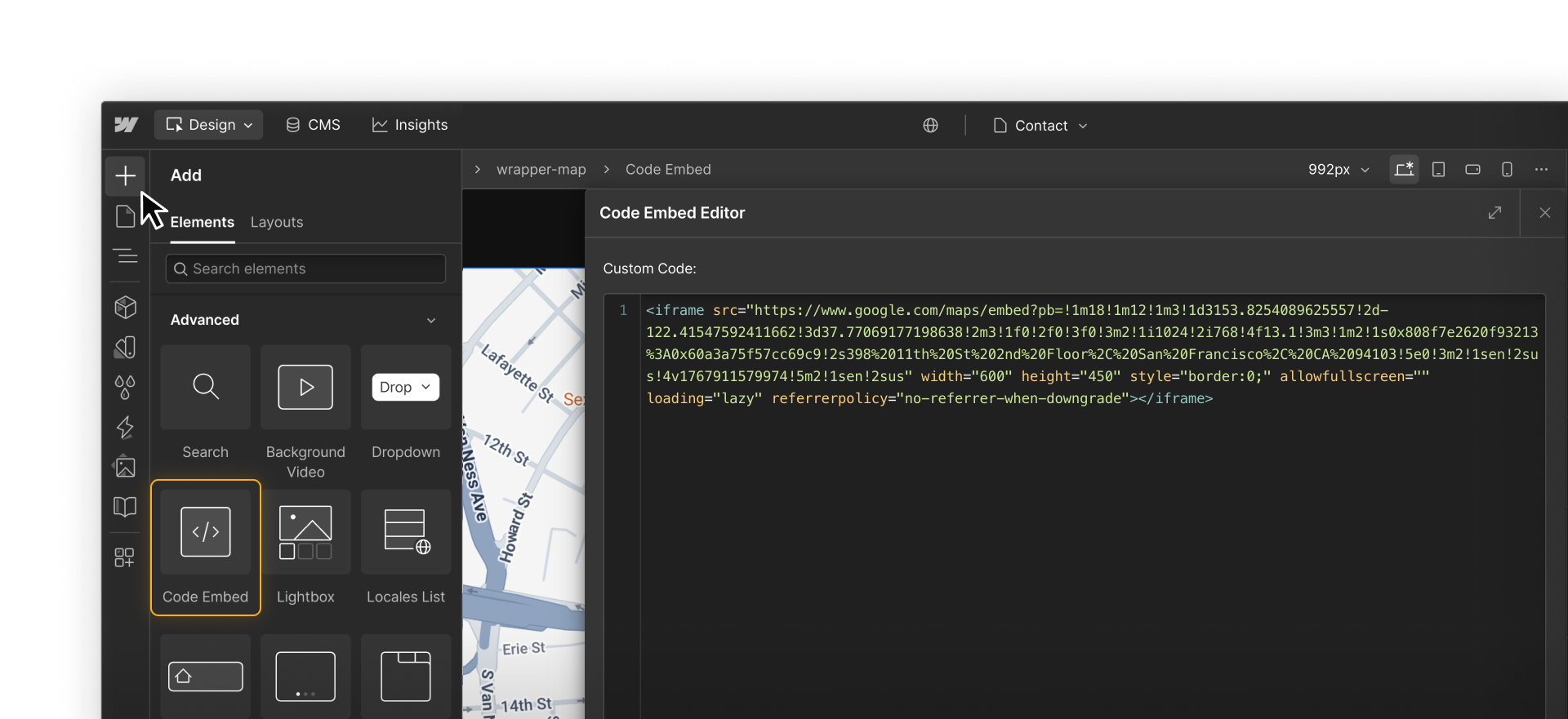
Common examples include:
- Embedding a YouTube or Vimeo video using iframe code when you need more control
- Embedding Airtable, Notion, or Google Forms using provided embed code
- Adding an interactive map iframe from Google Maps or Mapbox
- Adding scripts for a third-party pricing table or comparison widget
- Adding small styles not easily achievable with built in Style panel options
In many cases, Webflow has native elements for this. The Custom Code element is most useful when built-in options don’t meet your needs.
Custom CSS properties
Some CSS properties that aren’t available in the Style panel can be added directly to classes using Custom CSS properties — no Code Embed required. This lets you extend styling while keeping everything scoped and manageable. Learn how to use Custom CSS properties in Webflow.
2. Page-level custom code
Page-level custom code runs when one specific page loads. This can be code that runs in the background for that page, or can result in something visible like a chat widget on a specific page.
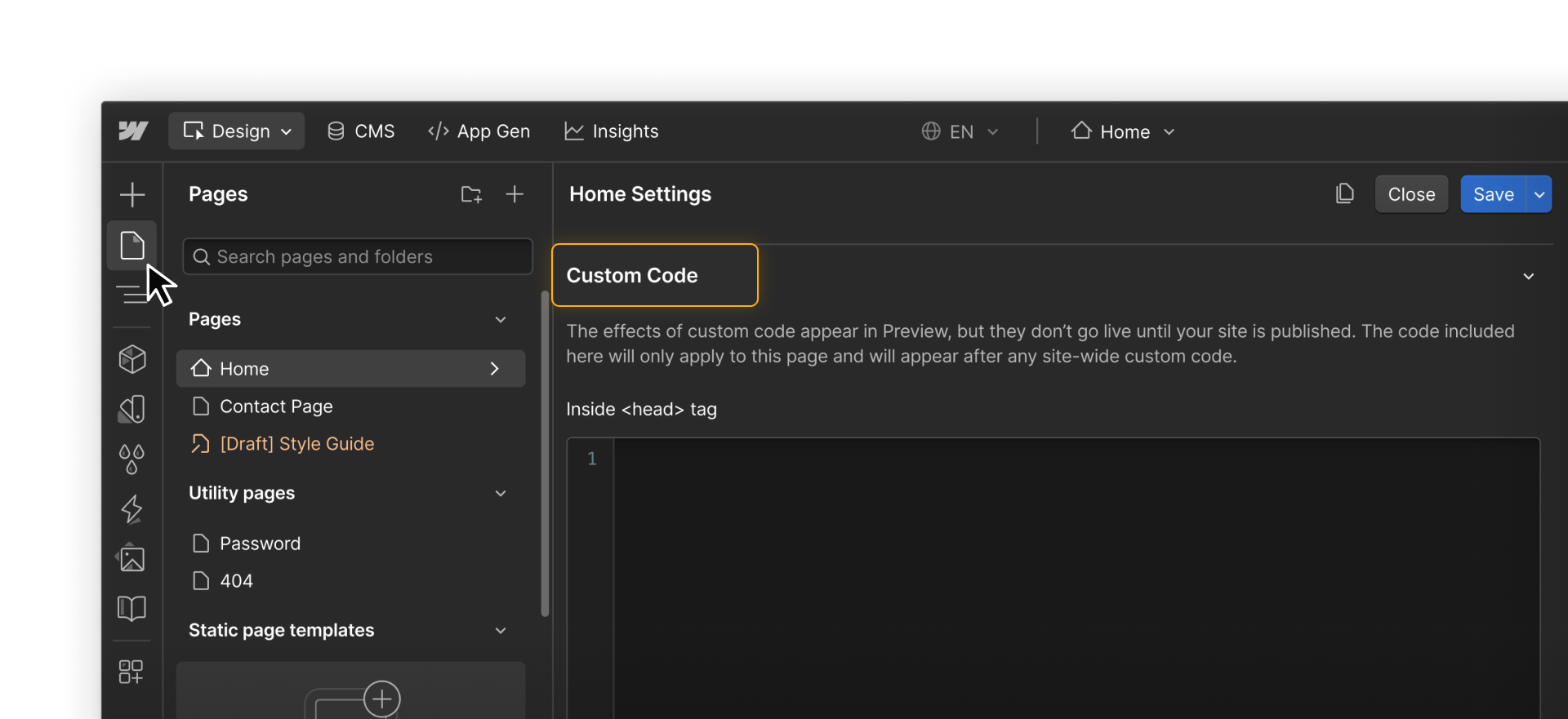
Common examples include:
- Adding Meta Pixel, Google Ads, or LinkedIn Insight Tag to a single landing page
- Loading a chat or support widget only on one page
- Running a script that targets elements unique to a page
- Adding A/B testing scripts for a specific campaign
3. Site-level custom code
Site-level custom code applies globally across your entire site. This option is best when the code needs to run on every page and the behavior should be consistent site-wide.
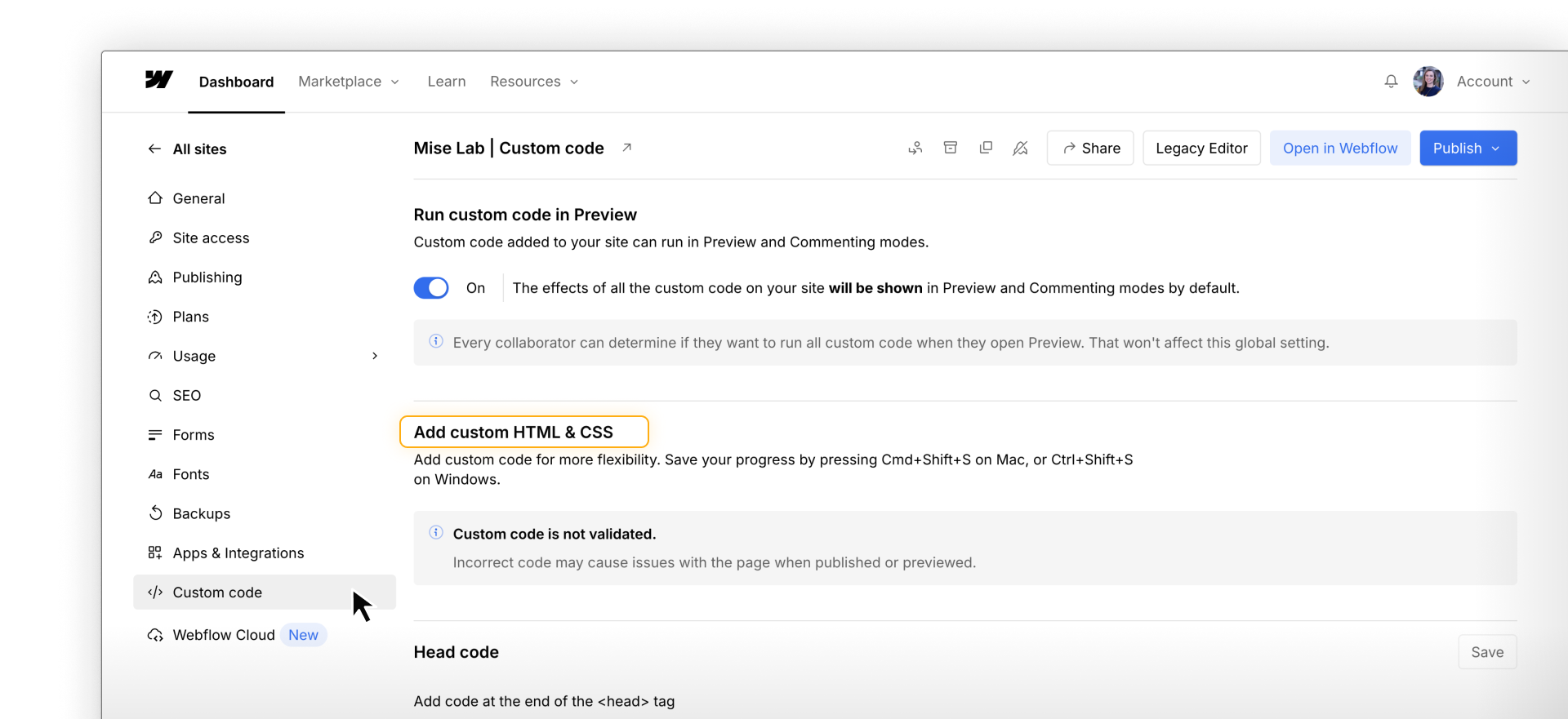
Common examples include:
- Google Analytics or Google Tag Manager
- Cookie consent tools such as Cookiebot, OneTrust, or Termly
- Global libraries or utility scripts used across the site
- Site verification scripts for SEO or platform tools
Because site-level code affects everything, it should be used deliberately and kept as lightweight as possible.
Why placement matters
Placing code too broadly can slow down pages that don’t need it, introduce conflicts with other scripts, or make issues harder to track down later. On the other hand, placing code too narrowly can prevent it from running where it’s needed or cause features to appear inconsistently.
Choosing the right location helps keep your site faster, easier to maintain, and easier for others to understand.
When deciding where to add custom code, start by asking: How much of my site should this affect?
- Needs a specific place in the layout → Code Embed element
- Should run on one page only → Page-level custom code
- Should run on every page → Site-level custom code
When in doubt, start with the smallest scope that solves the problem, and expand only if needed.
Feeling good?
Let’s dive into each of these options in more detail, starting with the Code Embed element.