Best practices for maintainable code
Adding custom code is often the easy part. Keeping it clear, predictable, and easy to remove later is where most projects succeed or struggle. Good maintenance habits help ensure custom code continues to support your site over time, even as designs change, teams grow, and tools get replaced.
Start with the smallest scope
To start, choose the smallest scope that solves the problem. The more tightly code is scoped, the easier it is to understand, test, and update later.
As a general rule:
- Use the Code Embed element for visible, layout-specific code
- Use page-level custom code for behavior limited to a single page
- Use site-level custom code only when behavior truly needs to run everywhere
If custom code starts to feel hard to manage, scope is often the place to revisit first.
Assume your site will change
Webflow sites rarely stay static. Pages get redesigned, components are reused, CMS structures evolve, and marketing tools come and go. Custom code that works today should still make sense months from now.
To prepare for change:
- Avoid one-off hacks that only work in the current layout
- Be cautious when targeting specific classes or element IDs that may change
- Remove experiments or temporary scripts once they’re no longer needed
Writing custom code with future changes in mind reduces surprises and makes updates less risky.
Let native tools do the heavy lifting
Webflow already generates and manages a large amount of HTML, CSS, and JavaScript for you.
Whenever possible, use native Webflow features for:
- Layout and responsiveness
- Styling and interactions
- CMS structure and content management
Custom code works best when it extends native tools rather than replacing them. If both are trying to control the same elements, unexpected behavior is more likely.
Think about performance as you add code
Every script you add affects how quickly a site loads and responds.
As you work with custom code:
- Be intentional about what runs globally
- Avoid loading scripts on pages that don’t need them
- Remove unused or outdated code regularly
Small performance costs add up over time, especially as more tools are introduced.
Document as you go
Custom code is much easier to maintain when its purpose is clear.
Adding brief comments alongside custom code can explain:
- What the code does
- Why it was added
- Where it’s expected to run
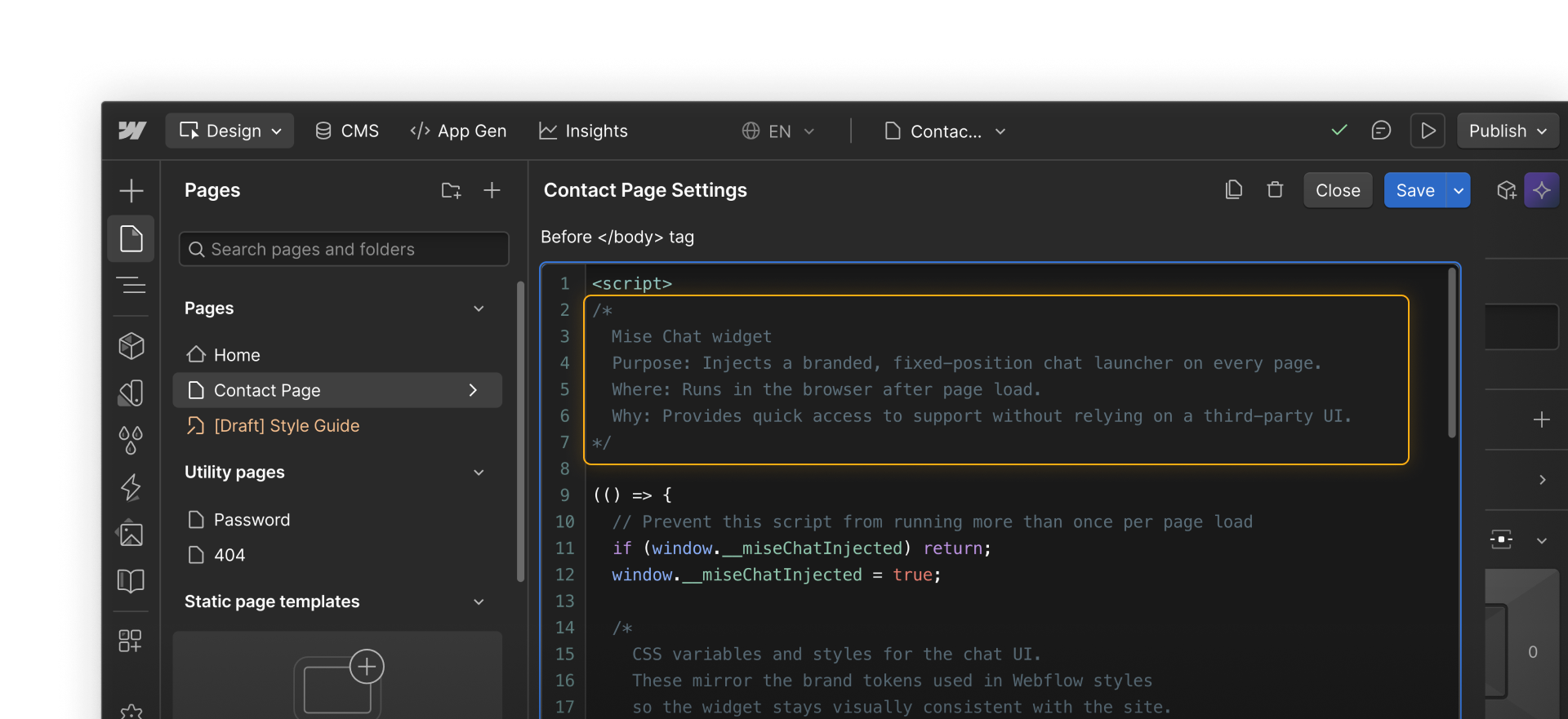
This helps teammates understand what’s happening and helps you remember why you made certain decisions when you revisit code in the future.
Keep collaboration in mind
Custom code often affects shared behavior across a site.
To avoid accidental issues:
- Be intentional about who can add or modify global code
- Communicate changes that affect shared functionality
- Review site-level custom code periodically
Clear ownership and documentation help team members do their parts without stepping on each other’s changes.
Feeling good?
You’ve now covered how to add, test, and maintain custom code in Webflow. Time to try adding real custom code on your own site.