Site-level code
Site-level code
Site-level custom code is used when custom behavior needs to run across your entire site. It runs on every page, for every visitor, and any change you make applies everywhere at once. This makes it a good fit for shared tools and global behavior, but not for page-specific features.
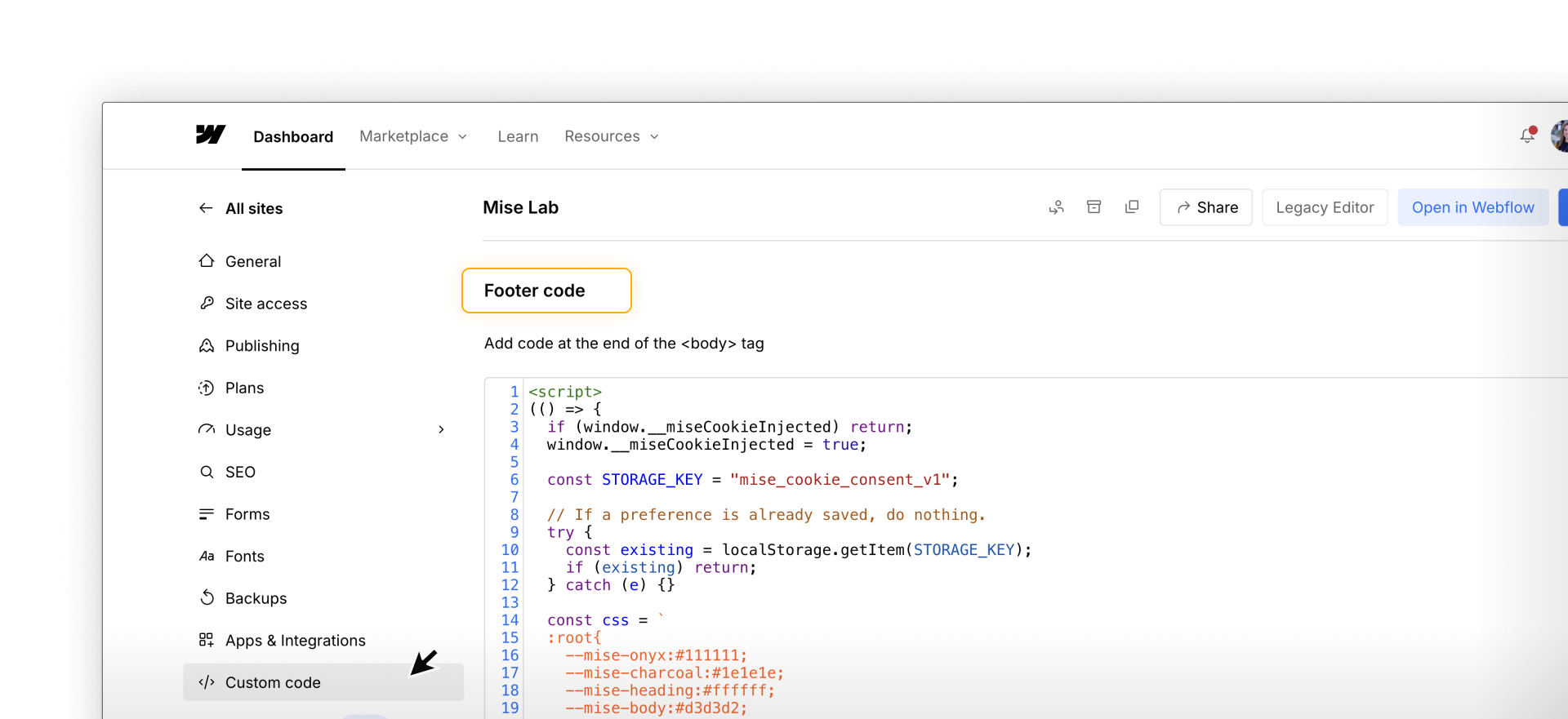
Site-level custom code works best when:
- The behavior needs to run on every page
- The code supports global concerns rather than individual pages
- Managing the code in one place improves consistency and maintenance
Common examples include:
- Analytics and tracking tools
- Cookie consent or compliance scripts
- Shared libraries used by multiple features
- Global CSS rules that apply site-wide
In most cases, this code is provided by third-party services or shared internally by developers or legal teams, rather than written directly in Webflow.
How to add site-level custom code
To add site-level custom code in Webflow:
- Get the code snippet from the tool or service, such as an analytics provider or consent platform.
- Open your site settings and navigate to the Custom Code section.
- Paste the code into either the <head> or </body> area, following the provider’s instructions.
- Publish the site and confirm the code appears on every page of your site.
Some custom CSS added at the page or site level won’t render in Preview mode. In those cases, you’ll need to publish to staging or a live site to see the results.
Tip: Some teams place shared custom CSS inside Components to make it easier to reuse and preview.
Placement of site-level code: <head> vs <body>
Like page-level code, site-level custom code can be added in two places:
- <head> — loads earlier and is typically required for analytics, verification, or scripts that must initialize before page content
- </body> — loads later and is better for scripts that interact with page content or can wait until the page has rendered
Third-party tools usually specify where their code should go. When they do, it’s best to follow those instructions.
Common mistakes to avoid
Because site-level custom code runs everywhere, mistakes here tend to have a wider impact.
Common issues include:
- Adding large or unnecessary scripts globally, affecting performance
- Introducing conflicts between scripts that try to control the same elements
- Making debugging harder, since issues can appear across many pages at once
Before adding site-level code, it’s worth asking:
- Does this really need to run on every page?
- Could it be limited to a single page instead?
- What happens if this script fails or loads slowly?
If the answer isn’t clear, page-level custom code is often a safer place to start.
Best practices for using site-level code
To keep global code manageable:
- Use site-level custom code sparingly
- Avoid adding temporary experiments or one-off scripts globally
- Remove unused or outdated code regularly
- Add comments explaining what the code does and why it exists
- Consider performance and future collaborators
Small habits here can prevent big problems later.
Got the hang of it?
You’ve learned how custom code can run on a single page or across your entire site. Now, we’ll look at how custom code works with the Webflow CMS.