Previewing, testing, & troubleshooting
Custom code can unlock new functionality, but it also means you need to double-check that it’s running where and when you expect it to. Unlike native Webflow features, custom code doesn’t always behave the same way in preview and published environments.
The goal of previewing and testing isn’t to catch every possible edge case. It’s to make sure your code is set up correctly before anyone else sees it.
Previewing custom code
Previewing custom code works a bit differently than previewing native Webflow features. Some scripts require custom code to be enabled, others depend on a published URL, and some behave differently in Preview mode.
Enable custom code in preview
In Webflow, custom code only runs in Preview when the Enable custom code setting is turned on. This setting acts as a safety switch. It prevents scripts from running unintentionally while you’re building.
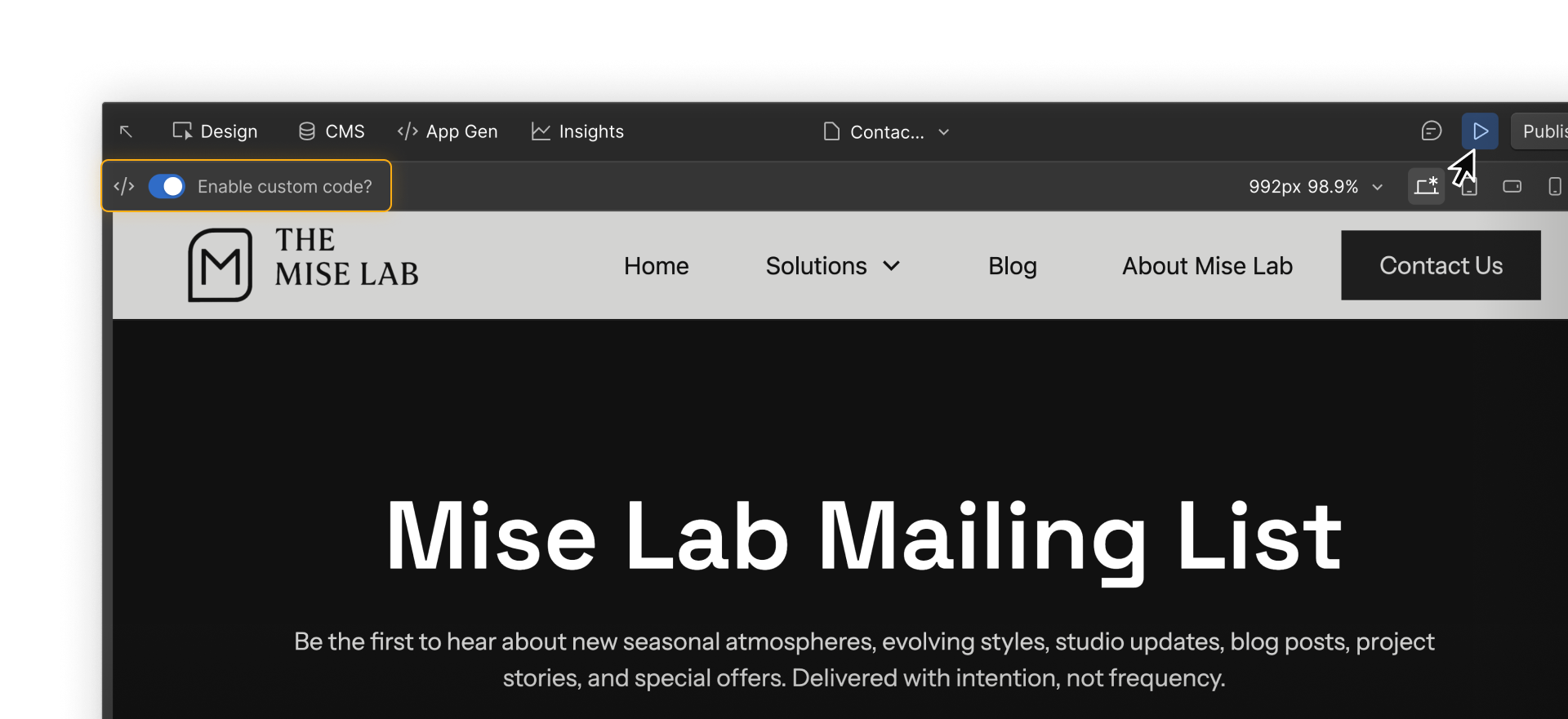
You can also turn this on by default in Site settings so new pages automatically allow custom code.
When preview mode isn’t enough
If custom code is enabled but still doesn’t appear to work, that could be because some scripts won’t run in Preview mode.
This is especially common for scripts that:
- Only run on published URLs
- Require a real domain or page path
- Depend on third-party services loading correctly
If something doesn’t appear to work in Preview mode, publishing to staging is a good next step.
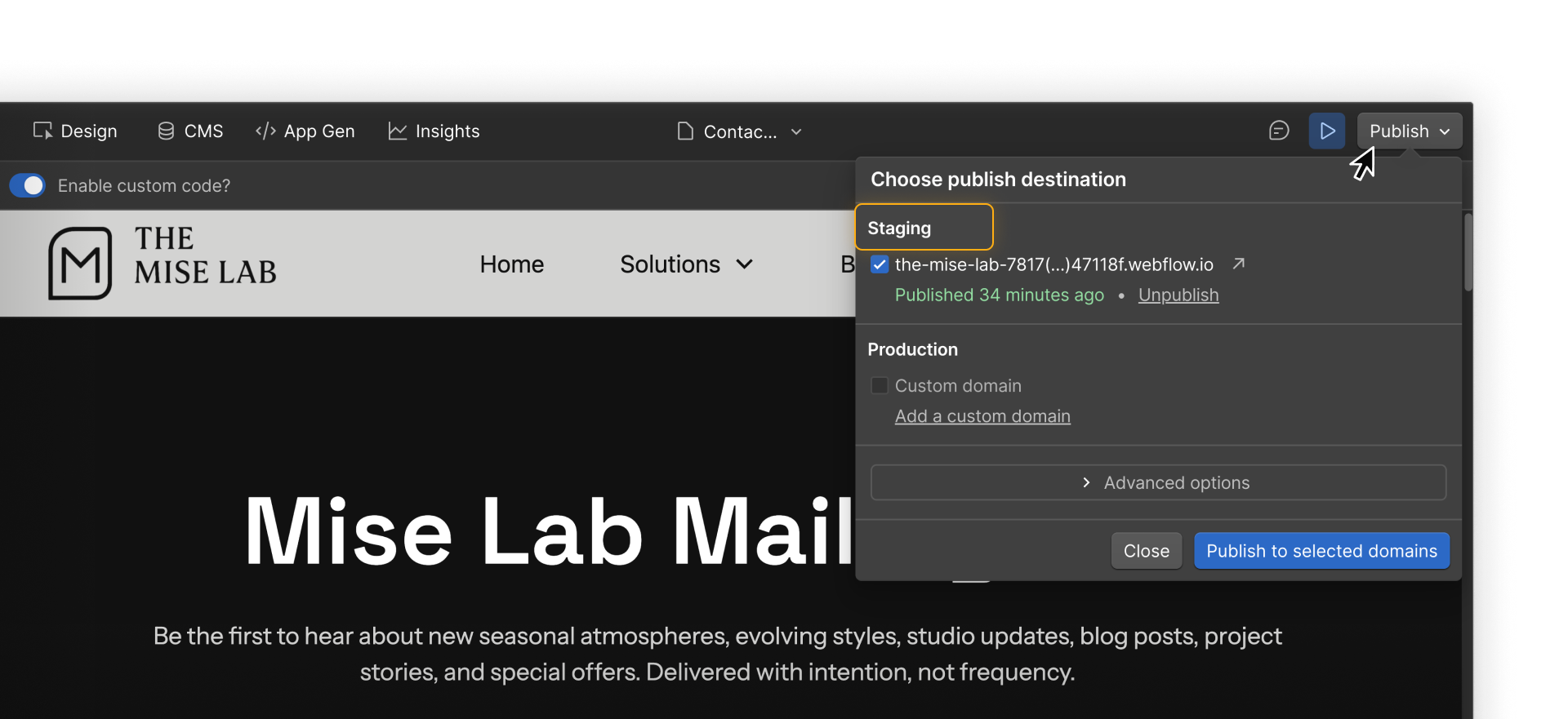
Checking & troubleshooting code
Most issues with custom code come from scope or placement, and you can usually spot them quickly once you know what to look for.
Start by checking scope.
Make sure the code is added at the right level — embedded in the layout, scoped to a single page, or applied site-wide. If a feature appears on the wrong page or shows up inconsistently, scope is often the cause.
Next, check placement.
Scripts placed in the <head> load earlier, while scripts placed before </body> load later and can interact with page content that’s already loaded. If a script depends on elements already being on the page, placement is often the difference between “works” and “doesn’t.”
Then, check for runtime issues.
If the code is scoped and placed correctly but still behaves unexpectedly, look at what’s actually happening on the page, such as:
- A feature works on one page load but not another
- A widget appears but doesn’t respond to interaction
- Layout or interactions change after adding code
- The site feels noticeably slower
When that happens:
- Verify targets by confirming that the elements the script relies on actually exist on that page
- Isolate the change by temporarily removing the most recent snippet to confirm it’s the cause
With this flow, you can narrow the issue down to scope, placement, or the script itself.
Rolling back safely with Backups
If a custom code change causes unexpected issues, you can always restore your site to a previous version to return to a stable state and re-test changes. Webflow periodically creates automatic backups, and you can also save your own. This is especially useful when experimenting or adding third-party scripts.
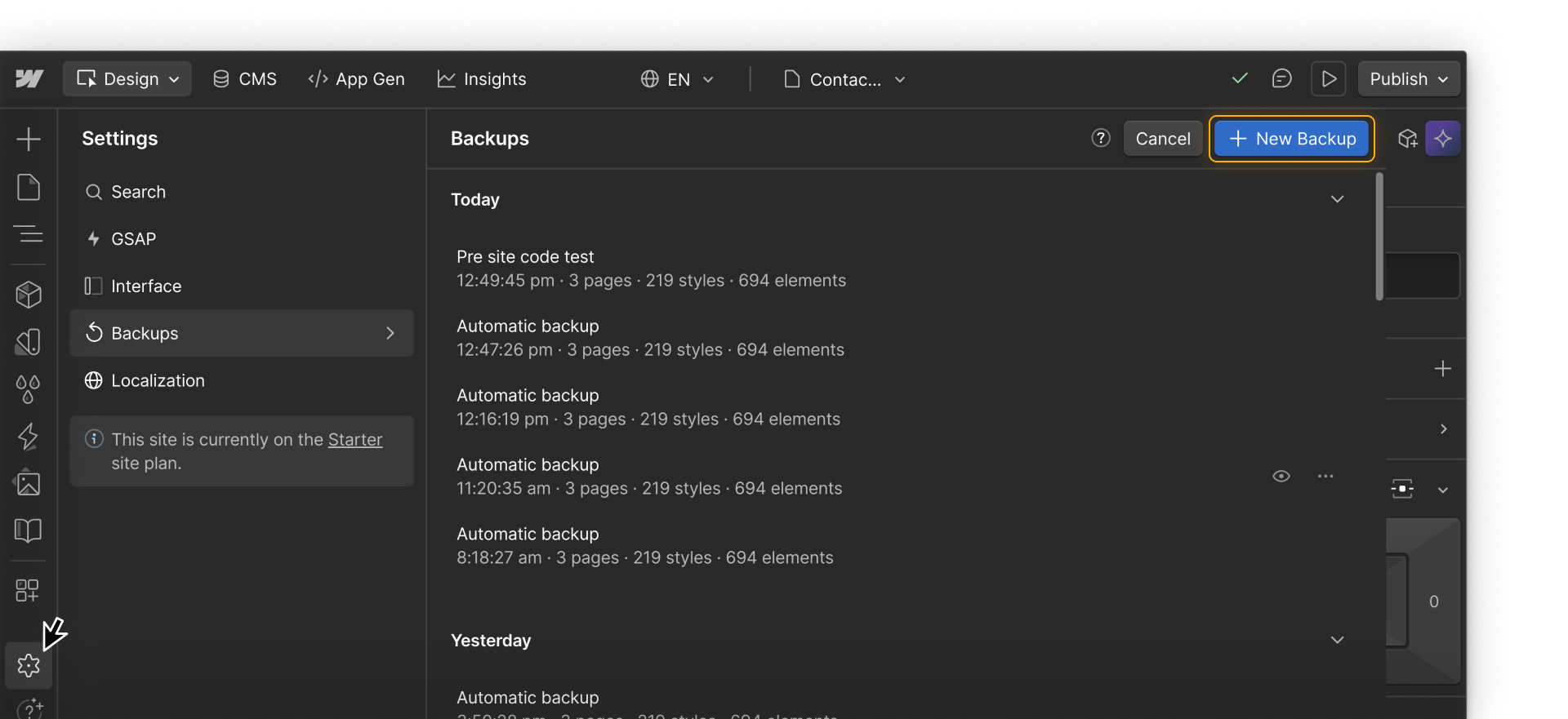
Heads up: Restoring a backup affects the entire site and can undo work made by teammates. It’s a good idea to coordinate before reverting to an earlier version.
When to pause and reassess
If custom code affects multiple pages unexpectedly, causes performance issues, or conflicts with other tools, it may be best to remove it temporarily and revisit scope, placement, or the provider’s documentation before continuing.
Most custom code problems are placement problems, not coding problems. Preview intentionally, test with scope in mind, and make small changes before publishing.
Ready for more?
Next, we’ll look at best practices for maintaining custom code over time, so it stays understandable, performant, and easy to work with as your site grows.