All coursesCustom code in Webflow
Try it: Add custom code
We’re transitioning to a new UI, and are in the process of updating our Webflow University courses and videos.

Try it: Add custom code

Test real, working code in a layout using the Code Embed element

Try it: Add custom code

Test real, working code in a layout using the Code Embed element

Try it: Layout-level code (map embed)

First, you’ll embed something visible directly into your layout using the Code Embed element. We’ll use a simple embedded Google Map, and you can place it anywhere on the page.

You don’t need a finished site for this. A blank or nearly blank project works just fine. The goal is to get hands-on and see custom code in action on a real site.

Step 1: Add a Code Embed element

  1. Open any page in your site.
  2. Add a Code Embed element to the page.
  3. Place it inside a section, container, or div so it has some space.

Step 2: Paste the embed code

Copy and paste the code below into the Code Embed element:

<iframe
  src="https://www.google.com/maps?q=New%20York%20City&output=embed"
  width="100%"
  height="300"
  style="border:0;"
  loading="lazy">
</iframe>

Save and close the embed.

Step 3: Preview the page

Enter Preview mode. If you don’t see the map right away, make sure Enable custom code is turned on.

You’ll know this worked if you see a map showing New York City embedded directly on the page.
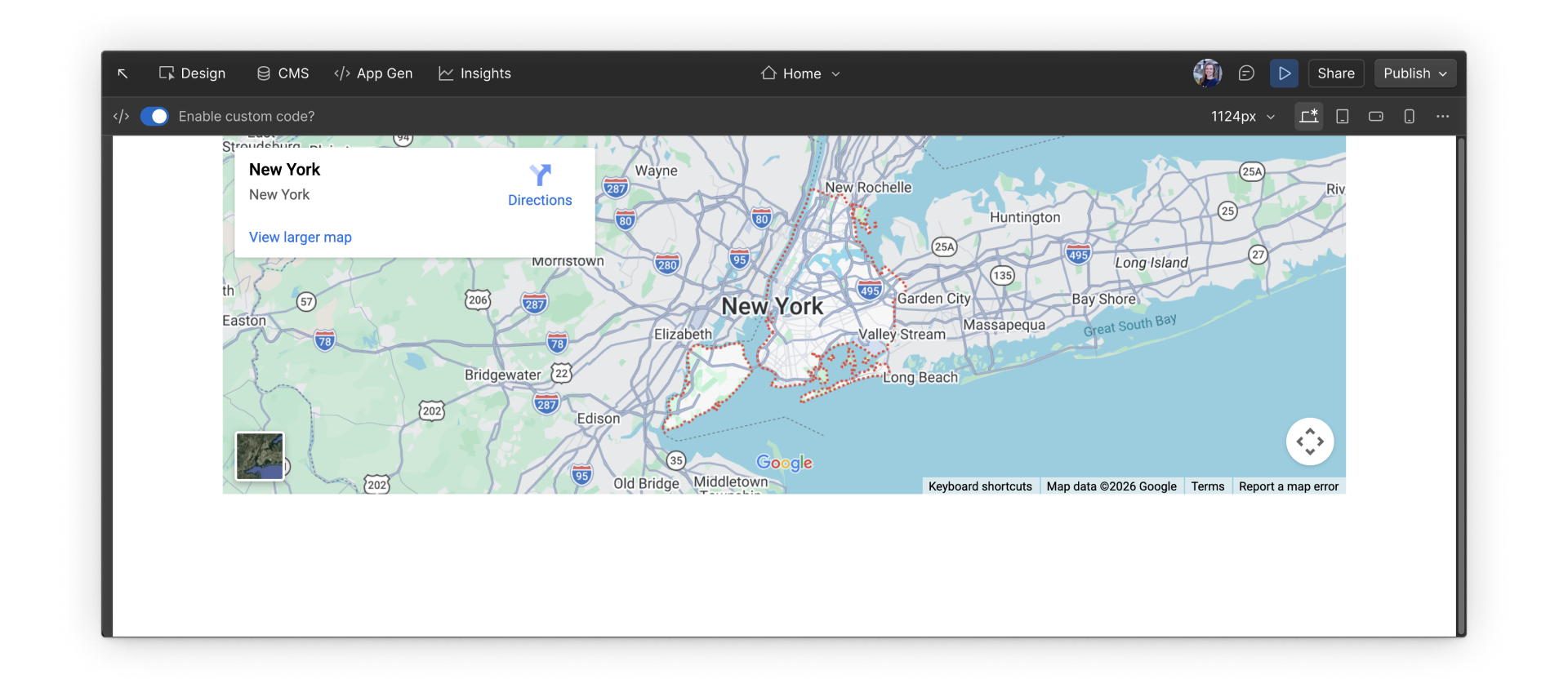
Google Map embedded directly into a Webflow page using a Code Embed element.

Extras:

  • Try changing the height value in the code from 300 to 400 and see how it affects the layout.
  • Try changing the src url to change the city or address displayed on the map.

Keep going.

Now that you know how to use the Code Embed element, explore site-level code in the next activity.

No items found.

1

Getting started

Getting started
Getting started
Coming soon

1

Background & preview
5:00
Background & preview
Coming soon

1

Where you can add custom code
5:00
Where you can add custom code
Coming soon

2

Adding custom code

Adding custom code
Adding custom code
Coming soon

2

The Code Embed element
5:59
The Code Embed element
Coming soon

2

At the layout level (Code Embed element)
4:00
At the layout level (Code Embed element)
Coming soon

2

Page & site level code
3:36
Page & site level code
Coming soon

2

Page-level code
5:00
Page-level code
Coming soon

2

Site-level code
5:00
Site-level code
Coming soon

2

Custom code and the Webflow CMS
5:00
Custom code and the Webflow CMS
Coming soon

3

Managing custom code

Managing custom code
Coming soon

3

Previewing, testing, & troubleshooting
5:00
Previewing, testing, & troubleshooting
Coming soon

3

Best practices for maintainable code
5:00
Best practices for maintainable code
Coming soon

4

Wrap up

Wrap up
Wrap up
Coming soon

4

Try it: Add custom code
3:00
Try it: Add custom code
Coming soon

4

Wrap up

Try it: add page level code
3:00
Try it: add page level code
Coming soon

4

Wrap up

Try it: add site-level code
3:00
Try it: add site-level code
Coming soon

4

Additional resources
4:00
Additional resources
Coming soon

Course progress

0%

Assessment

Up next

Try it: add page level code

Add real, working code at the page-level
Complete & continue
Complete course