Choose where your data lives
Some apps don’t need to store data. A calculator or quiz might return a result, then reset when the page refreshes. But when an app shows changing information, connects to another system, or remembers something over time, that data needs a clear home.
Start with who maintains it
A property page might bring together current listings, neighborhood content, and saved preferences. They can appear in the same experience without being maintained in the same place.
The system responsible for keeping each value accurate is its source of truth. To identify it, ask:
- Where is the information created?
- Who needs to update it?
- How quickly should changes appear?
- Does someone need to edit and publish it in Webflow?
Choose the right home
The answer may be different across the same app.
Webflow CMS
Use Webflow CMS for structured content people need to create, review, and publish in Webflow, such as neighborhood guides, campaign copy, or real estate agent biographies.
An external system
Keep operational information where it is already managed, such as listing prices, availability, inventory, or appointments. The app can request what it needs without creating another copy for someone to maintain.
Webflow Cloud storage
Use Cloud storage for information the app creates or saves, such as quiz tallies, preferences, application records, or uploaded files. Webflow Cloud provides storage options for structured records, key-value data, and files. Review the Webflow Cloud storage options to see how they differ.
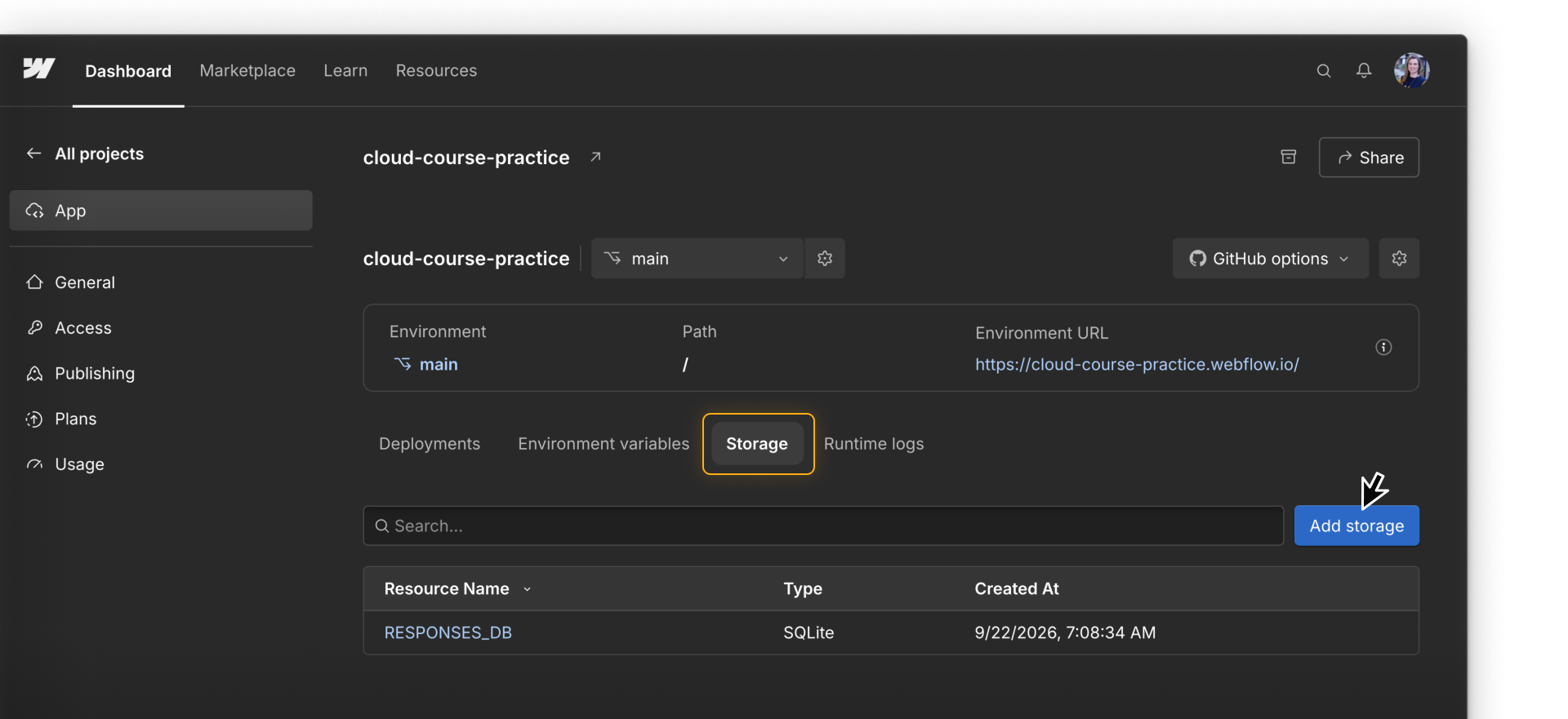
The course activity app uses Webflow Cloud storage for the quiz responses it saves. Its RESPONSES_DB resource is a SQLite database.
Use more than one
A property app might keep listing details in the listings platform, neighborhood content in Webflow CMS, and saved preferences in Webflow Cloud storage. The app brings them together for the visitor while each value keeps one clear owner.
Decide how updates arrive
When information changes at its source, the app needs a way to receive the update. For example, suppose a property’s status changes from Available to Under offer in the external listings system.
Request the current data
The next time the app requests the property status, it can receive the updated value.
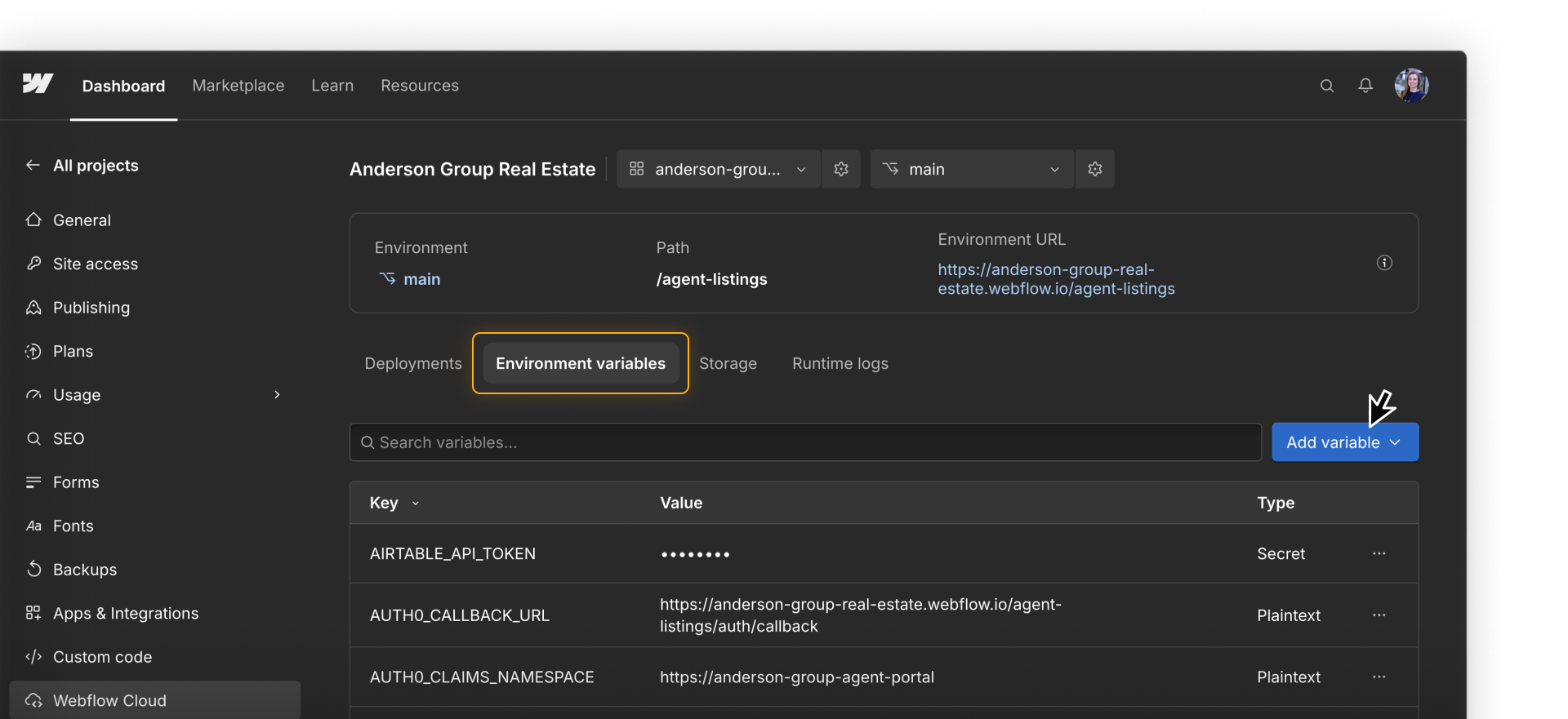
This requires code that calls the external API. Private credentials, such as the Airtable API token used by the property app, can be stored as Webflow Cloud environment variables instead of in the repository.
Keep a temporary copy
The app can temporarily cache a recent response and request a newer one after a set amount of time. This can improve performance or reduce API requests, but visitors may see an older status until the cache refreshes.
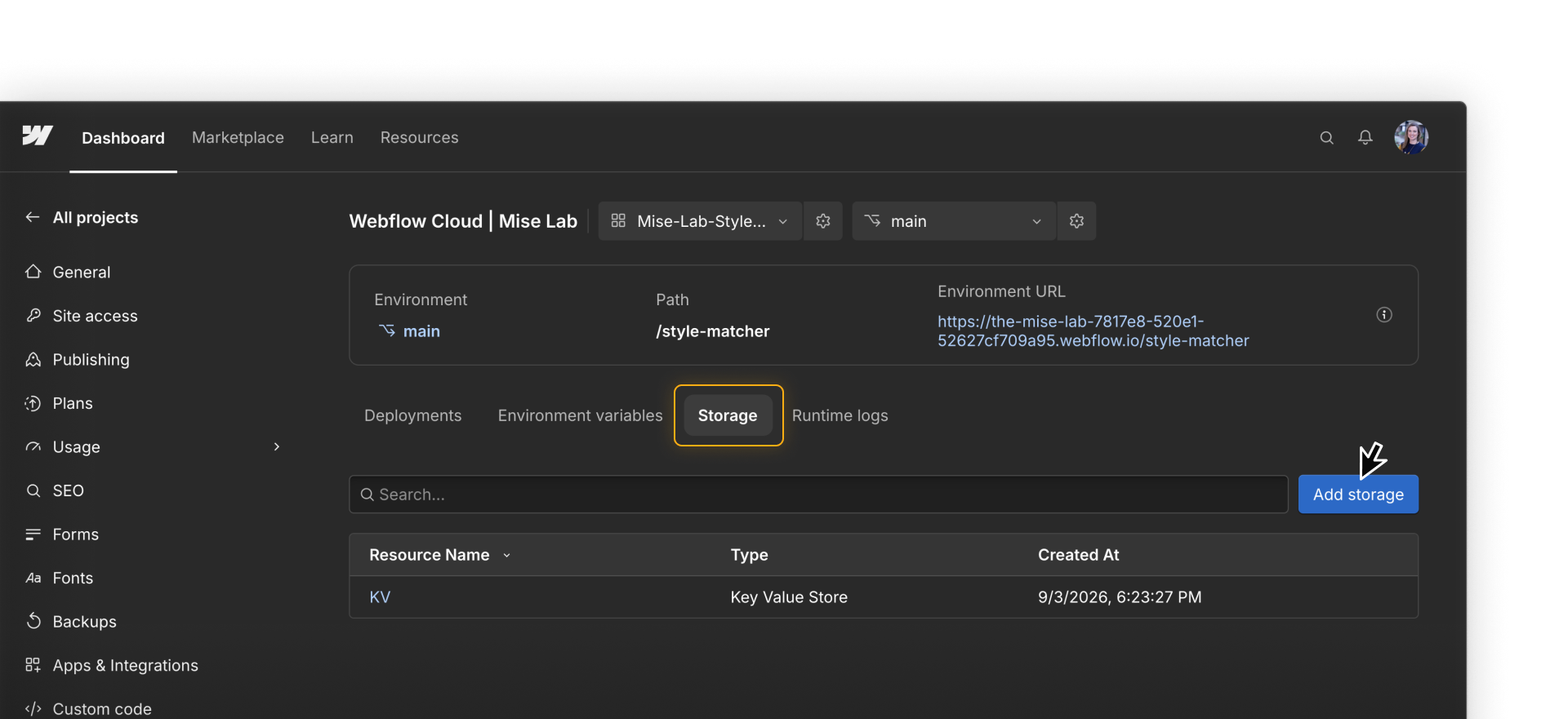
A Webflow Cloud Key Value Store is one option for caching API responses. The Storage tab below shows a Key Value Store configured for the Style Matcher app from earlier in the course.
Sync it elsewhere
A separate workflow can copy the new property status into another system. This may help when that system genuinely needs its own record, but the update depends on the sync running successfully.
The workflow needs a trigger, such as a change event or schedule, and a way to write into the destination. If that destination is Webflow CMS, it can use the Webflow CMS API.
Choose based on how current the information needs to be, how often the app can request it, and whether another system genuinely needs its own copy.
Before building the connection, record the decision in plain language. For the property app, that might look like this:
Price and availability stay in the listings platform, and the app requests them when needed. Neighborhood content stays in Webflow CMS. Saved preferences use Webflow Cloud storage.
Add how current each source needs to be and what the app should show if that source is unavailable. This gives the person building the connection a clear plan and tells everyone where future updates belong.
Keep learning.
Continue to the next lesson to see how DevLink can bring selected Webflow components into an app.