Going further with custom roles
Custom roles
Default roles like Designer, Marketer, Content Editor, and Reviewer cover a lot of common team setups. But sometimes a default role is almost right — except for one or two permissions.
That’s where custom roles come in. A custom role starts from a default role, then lets you adjust specific permissions so the role better matches the work someone actually needs to do.
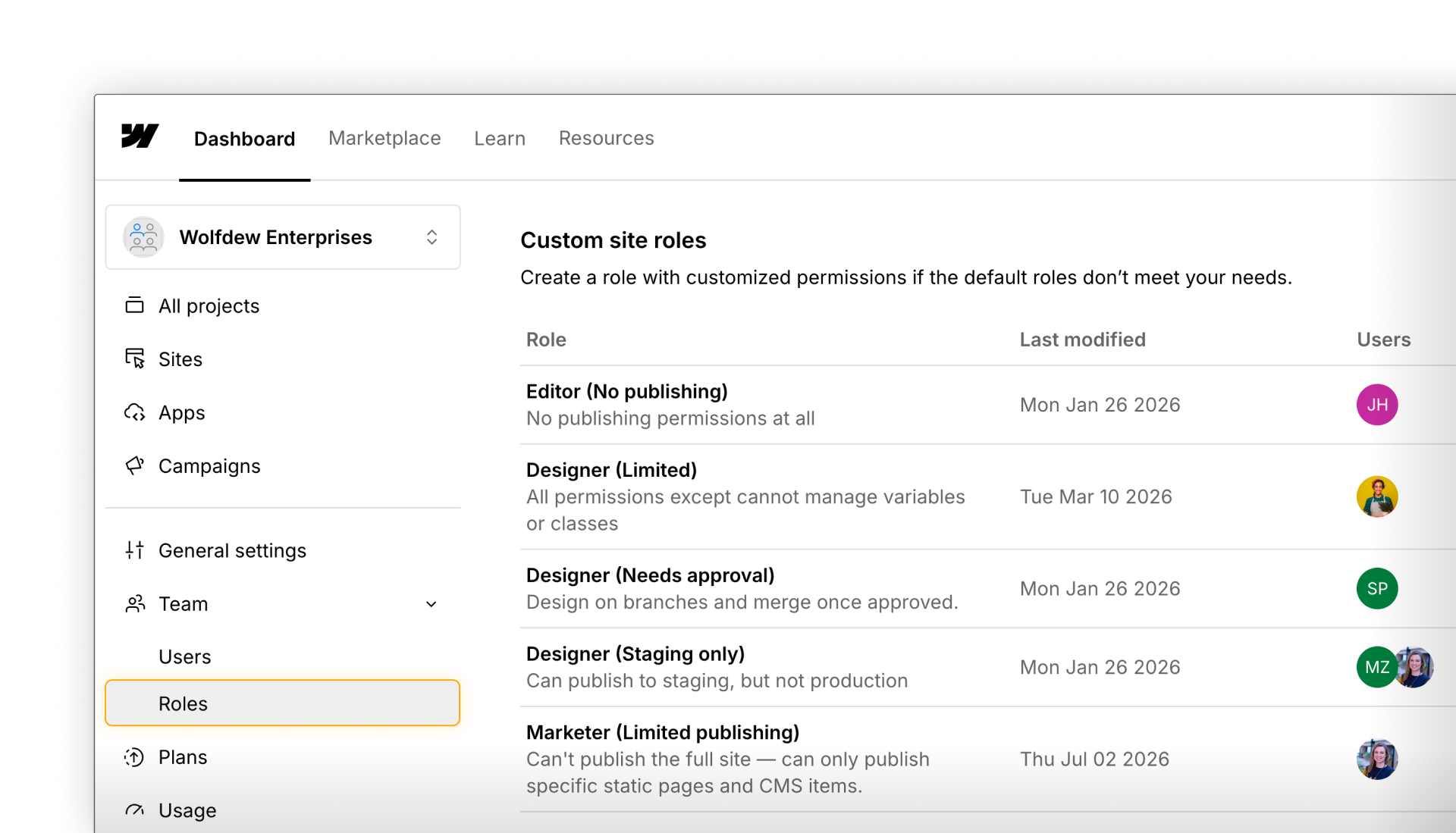
From default to custom
A few custom roles come up often enough across Webflow customers that they're worth knowing before you build your own:
Junior Designer
A Designer base role with design-system access removed and publishing limited to staging only, for teams that want a newer team member building and learning without the ability to affect production
Limited content editor
A Content Editor base role that can draft changes but can't publish them, CMS or site-wide, so nothing goes live without someone else's review.
Marketer, requires approval
A Marketer base role with the "can make changes without approval" permission turned off, so a Marketer's work needs a sign-off before it publishes
One of the most common reasons to create a custom role is to control how and where someone can publish.
Someone might need to build and edit freely, but only publish to staging. Or they may need approval before changes reach production. Custom roles let you separate those responsibilities instead of treating editing and publishing as one all-or-nothing permission.
Other adjustments worth knowing
Publishing is only one part of a custom role. You can also use custom roles to:
- Separate class editing from variable editing
- Limit page building to existing templates
- Restrict edits to global component content
- Limit junior Designers to working in branches
The pattern stays the same: start with the closest default role, then adjust only what needs to change.
Need help planning a role? Use the Custom Role Configuration Tool to map a teammate’s responsibilities to the permissions they need, then use those recommendations as a starting point when you create the role in Webflow.
What about AI?
Custom roles also control whether someone can use Webflow AI. AI follows the permissions of the person’s role. It doesn’t give them additional access — it only changes how they can use the access they already have.
For a deeper look at managing AI access for your team, see AI guardrails for teams.
Ready to continue?
You now know when a custom role is useful and how to fine-tune a default role for a specific job. Next, we'll walk through actually building one.