Plan your CMS structure
Once a Collection starts filling with content, changing its structure gets harder. A field's type can't be changed after it's created, so replacing one may mean adding a new field, moving existing content, and updating anything on the site that uses it. Splitting a Collection or reworking a relationship can create similar follow-up work.
Whether you're building from scratch or preparing for a migration, your agent can help you work through three decisions and turn them into a plan.
What content types are you managing?
Start with the repeatable types of content the site needs to manage. For a blog, that might include posts, authors, and categories.
Look at what each content type needs to store and where that information will be reused. If authors need bios, headshots, and links to multiple posts, an Authors Collection makes sense.
Option field or Collection?
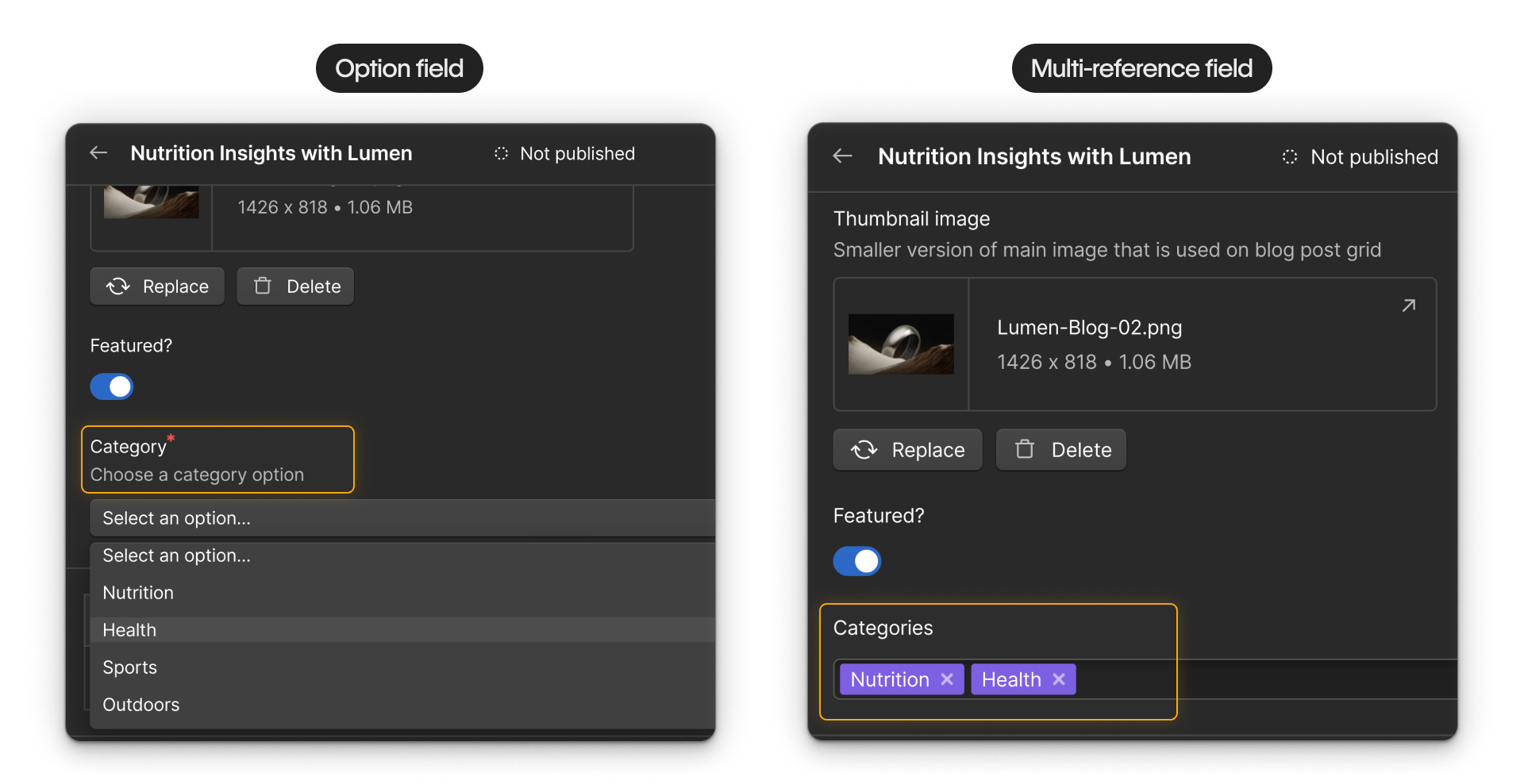
Categories can go either way. Choose based on what the category needs to do.
Option field
Use an Option field when each post chooses one category from a short list, such as News, Tutorial, or Case study. Your team selects it from a dropdown without maintaining another Collection.
Categories Collection
Use a Collection when categories need descriptions or landing pages, work across Collections, or a post can have several. Connect it to Blog Posts with a Reference or Multi-reference field.
If you're not sure what belongs in its own Collection, ask your agent:
I need to structure a CMS that includes blog posts, authors, and categories. Ask me questions that will help me decide which should be individual Collections and which should be fields within another Collection.
The agent's questions can help you remove structure you don't need or catch a content type that's missing.
What does each Collection need to hold?
Next, work out what a complete item needs. For Blog Posts, test the proposed fields against a few realistic posts instead of guessing.
A post needs a title and body, but it might also need a thumbnail, summary, original publish date, featured status, or metadata. Ask your agent to flag fields you may need based on how the content will be displayed, managed, searched, and understood by answer engines. You can then decide which recommendations belong in the Collection.
Tip: Name fields for their purpose. Publish date provides more context than Date, and Post summary is clearer than Info.
Plan for images
An Image field also needs a plan for the images that will fill it. For Blog Posts, decide whether thumbnails and featured images already exist or still need to be created. If they exist, note where they're stored and whether your agent can access them.
Tip: If an image doesn't have a public URL, one option is to upload it to Webflow's Assets panel. This gives your agent a URL to use when adding the image to a CMS item.
Set up fields for your team
Once you've chosen the fields, make a couple more decisions about how your team will use them:
- Required or optional: Require a value only when every item needs one. If every post needs an author, make Author required. Leave Related posts optional if some posts won't have any.
- Help text: Add a short instruction when the field name alone doesn't tell your team enough. For Post summary, you might explain where it appears and recommend a length.
As your field list grows, field groups let you organize related fields into sections directly in Collection settings. A Blog Posts Collection might use:
- Content: Summary, post body, and featured image, the fields your team edits most often
- Publishing: Publish date and featured status, the fields that control where and when a post appears
- SEO: Meta title, meta description, and Open Graph image, the fields used to manage search and sharing metadata
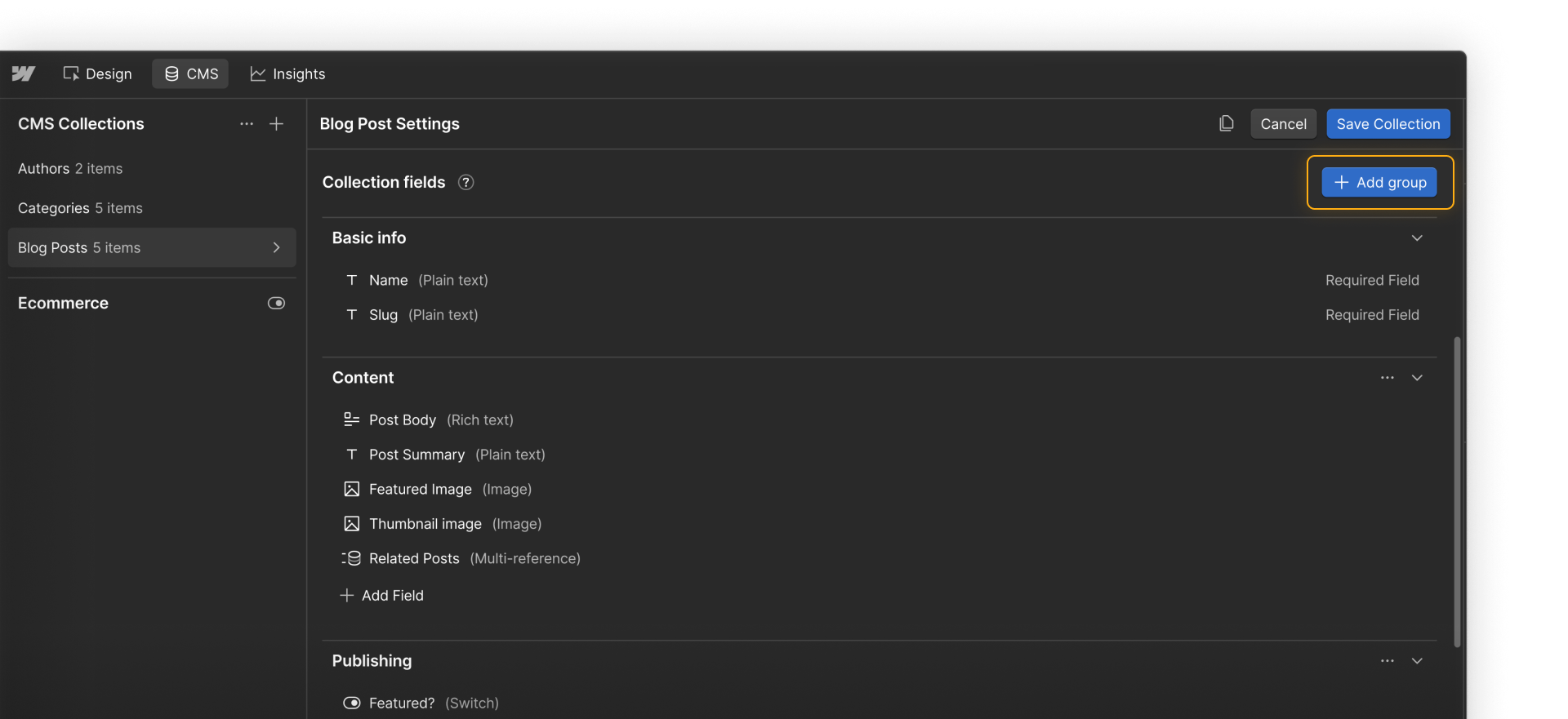
Field groups make longer Collections easier to scan when someone adds or edits an item. They don't change how the fields or published content work.
How should the Collections work together?
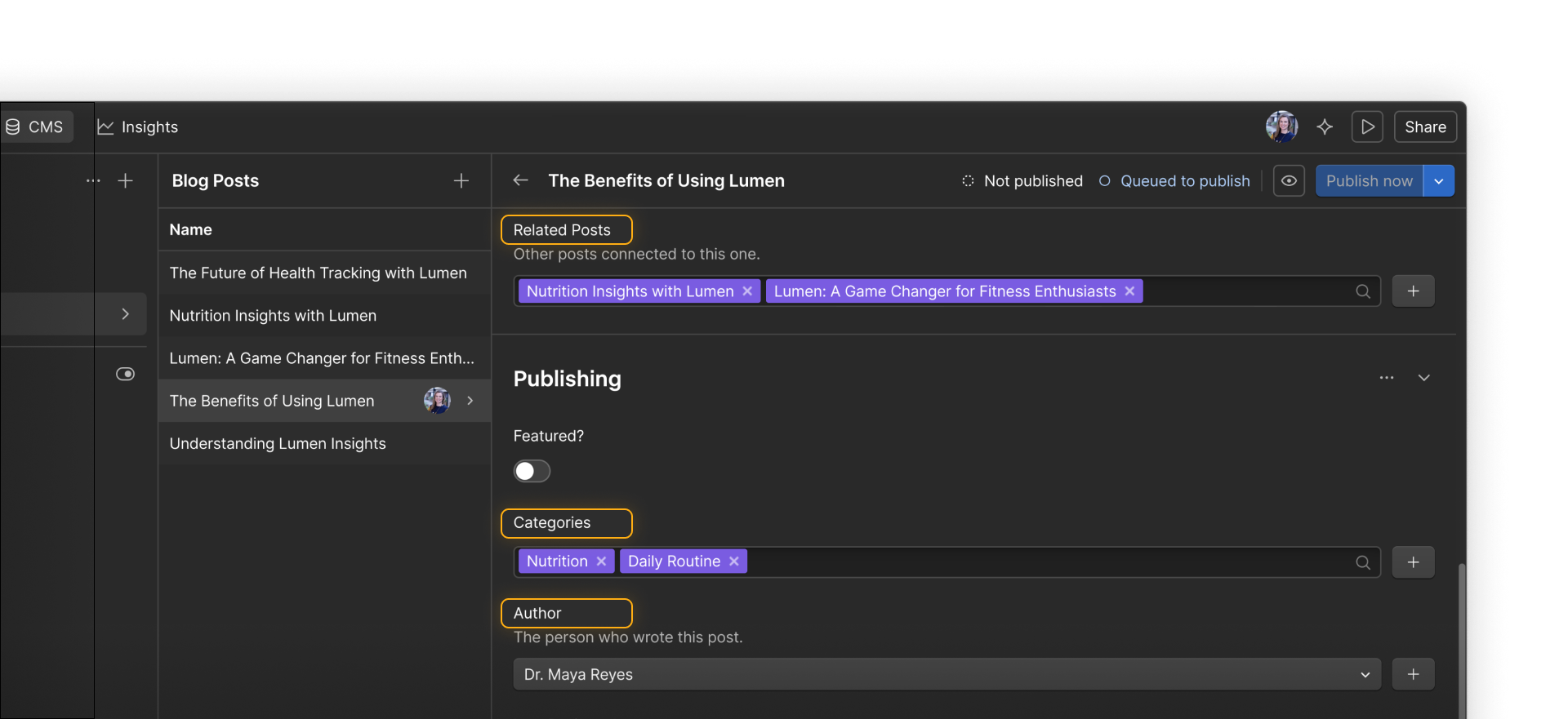
Once you know what each Collection holds, look for information that needs to be managed in one place and reused somewhere else. Blog Posts can connect to Authors and Categories so that information doesn't need to be entered separately for every post.
A Collection can also reference itself. For example, a Related posts multi-reference field can connect one Blog Post to several other Blog Post items in the same Collection.
Write each relationship as a plain-language rule. For example:
- Each Blog Post has one Author.
- Each Blog Post can belong to one or more Categories.
- A Blog Post can relate to another Blog Post.
Then test those statements against real content. Could a guest post have two authors? Should a post be allowed in several categories? Your answers tell you whether each relationship needs to support one related item or several.
Ask your agent for a plan
Once you've considered the content types, fields, and relationships, bring them together in one request:
Help me plan a CMS structure for a blog. Recommend the Collections, the fields each one needs, and how they should relate. Include content fields and any that may improve user experience or discoverability. Explain your recommendations, point out anything I may have missed, and wait for my approval before making changes.
Test the proposal against a few real posts and what your team may need later. Question anything that doesn't match how your content works, then adjust the plan before approving it.
Ready to continue?
Click Continue to next lesson to see an agent plan, build, and test a CMS through Webflow MCP.