Connecting with reference fields
Say your site has Locations, Hours, and Services Collections. Each Location uses one Hours schedule and may offer several Services.
Before your agent adds the connecting fields, decide whether each field should accept one item or several and which Collection should hold it.
How a reference field works
A reference field doesn't copy content from another Collection. It points to an item in that Collection.
Each Location can connect to an item in the Hours Collection. If many Locations use Standard Hours, they all point to the same Hours item instead of storing separate copies. Update that item once, and every connected Location page displays the new schedule.
This also changes how your agent handles the update. Instead of editing each Location that uses Standard Hours, it updates the Hours item once.
Reference and Multi-reference fields have limits, and so do the nested Collection lists often used to display them. Check the current reference field limits and nested Collection list limits before your agent builds.
For the full steps on adding a reference field in Webflow, see Reference field overview.
Choose one item or several
Start by writing the relationship as a plain-language rule.
- Planned relationship: Each Location uses one Hours schedule.
- Field decision: Add an Hours Reference field to the Locations Collection.
A Reference field connects to one item. The Hours Collection might include Standard, Extended, and 24/7 schedules, but each Location uses only one schedule at a time.
Now compare that with Services:
- Planned relationship: Each Location can offer several Services.
- Field decision: Add a Services Multi-reference field to the Locations Collection.
A Multi-reference field connects to several items. Because a Location may offer several Services, this relationship needs a Multi-reference field, even if a particular Location offers only one Service today.
Decide where the field belongs
Start with one question: Where will your team actually select the connection?
Here, someone chooses a schedule and Services while editing a Location. That means both fields belong in the Locations Collection: an Hours Reference field that points to Hours and a Services Multi-reference field that points to Services.
Where a field lives determines where the connection is selected, not everywhere it can appear. For example:
- A Location page can display its selected Services.
- A Service page can display the Locations that offer it using a filtered Collection List.
You don't need a second field just to show the relationship from the other direction.
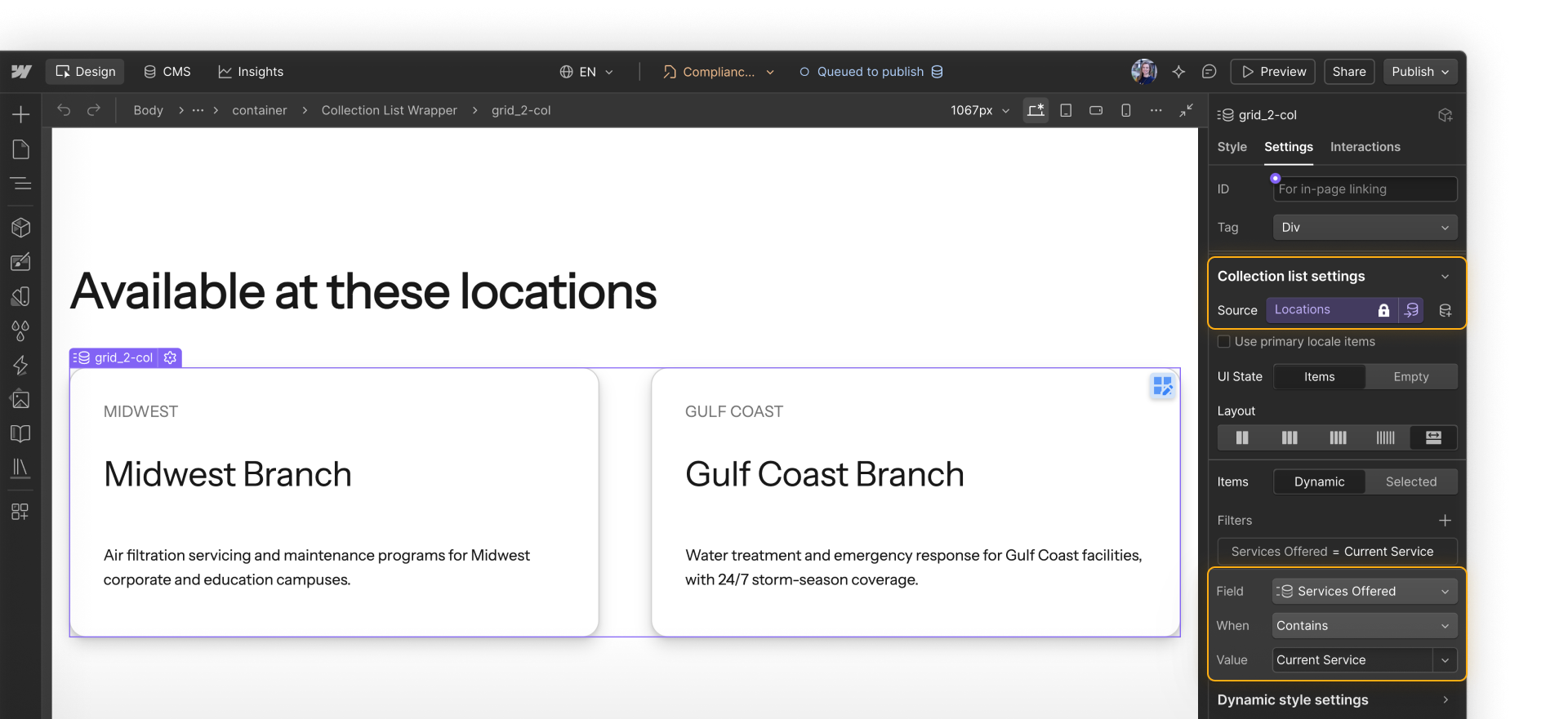
Plan the build order
A reference field can only point to a Collection that already exists. And before your agent can connect a Location to a specific Service, that Service item needs to exist too.
For this example, you'd ask your agent to work in this order:
- Create Hours and Services, then add their items. These are the items your Locations will reference.
- Create Locations with an Hours Reference field and a Services Multi-reference field.
- Populate and check the connections. Connect one Location to its schedule and Services, then confirm both relationships before continuing.
Make the order part of the instructions you approve instead of leaving it open:
Before making changes, list the order you plan to create the Collections, add their reference fields and items, and populate the connections. Explain what needs to exist at each step and why. Include a small test of each relationship.
The same idea applies to migrations. Map how your Collections connect before moving content so you know which Collections and items need to come first. Learn more in CMS Collections in the Webflow Way.
Keep going.
Click Continue to next lesson to look at how authorship, freshness, related content, and metadata can support AEO.