Using the SAL as a guardrail
When AI is part of your workflow, the Site Activity Log (SAL) gives you a clear record of what happened on your site: what changed, who made the change, how it was made, and when.
This lesson is about making that review part of your workflow, especially after an AI-assisted session.
Access to the Site Activity Log requires a Platform plan. Visit Webflow Plans & pricing to learn more.
What to look for in the SAL
The SAL helps you answer the questions that matter before and after publishing:
- What changed? Review updates to pages, styles, CMS items, components, settings, and more.
- Who made the change? See which person was associated with the activity.
- How was it made? Use AI attribution to understand whether the change came from manual work, a Webflow AI tool, or an MCP-connected agent.
- Where should you look closer? Pay extra attention to broad or shared changes, like updates to styles, variables, components, or page settings.
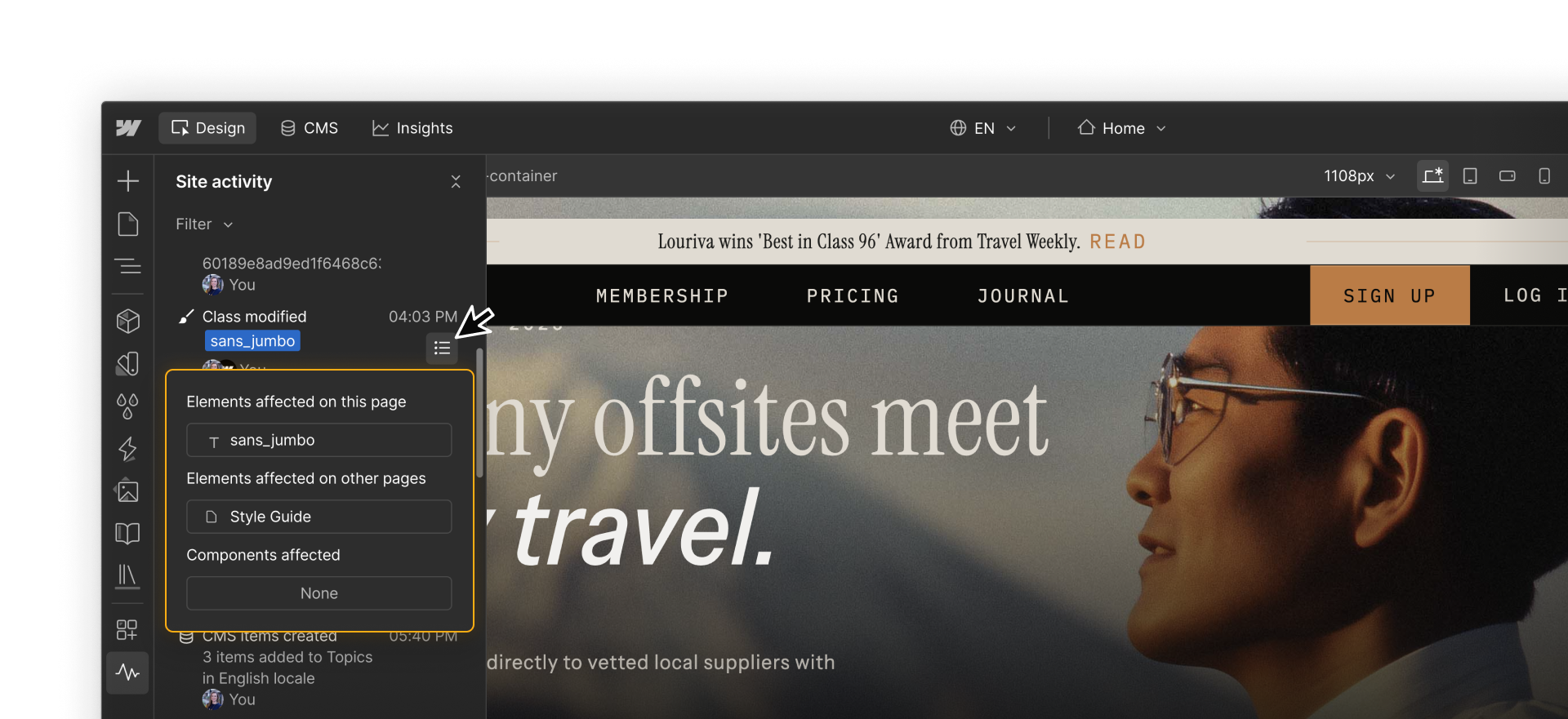
The third question, how was it made?, is what makes the SAL especially useful as an AI guardrail.
AI attribution helps you separate manual changes from AI-assisted ones, so you can review the scope of an AI session more clearly. It can also help teams understand how AI is being used across the site: who is using it, where it's showing up, and what kinds of changes it's supporting.
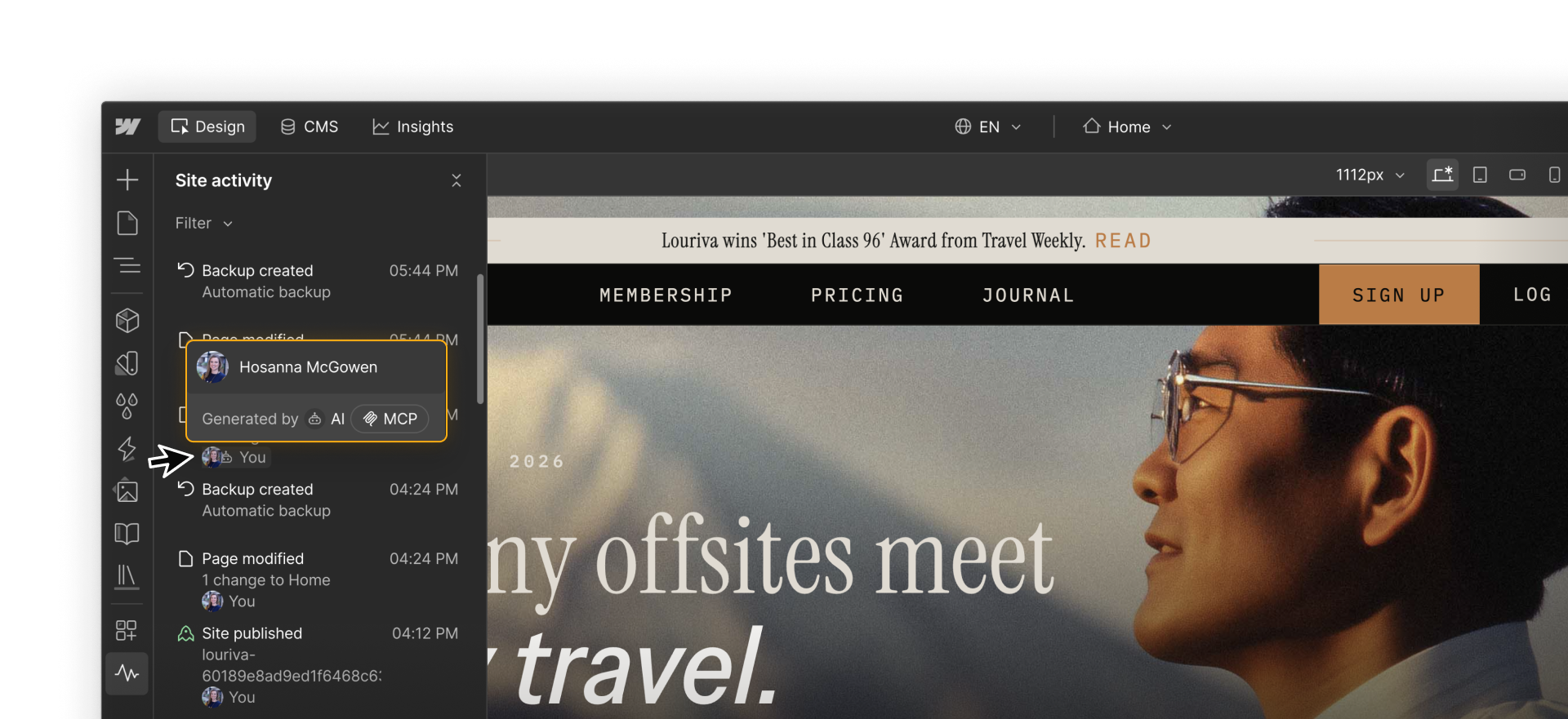
Use that context before you publish to check whether the scope of the work matches what you expected. Use it after publishing if something looks wrong and you need to trace what changed.
Querying the SAL with MCP
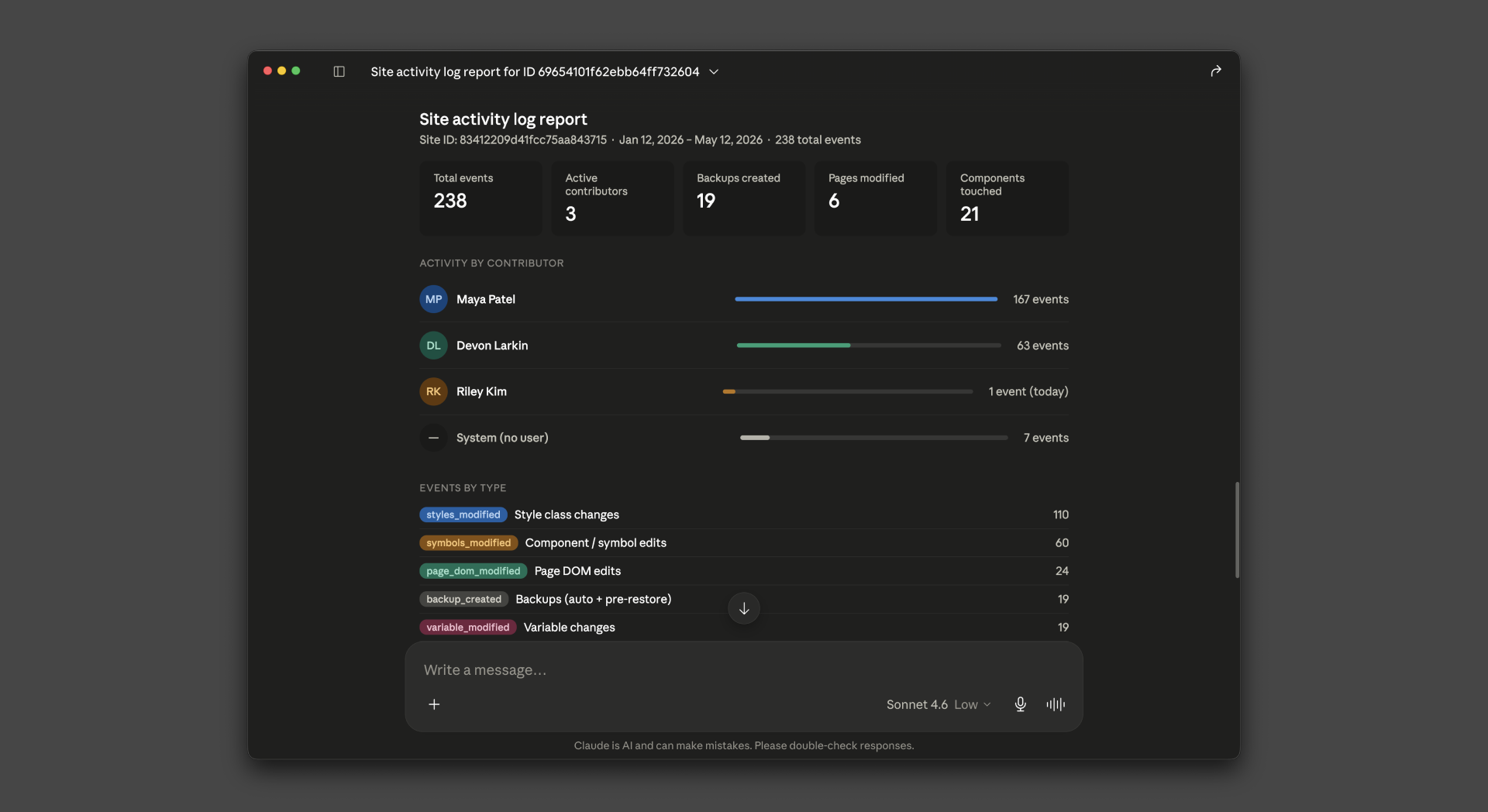
If your team is working with MCP, you can also query the SAL in plain language. Instead of scrolling through entries one by one, you can ask for a summary of what changed.
For example:
Give me a structured summary of everything that happened on this site during the last session. Group the changes by type, and flag anything that should be reviewed before publishing.
Depending on what happened in the session, the response can help you spot patterns faster: pages that changed, styles that were updated, CMS items that were added, or anything that may need a closer look.
You can keep a prompt like this handy as part of your team's pre-publish process.
The staging connection
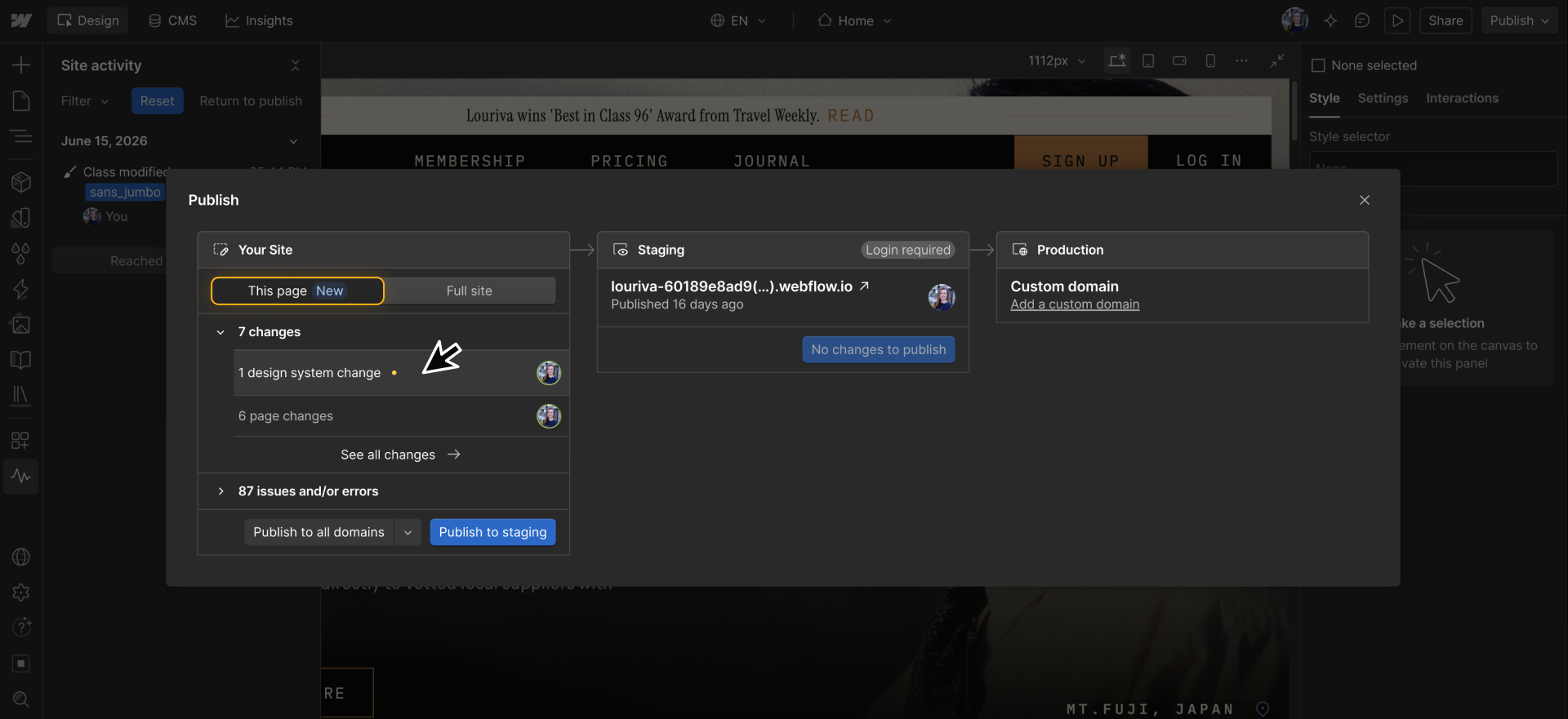
In an Enterprise publishing workflow, staging gives you one more checkpoint before changes go live.
Before publishing, you can review recent changes and click into any entry to open the related SAL record for more detail. Once the changes look right, you can publish to staging and even choose to publish a single page.
A few habits worth building
The SAL works best when it's part of your routine.
- Review the SAL before publishing after an AI-assisted session.
- Filter by change type when you need to focus your review.
- Pay extra attention to variables and styles, since those can affect many elements and pages.
- Use an MCP summary when the session included a lot of AI activity.
- Click into any staging change that looks broad, unexpected, or high-impact.
The point isn't to review every small change forever. It's to know what changed before it reaches your live site.
Ready to continue?
Click Continue to next lesson to wrap up with best practices for using AI guardrails across your workflow.