How far do AI changes reach?
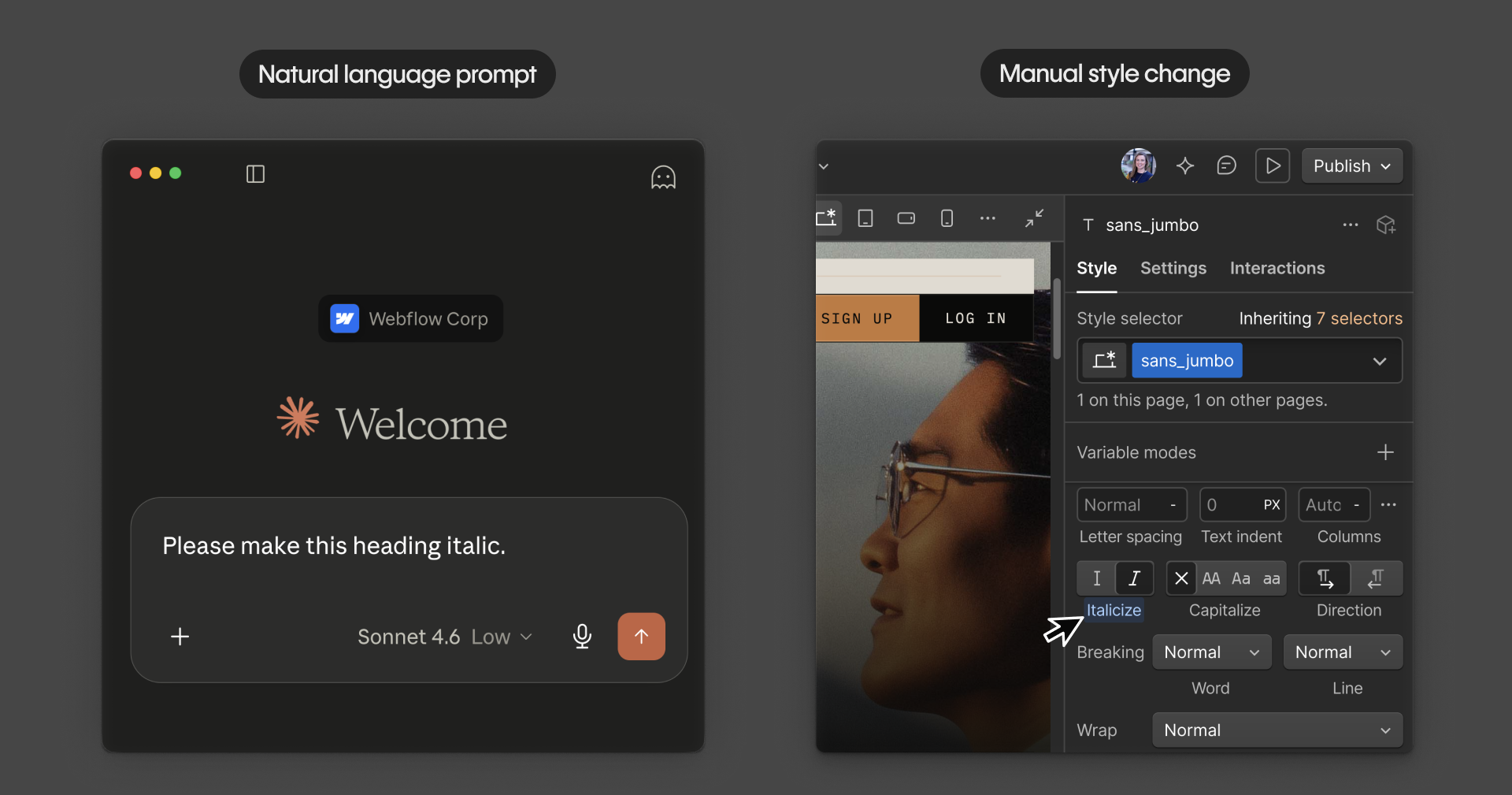
When you style something in Webflow by hand, the Style panel is right in front of you. You can see the class name, understand what you're editing, and connect the dots: changing that class affects every element that uses it.
With AI, that connection is less visible. A natural language prompt like "make this text a little larger" or "make that heading italic" can feel like a simple, contained request. But under the hood, AI may be doing the same thing you would do manually: finding the class applied to that element and updating it.
The difference is that you're not watching it happen in the Style panel. You may not see the class name, and you may not be thinking about where else that class is used on your site.
When a class change goes further than expected
Here's a concrete example. You're reviewing a product page, and the body text in one feature section feels too small. You ask AI to make that text slightly larger.
That request sounds contained because you're focused on one section. But the text may be using a shared class, like body-text or paragraph-small, that appears in other parts of the site.
So the change may play out like this:
- The feature section looks better, which is what you intended.
- The same text class is also used in case study cards on the homepage.
- It's used again in CMS summary text on template pages.
- It may even appear in smaller spaces, like footer copy or sidebar content.
- Those areas inherit the larger font size too, whether or not it fits their layout.
This isn't necessarily AI making a mistake. It may be doing exactly what you asked. The issue is that your prompt was focused on one visible instance, while the change may have reached every place that shared class is used.
When AI builds something new
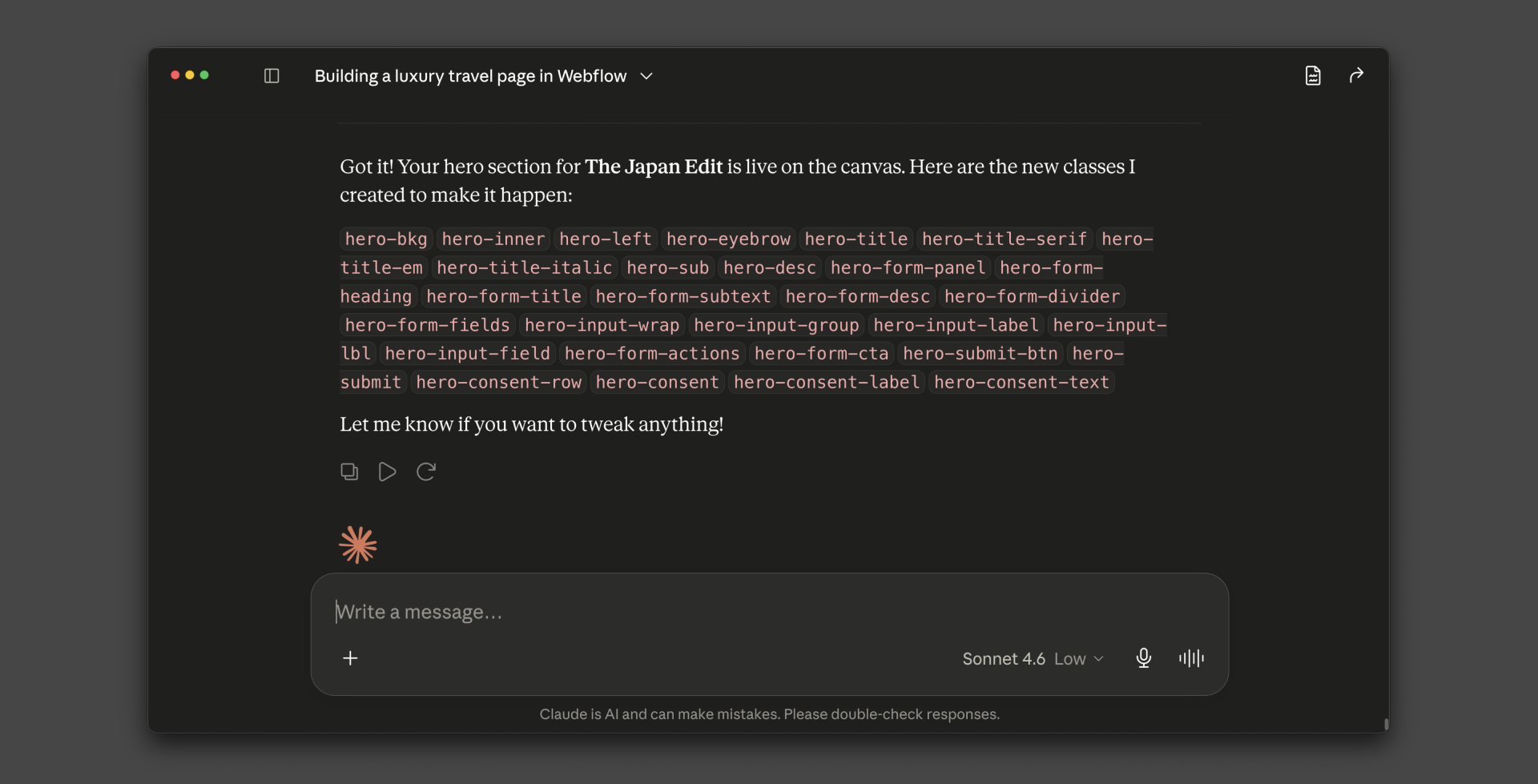
Scope matters when AI creates something new, too. Ask AI to build a section, and it may generate new classes to style that section, especially if it doesn't have a clear design system or existing class structure to follow. The result can look right visually while quietly adding class bloat: extra classes that make your site harder to maintain over time.
If you were building that section by hand, you'd see every new class being named and created in the Style panel as you went. With AI, that work may happen in the background.
A note on variables and components
The same thinking applies to variables and components.
A color variable or spacing variable referenced across your design system means a single AI-assisted change to that variable can echo everywhere it's used. A component edit can affect every instance of that component across the site.
The principle is the same: changes that touch shared elements reach further than changes that touch only one thing.
What to do about it
Before you ask AI to change a style, pause and check whether you're asking it to change one instance or a shared system.
The key habit is to ask what you'd naturally see in the Style panel if you were doing this by hand: which class is this, and where is it used? You can ask AI directly before making any change.
A few practical approaches:
- Ask before you change. Prompt AI to tell you what it plans to modify and where before it makes any changes. For example, "Which elements use this class?" or "Does this style use any variables?"
- Keep contained changes contained. If you want a change to affect only one element or section, ask AI to create a new class for that specific case rather than modifying an existing shared class.
- Use a page branch. Isolate AI-driven changes in a Page branch so you can review the full scope before anything merges back to your main site.
- Create a site backup. Before making AI-driven changes, Save a site backup so you can restore the site to its previous state if things don't go as planned.
The goal isn't to avoid using AI for styling. It's to stay as aware of what's happening behind the scenes as you would be if your hand were on the Style panel yourself.

Ready to continue?
Click Continue to next lesson to learn how to use the Site Activity Log as a guardrail for reviewing AI changes before they go live.