AI within role limits
The workspace toggle controls whether supported Webflow AI features are available across your workspace. This includes Webflow-provided AI features such as the AI Assistant, MCP, AI Site Builder, and more. Custom roles let you go one level deeper, scoping access by role.
Once AI is enabled for your workspace, the next question is what AI access actually means for each person on your team.
Webflow Optimize, Analyze, and Localize are controlled separately from the workspace AI toggle.
AI permissions follow the role
Turning on AI doesn't change what someone can do in Webflow. It changes how they can do it.
Whatever a role could already do, it can now do with AI. Whatever it couldn't do without AI, it still can't do with AI. That boundary doesn't move, which means you don't have to rethink your entire permissions structure before rolling out AI. The guardrails your team already has in place apply automatically.
AI by role: a quick reference
How AI access works with default site roles.
Marketer with AI on
Can generate and refine copy, and use AI within the templates and components they already have access to. Cannot create or modify component structure or styles. Those remain Designer-level permissions, whether AI is involved or not.
Content editor with AI on
Has similar copy generation capabilities to a marketer, but a more limited scope overall. No component editing, no canvas-level work, with or without AI.
Designer with AI on
Can use AI across the full toolkit available within their existing site permissions: copy generation, page design, component creation, and canvas changes. These workflows are available with or without AI.
Reviewer
Cannot access any AI features regardless of how the workspace toggle or any custom role is configured.
Before you enable AI for your team
For each role on your team, work through these questions before flipping the switch:
- What does AI unlock for this person or role? It's worth knowing and communicating upfront so no one is surprised.
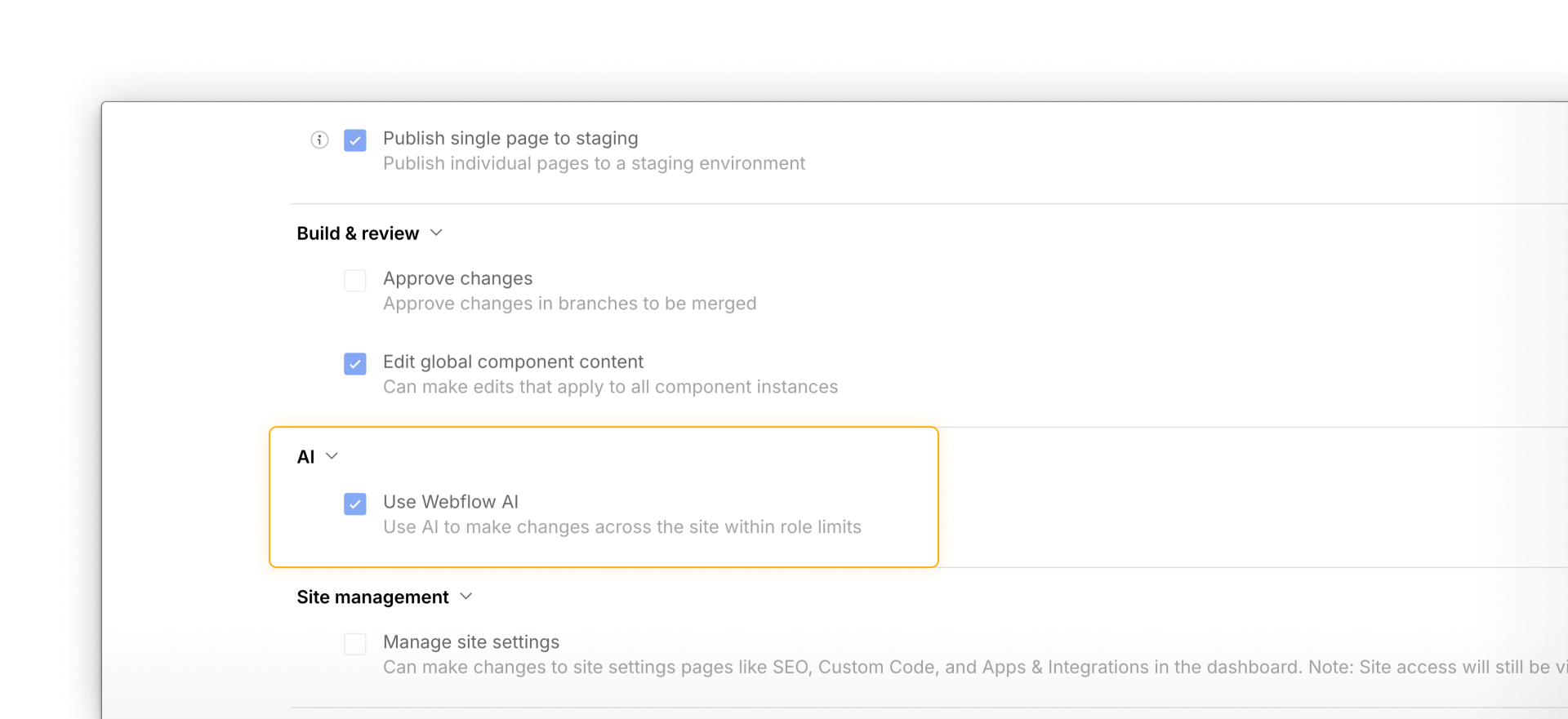
- Is there anything AI could do within a role that you're not comfortable with yet? If so, build a custom role with the permission disabled before enabling AI more broadly.
- Are there people in this role you'd set up differently? Contractors, junior team members, and external collaborators are common candidates for a custom role with AI off.
The custom role decision
Custom roles let you adjust AI access in either direction: limiting access for some team members, or expanding access for people who need more flexibility.
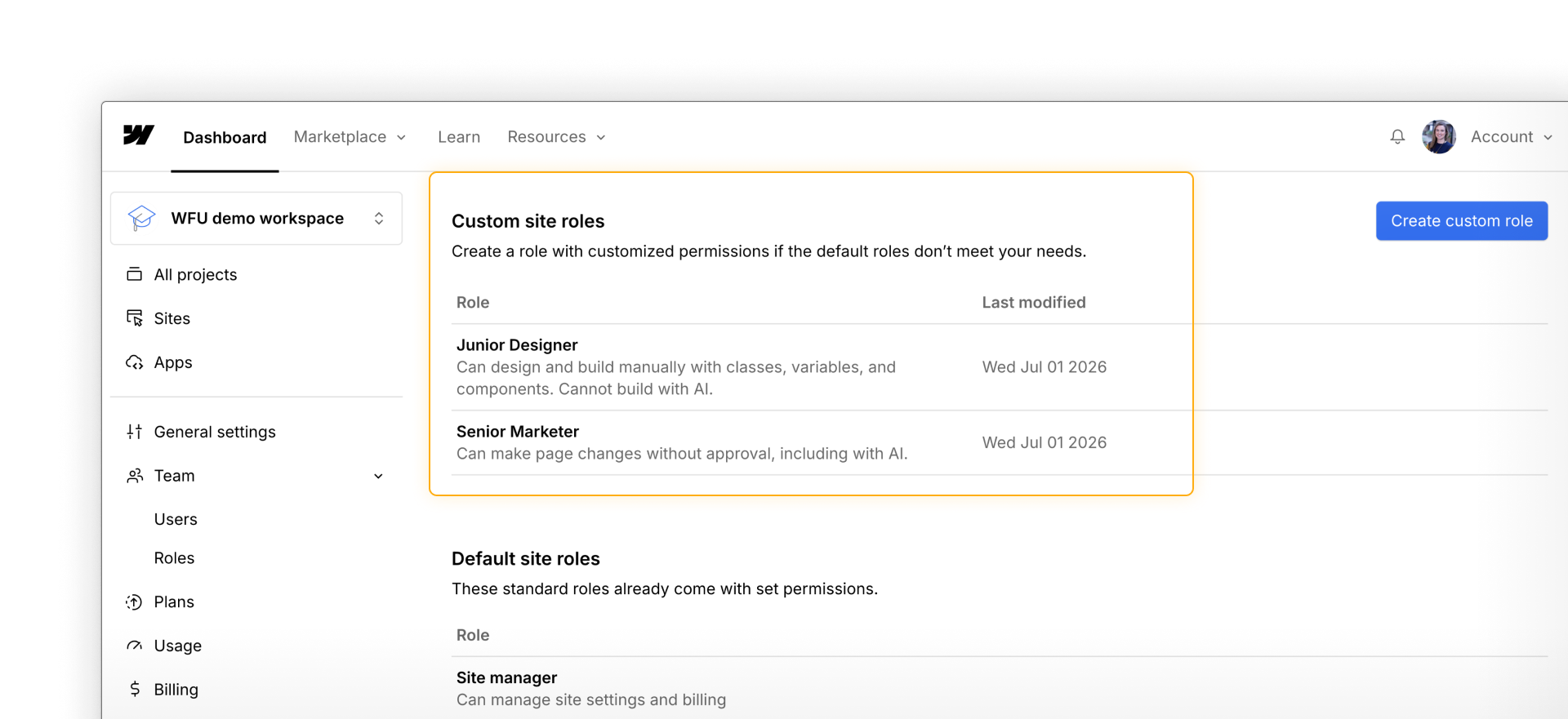
For example, a custom junior designer role could keep canvas-level design permissions while Use Webflow AI is turned off. That team member can continue designing manually, without access to AI-assisted workflows.
A custom senior marketer role, on the other hand, could enable both canvas access and Use Webflow AI, so they can build and edit directly on the canvas with AI.
Treat these choices as deliberate decisions, not defaults. Document who has access to what, and revisit those permissions as your team grows or changes.
Ready to continue?
Click Continue to next lesson to learn how AI changes can ripple across a site.