Background & preview
The question isn't just whether your team will use AI. It's how you make sure the right people have access, and that when AI does make changes to your site, you can see what changed before it goes live.
Webflow gives teams governance tools directly in the platform: controls that let you decide who can use AI, what they can do with it, and a clear record of site changes, including changes made with Webflow AI or AI agents. That structure helps turn AI from an experiment into a workflow your team can manage.
Why guardrails matter now
When AI makes a change to your site, it can move quickly and reach further than you might expect. A style update might ripple across every element sharing that class. A metadata change might affect pages you weren't thinking about. These aren't failures. They're how Webflow's system works. But they're worth understanding before anyone starts prompting on a live site.
The teams getting the most value from AI aren't the ones who turn it on everywhere without a plan. They're intentional about defining where and how AI can speed up workflows across the team.
Who this course is for
This course is for workspace admins, designers, and anyone responsible for what goes live on a Webflow site. If you decide who gets access, review site quality before publishing, or support the people who do, this course is for you.
Some features covered here, including custom roles and the Site Activity Log, require an Enterprise workspace or site plan.
What you'll learn
This course covers three areas:
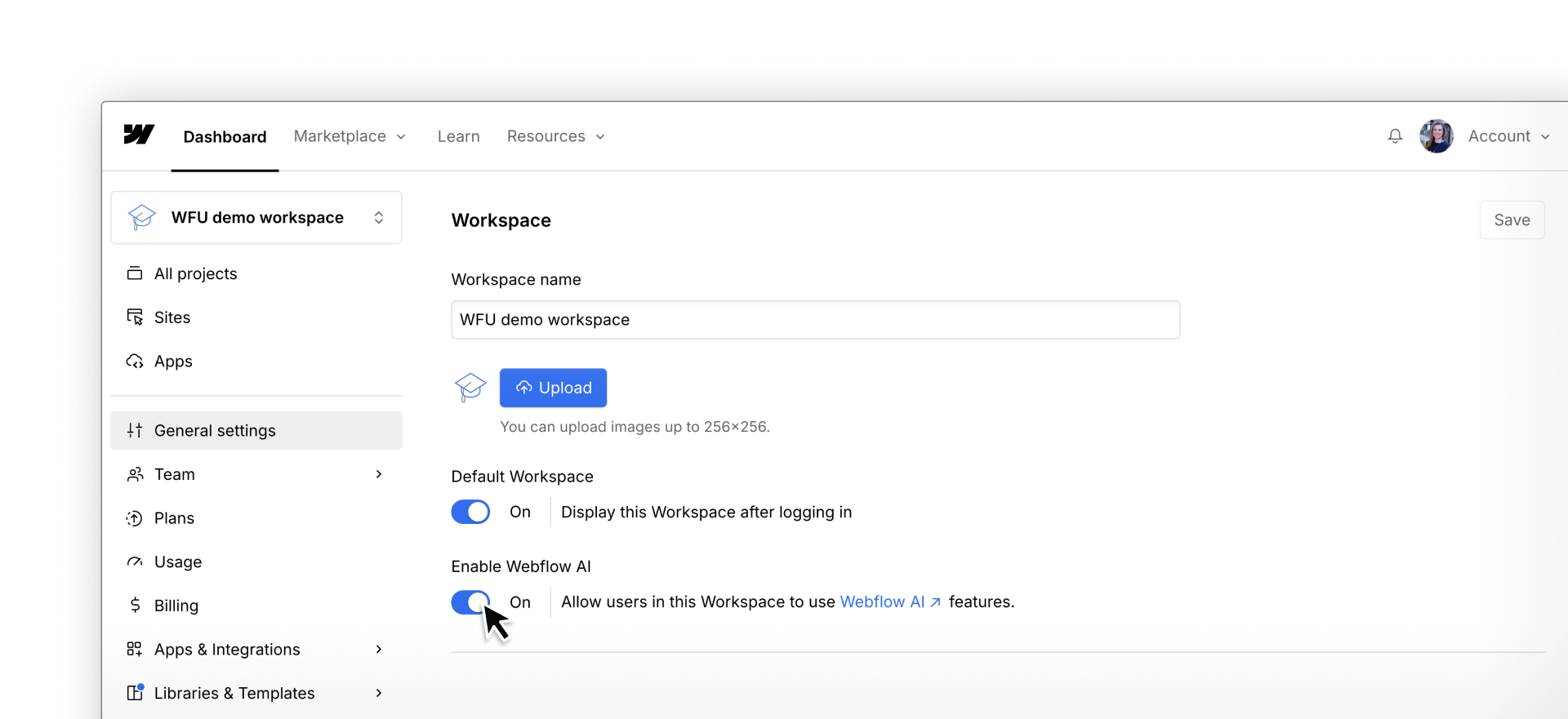
- Managing AI access — how to enable AI at the workspace level and use roles and permissions to get it into the right hands
- Understanding AI changes — how to think about the reach of AI-driven edits before they happen
- Tracking and reviewing changes — how to use the Site Activity Log as a real guardrail before you publish
Ready to get started?
Click Continue to next lesson to learn how to set up AI access for your team.