Best practices & resources
This course covered three core guardrails: setting the right access, understanding how far AI changes can reach, and reviewing those changes before they go live. Here’s how to put those ideas into practice.
Before you enable AI
Start by deciding who gets access. Before anyone starts prompting, decide who should be able to use AI, what AI will unlock for each role, and whether anyone needs a custom role first.
A few questions to answer:
- Who should have AI access right away?
- What can each role already do manually?
- What will each role be able to do with AI?
- Does anyone need more limited or more specific access through a custom role?
- How will you communicate the plan before enabling AI more broadly?
Even a short internal note can help your team understand who has access, why they have it, and what review expectations come with it.
Before an AI session
Before you start prompting, Save a site backup so you can restore the site to its previous state if things don’t go as planned. And if you’re asking AI to make canvas or style changes, consider working on a Page branch.
Then, think about scope. If you’re asking AI to change a class, variable, or component, pause first and check how widely that item is used. Before making the change, you can ask:
What would you modify to make this update, and where else might that change appear?
That small step can surface broad changes before they happen.
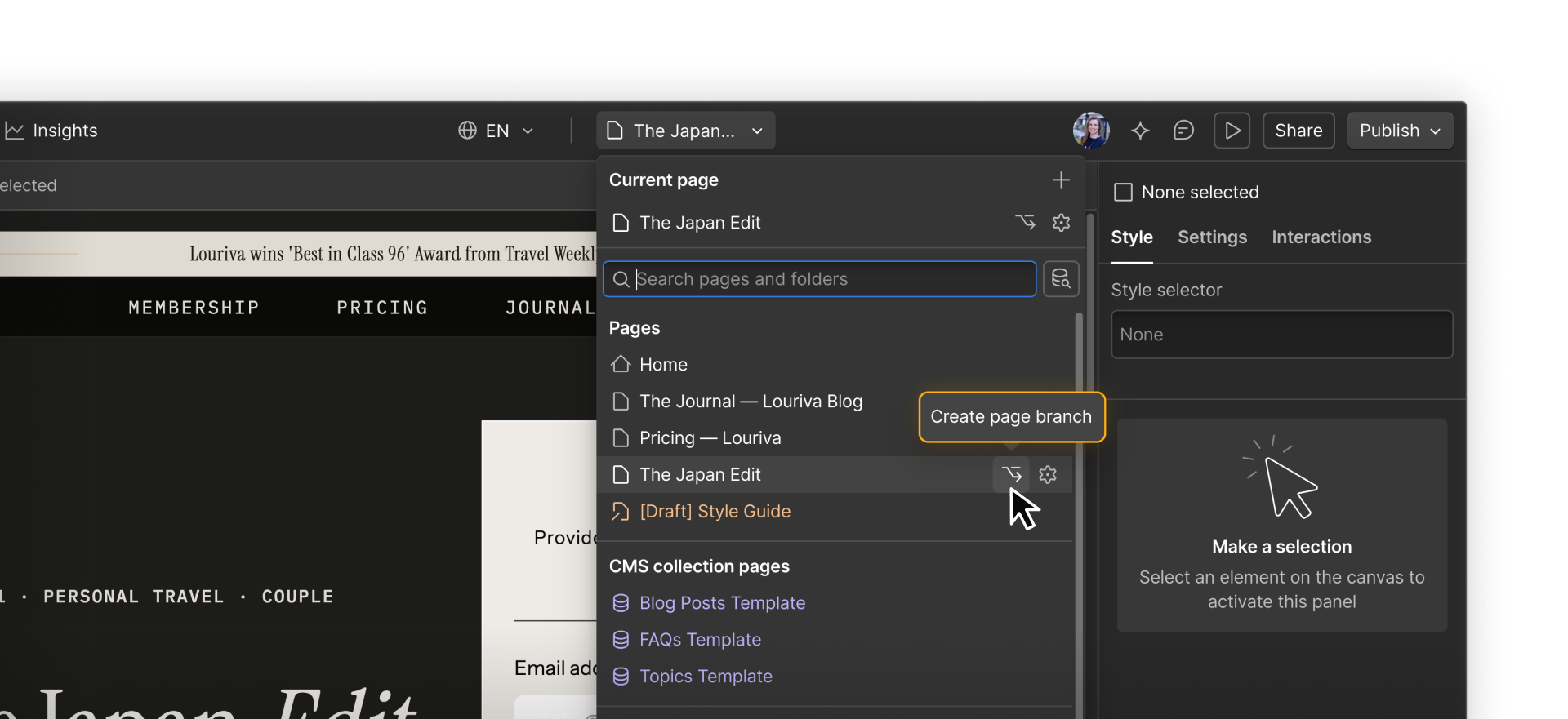
Tip: Start on a Page branch when building with AI. You can even ask your AI agent to create and work on a branch directly when working with the Webflow MCP. Once you’ve reviewed the changes in Webflow, merge manually to keep your live site protected.
Before you publish
After an AI-assisted session, check what changed before anything goes live.
Open the Site Activity Log and look for changes that may need a closer look, especially updates to styles, variables, components, page settings, or CMS content.
If your team uses MCP, you can also query the SAL to summarize the session and flag anything worth reviewing.
Before publishing, check:
- Did AI change anything broader than expected?
- Did any shared classes, variables, or components change?
- Do the changes still look right across pages and breakpoints?
- If you worked in a branch, has someone reviewed the merge summary?
Keep reviewing over time
AI governance is not something you set once and forget. As your team grows, revisit role permissions. New hires, contractors, new workflows, and new AI capabilities are all good reasons to check whether your access model still makes sense.
On Enterprise workspaces, you can also use the Workspace Audit Log to track changes to the workspace AI toggle itself, including who changed it and when.
The main idea
The teams that get the most value from AI are intentional about how they use it. They build enough structure to move faster in real workflows, understand what changed, and publish with fewer surprises.
Learn more
- Enable or disable Webflow AI — workspace AI toggle and role-level AI access controls
- Create and manage custom roles — custom roles for Enterprise workspaces
- Site Activity log — what the SAL tracks and how to use it
- Balancing trust, access, and control on Webflow Enterprise — enterprise governance, access, and control
- Your website is not a publishing problem. It’s a growth problem. — how AI, governance, and marketing speed