Background & preview
Bring your designs to life with motion
Animations can make a site feel more alive and engaging, but only when they're used with purpose. In this course, you'll learn how to create motion that feels smooth, thoughtful, and intentional. You'll see how animation can guide attention, make interactions clearer, and add personality to your designs.
We'll explore several ways to add motion in Webflow, including CSS effects, integrations (Lottie, Rive, and Spline), and Interactions powered by GSAP.
CSS effects
CSS effects handle quick, single-step transitions, like a button that scales up when hovered or a link that fades to a new color when focused. These transitions give visitors clear feedback that something is interactive and help your site feel polished and responsive.
Quick demo --> A button with a CSS hover effect showing smooth scaling and color change.
Integrations
Webflow also connects with tools that help you bring in different types of motion.
- Lottie works well for vector-based animations like icons or logo reveals, such as a checkmark drawing itself when a form submits.
- Rive lets you design interactive animations that respond to input, like a toggle that changes shape when clicked.
- Spline adds interactive 3D elements, like a product model that gently rotates as you move your mouse.
These integrations help you express brand personality and create unique experiences while keeping performance in mind.
Quick demo --> A hero banner that uses a Spline integration to add a 3D element that rotates when a mouse moves over it.
Interactions powered by GSAP
Interactions powered by GSAP let you design motion that unfolds in multiple steps or across multiple elements. You can create animations that play in sequence, respond to scroll, or trigger when someone hovers or clicks.
Picture a hero section where text fades, an image slides up, and a button appears right after. With GSAP-powered interactions, you can adjust timing, easing, and order directly on a visual timeline.
Quick demo --> A GSAP-powered timeline with a sequence of elements that animate on to reveal a graphic hero banner.
Interactions powered by GSAP vs. Classic interactions
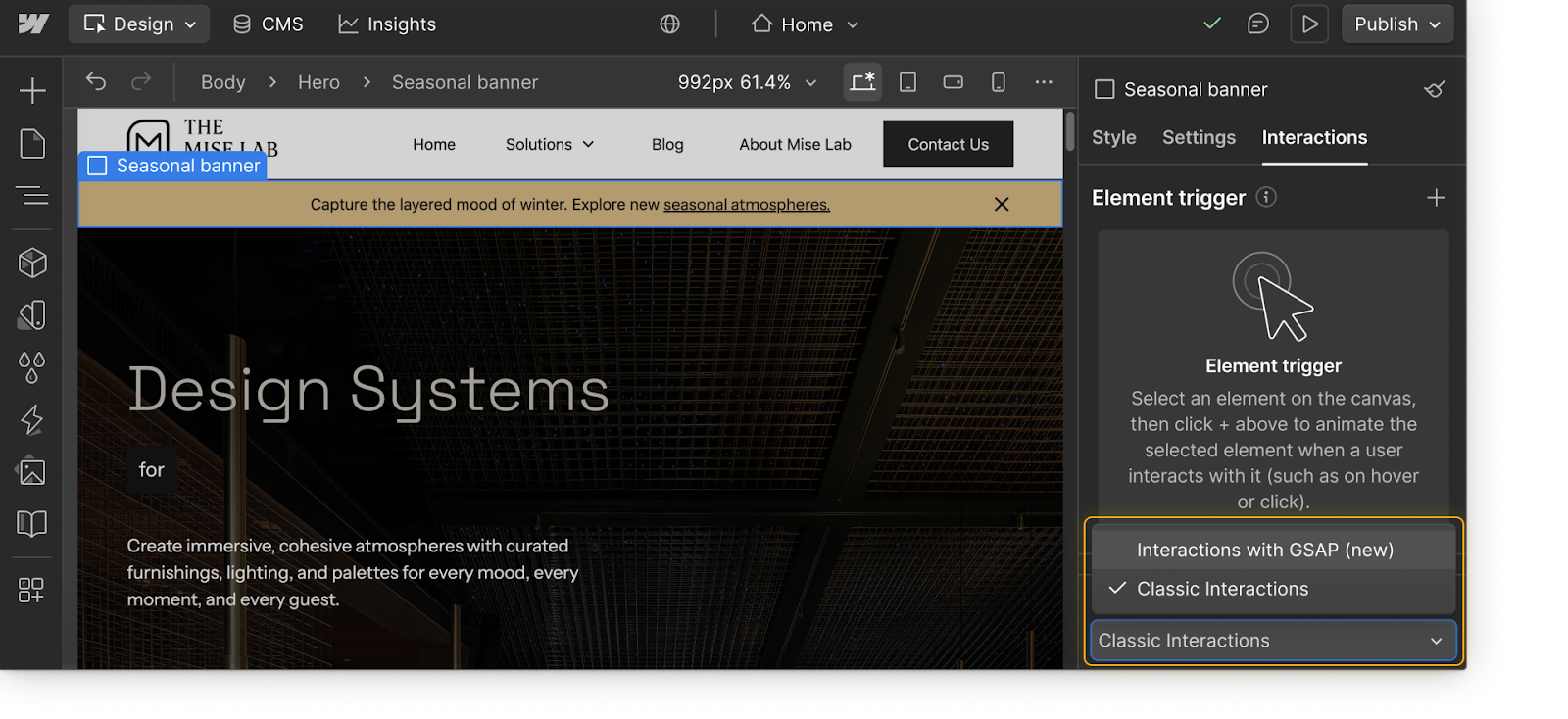
If you've worked in Webflow before, you might have worked with Classic interactions. Classic interactions follow a simpler trigger-and-action setup. They're still supported for older projects that use them.
Interactions powered by GSAP add a visual timeline, easing presets, and tools for staggering or overlapping animations. You can see how elements move together and adjust pacing directly on the canvas.
Which should you use? For new work, start with Interactions powered by GSAP. They offer more control and flexibility. For older sites, you can keep Classic interactions or rebuild them using GSAP-powered interactions to take advantage of the new features.
Ready to dive in?
Click Continue to next lesson in the Course progress box on the right to keep learning.