Accessible & performance-friendly motion
Why it matters
Good motion design should perform smoothly and work for everyone who visits your site. Accessibility and performance go hand in hand. When animations are efficient and respect how people experience motion, your site feels easier and more enjoyable to use.
Design for accessibility
Everyone experiences motion differently. Some people enjoy animations that add energy. Others prefer a calmer experience with less movement. The goal is to make your site comfortable for everyone.
- Respect reduced motion settings. Webflow automatically detects when someone has "prefers-reduced-motion" turned on in their system settings and adjusts animations accordingly.
- Keep motion optional. Important information should always be visible and clear, even if animations are turned off.
- Avoid sudden or constant movement. Quick or looping animations can pull attention away from the content. Use shorter, controlled transitions to keep motion easy to follow.
- Support keyboard and screen reader users. Make sure focus states are visible and the reading order still makes sense when animations are simplified or skipped.
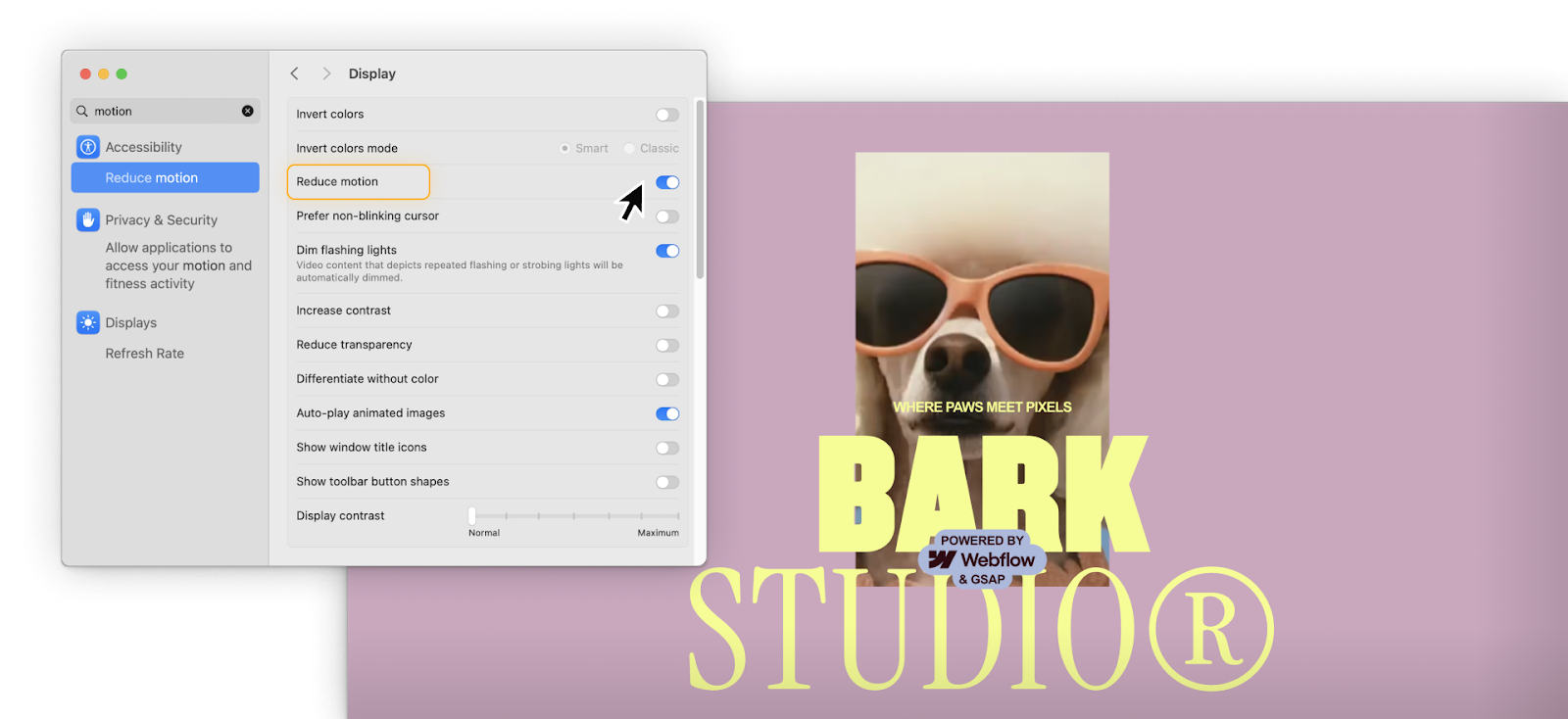
Tip: Turn on reduced motion in your browser or device settings and preview your site. It should still make sense and feel complete without any animation.
Build for performance
Smooth motion depends on how efficiently it's built. Lighter animations load faster, feel better, and keep your site running smoothly on any device.
- Animate transform and opacity. These properties are handled by the GPU, which keeps animations smooth and efficient.
- Avoid animating layout properties. Changing width, height, top, or left can cause layout shifts that make motion look choppy or uneven.
- Use visual effects carefully. Filters, shadows, and blend modes can add depth, but they take more effort for browsers to process.
- Limit how much moves at once. A few well-timed movements usually look cleaner and more professional than many elements moving at once.
- Test on real devices. Preview your site on desktop, tablet, and mobile to see how motion looks and feels in context.
Optimize assets and playback
Large or complex animations can slow down a page. A few small tweaks can help keep everything running smoothly.
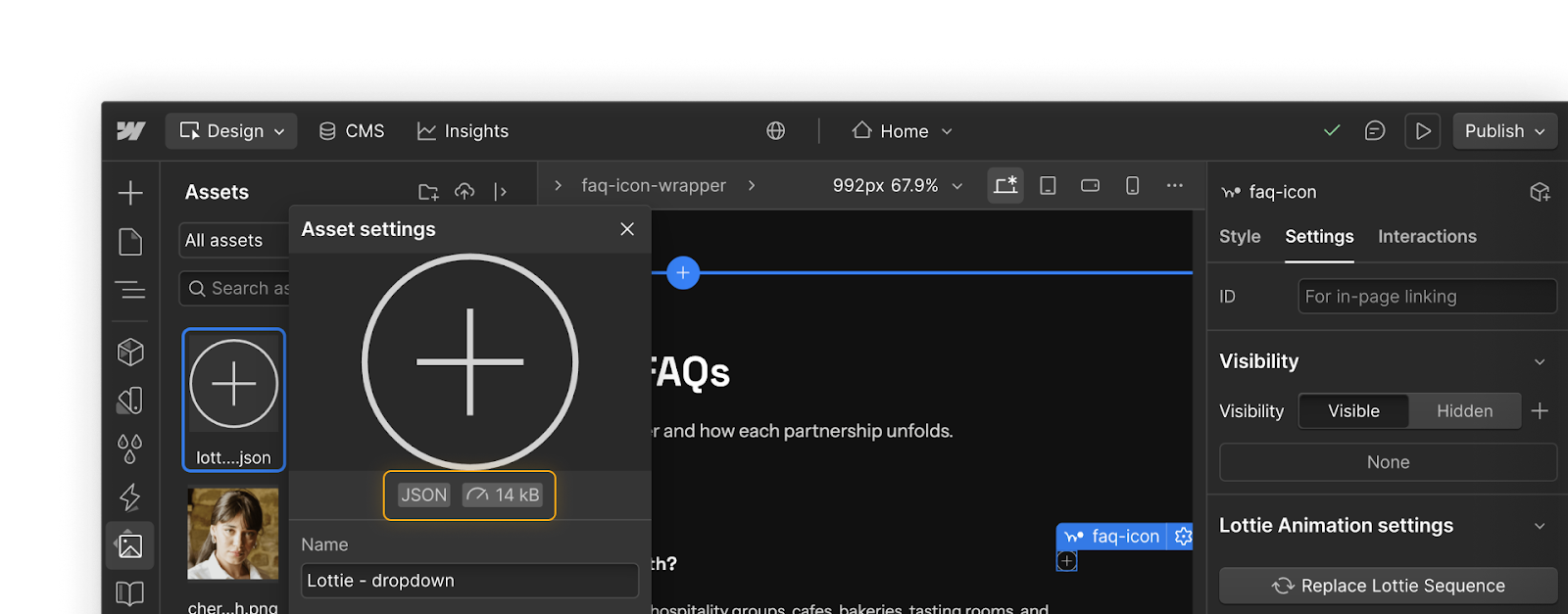
- Simplify and compress any Lottie, Rive, or Spline files before uploading them.
- Set animations to load only when needed instead of playing right away.
- Keep decorative motion subtle so people can scroll, read, and interact without waiting for an animation to finish.
Almost there
You've learned how to create motion that's accessible, efficient, and built for everyone. Up next, you'll wrap up the course and explore more resources to keep growing your animation skills in Webflow. Click Continue to next lesson to move on.