Coordinate edits with your team
Content editing is often collaborative
Content editing rarely happens in isolation. On most teams, copywriters, marketers, designers, and reviewers all contribute to the same pages over time.
Webflow is built to support this kind of collaboration. You can work on content together, see updates as they happen, and trust that the site’s design stays protected. A little coordination helps ensure those changes don’t overlap or get missed.
Coordinating edits simultaneously
Multiple teammates can edit content in Webflow simultaneously. If two people edit the same piece of content at the same time, the most recent change is what gets saved. Real-time collaboration also lets you see where teammates are working on the canvas, so you don’t step on each other’s toes.
Here are a few simple ways teams avoid conflicts:
- See teammates working in real time: Keep an eye on whether someone is editing the same section as you.
- Divide up pages or sections: Decide who’s editing what before you start.
- Communicate timing: Let teammates know when you’re working on a page, especially before publishing.
- Save and publish intentionally: Review your changes before publishing so nothing unexpected goes live.
Before publishing shared changes, it’s worth taking a final moment to check that edits are complete, comments are resolved, and no one else is actively editing the same content. These small habits help teams collaborate confidently and avoid unexpected changes.
Working with Designers and Marketers
Content editing often involves working alongside teammates with different roles, including Marketers and Designers. Each role brings a different focus, but Webflow’s permissions help keep responsibilities clear.
As a Content editor, you can confidently update content without affecting layout or structure. When a change goes beyond content — like page organization, layout, or styling — that’s a good signal to loop in a teammate with the appropriate role.
Using comments to coordinate as a team
In Webflow, all Workspace roles (including Content editors and Reviewers) can use comments to collaborate and leave feedback.
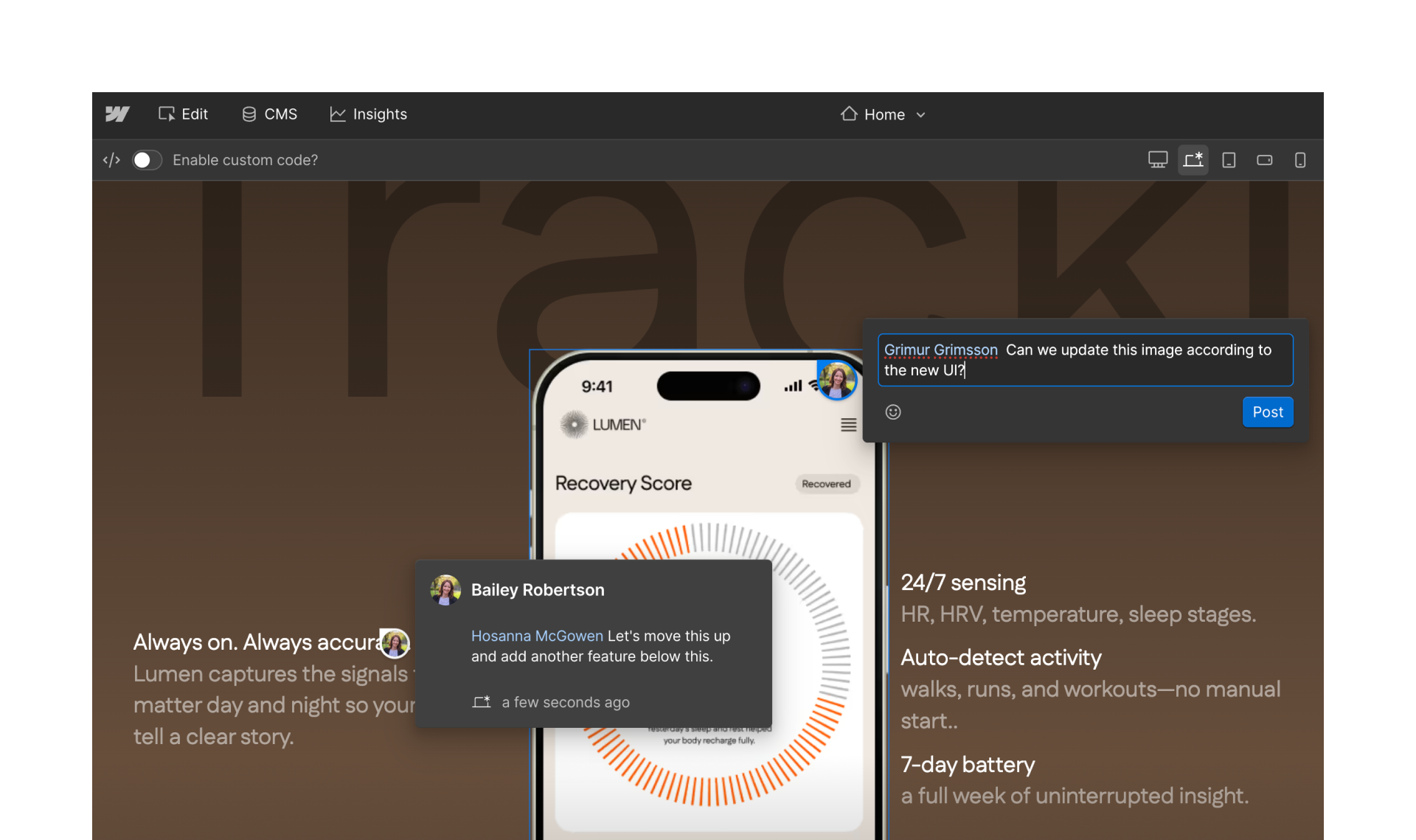
With comments, you can:
- Leave feedback directly on a page or element
- Reply to comments to keep conversations in one place
- @mention teammates to notify them
- Resolve comments once feedback has been addressed
- Share a link to a specific comment thread for review
Comments stay visible on the canvas while you work, so it’s easy to see what feedback is still open. If you’re unsure about an edit, leaving a comment is a safe way to move work forward without overwriting changes.
Try it out: Collaborate using comments
Let’s practice coordinating without editing content directly.
- Open a page in your cloned practice site
- Click the comments icon in the top toolbar or press C on your keyboard to switch to comment mode
- Add a comment suggesting a content update (Bonus: Include an emoji for extra flair 🔥)
- Reply to the comment
- Mark the comment as resolved
Pause and reflect: When does commenting feel more appropriate than editing? How does commenting help you collaborate without overwriting changes?
Feeling good?
Next, we’ll look at SEO and page settings, including how Content editors can update metadata and page visibility and when those changes should be published.