Content editor role & permissions
The Content editor role
Users with the Content editor role can update site content directly on the canvas in Webflow. This includes making changes to text, images, links, and CMS content — all without affecting the site’s design or structure.
Webflow is intentionally designed so that Content editors can work quickly and confidently, design systems remain consistent, and structural and styling changes stay protected.
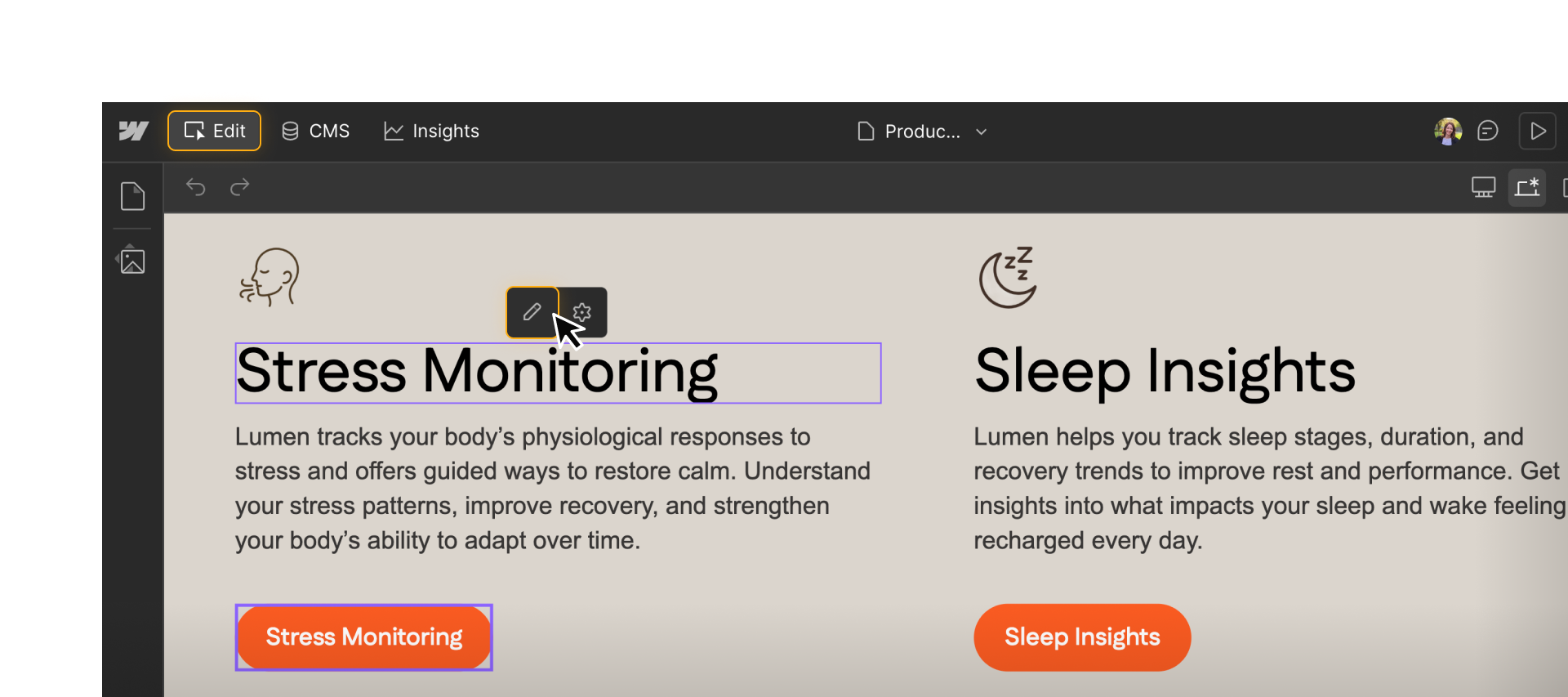
Permissions & guardrails
When editing content in Webflow, Content editors can:
- Edit text and rich text content directly on the canvas
- Update images, links, and other media
- Create, edit, and manage CMS items like blog posts, team members, or product listings
- Preview content changes in context
- Leave comments and collaborate with teammates
- Publish content updates (if publishing permissions are enabled)
To protect the site’s design and structure, Content editors cannot:
- Change layouts, spacing, or visual styles
- Create or modify classes, components, or variables
- Add or restructure pages
- Create or change CMS Collections or CMS settings
- Edit custom code or advanced site settings
These boundaries exist by design. They ensure content updates never introduce unexpected layout changes or visual inconsistencies.
If you ever need something outside this scope, that’s a good moment to collaborate with someone on your team with the designer role or marketer role.
For a full breakdown of the different roles and permissions, check out our site roles & permissions help article to learn more about what each site role can and cannot do in Webflow.
How other roles fit into content editing
While this course focuses primarily on Content editors, content editing isn’t limited to one role.
Designers and marketers can also edit content within their own roles. They may also choose to switch to the Content editor experience either to simulate the experience for someone with the content editor or marketer role, or when they want to focus solely on content updates.
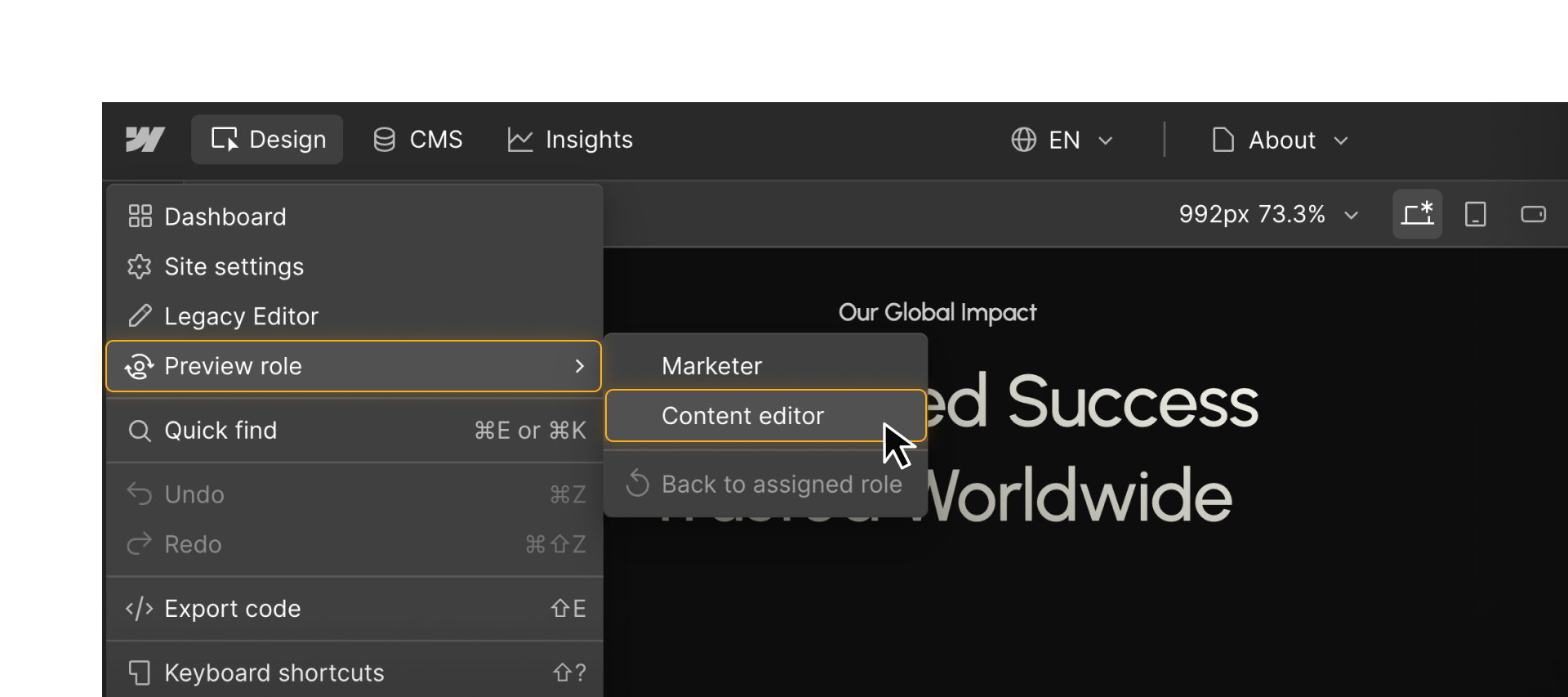
No matter your role, Webflow’s permissions help ensure everyone can contribute safely.
Try it out: Identify what you can edit
Let’s put this into practice using your cloned site.
To try it out:
- Open any page in your cloned practice site
- Hover over different elements on the canvas
- Click into text or media that appears editable
Pause and reflect: Which elements let you click in and edit content right away? Which elements feel intentionally locked or unavailable? How does Webflow visually signal what’s editable versus protected?
Tip: If you see an element outlined, that means you can edit it. If you don’t see an outline, that element is intentionally locked.
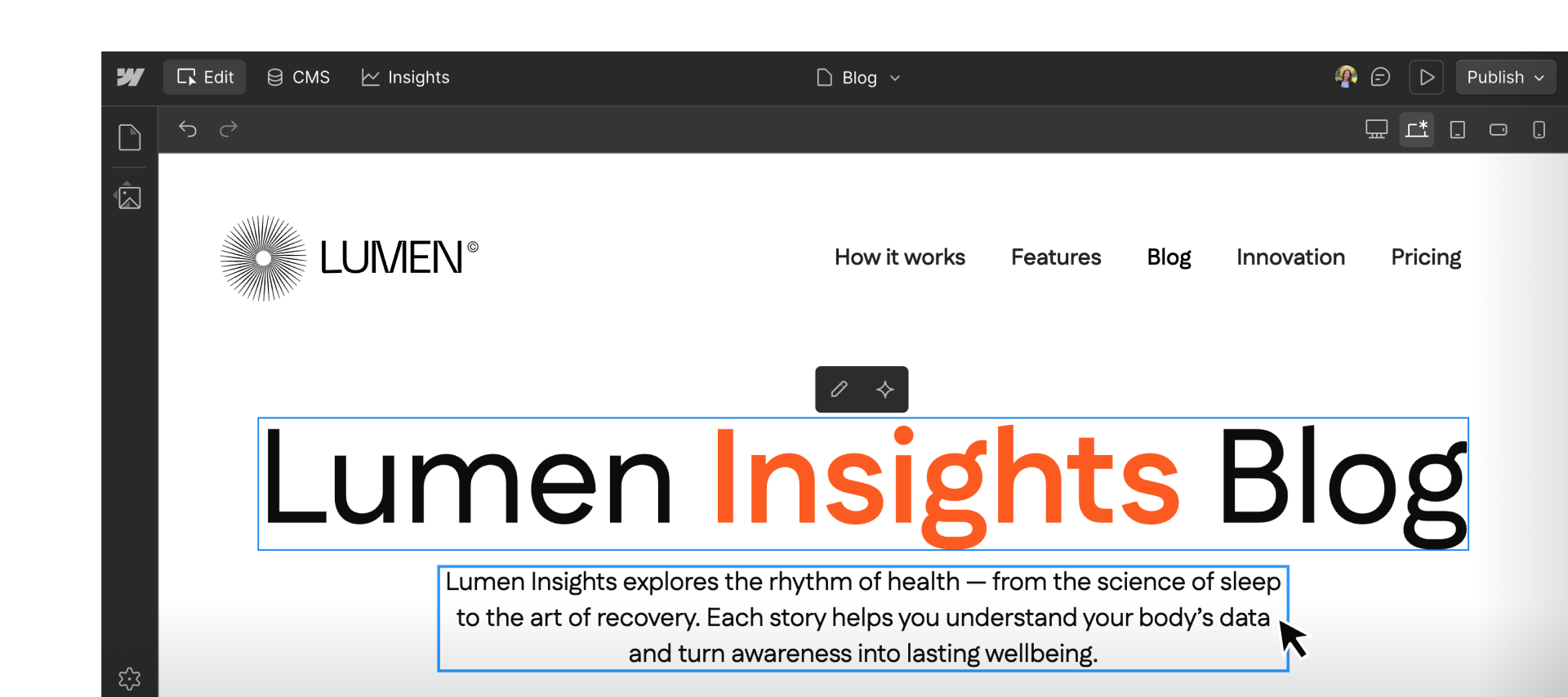
Feeling good?
Next, we’ll dive into editing content directly on the canvas, including how to update text, images, and links and how to publish those changes with confidence.