Workflow automation platforms
Scenario: Automated notifications
Imagine your team has a new request: whenever someone leaves a comment on the site in Webflow, they want a notification sent to the team in Slack so nothing slips through the cracks.
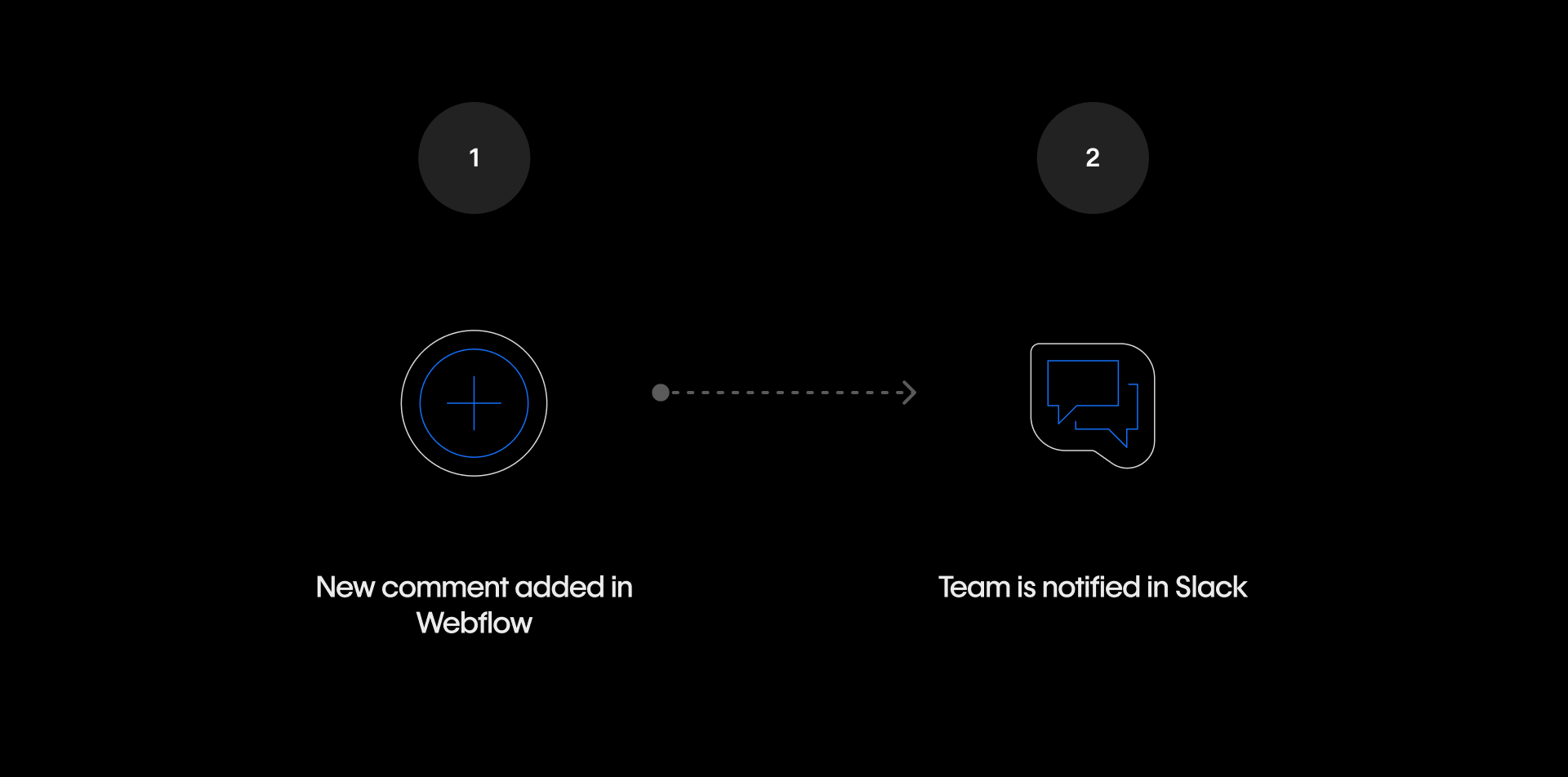
There's no App for that exact workflow. But the logic is clear, the data is predictable, and no one wants to build a custom integration for something this straightforward.
This is exactly the kind of problem automation platforms are designed to solve.
What workflow automation platforms are
Workflow automation platforms like Zapier and Make let you connect applications using a simple pattern:
When this happens → do this.
- The "when this happens" part is called a trigger — an event in one tool that starts the workflow.
- The "do this" part is called an action — what happens in another tool as a result.
Under the hood, automation platforms are making API calls between systems on your behalf. But you don't write those calls yourself. Instead, you configure workflows visually using dropdowns, field mappings, and conditions, and the platform handles the rest.
Back to the scenario
Here's what building it in Zapier might actually look like.
You'd start by creating a new Zap (Zapier's term for an automated workflow). First, you set the trigger: "New comment in Webflow." Zapier connects to your Webflow site and listens for that event.
Next, you add the action: "Send a channel message in Slack." You choose the channel, write the message template, and insert the commenter's name and page details dynamically so the notification reads naturally.

Save it, test it by leaving a comment on your site, and you're done. The next time someone leaves a comment, your team gets a Slack notification — automatically, without anyone having to remember to check.
That's the trigger-action pattern in practice. One event, one action, no code.
What this looks like in practice
Here are a few common examples of how teams connect Webflow to other tools using automation platforms.
- Form submitted → Create CRM contact: When someone fills out a Webflow form, automatically create or update a contact record in your CRM — with fields mapped exactly as you need them.
- CMS item published → Notify the team: When a blog post or resource goes live in Webflow, send a Slack message or create a task in your project management tool so the right people know immediately.
- New row in a spreadsheet → Create CMS item: When someone adds a row to a Google Sheet, automatically create a new Collection item in Webflow — useful for teams who manage content outside of Webflow and need it to sync in.
- Form submitted → Add to email list: When a visitor signs up through a Webflow form, add them to a specific list in your email marketing platform and trigger a welcome sequence.
These are just a few examples. Most automation platforms support hundreds of connected apps, which means the range of possible workflows is broad.
The specific triggers and actions available will depend on the platform and the apps you're connecting. Check your automation platform's documentation for details.
When automation platforms are the right choice
Automation platforms work best when:
- The workflow is clearly defined
- The logic is relatively simple
- The data structure is predictable
- The volume is manageable
In other words: when you need more flexibility than an App offers, but the workflow doesn't justify a custom API integration.
If a workflow starts to feel fragile, hard to debug, or critical enough that a silent failure would be a real problem — that's usually a signal to consider a more robust solution. The next lesson covers how to design automations that hold up over time.
Got it down?
Now that you understand what automation platforms are and what's possible with them, let's look at how to design automations that are reliable, maintainable, and safe.