Single-page publishing
For enterprise accounts, you can publish one change without touching your entire site.
In this video, we cover Webflow’s Single Page Publish feature to push updates live faster—without triggering a full site publish. Perfect for quick fixes, testing, and controlled rollouts on enterprise sites.
In this tutorial, you’ll learn:
How to publish a single page in Webflow
What gets included (and what doesn’t)
How to safely test changes in staging
Key limitations and when to use full site publish instead
Whether you're fixing a typo or rolling out a targeted update, this workflow helps you move faster while keeping your site stable.
Video transcript
For those on enterprise plans, you have one page where you changed one thing and you want to publish just that page. You can now do that with single page publish.
There are a few prerequisites, obviously: It's an enterprise only feature, the site must have been published at least once, and you must have the "can publish" permission for your particular role.
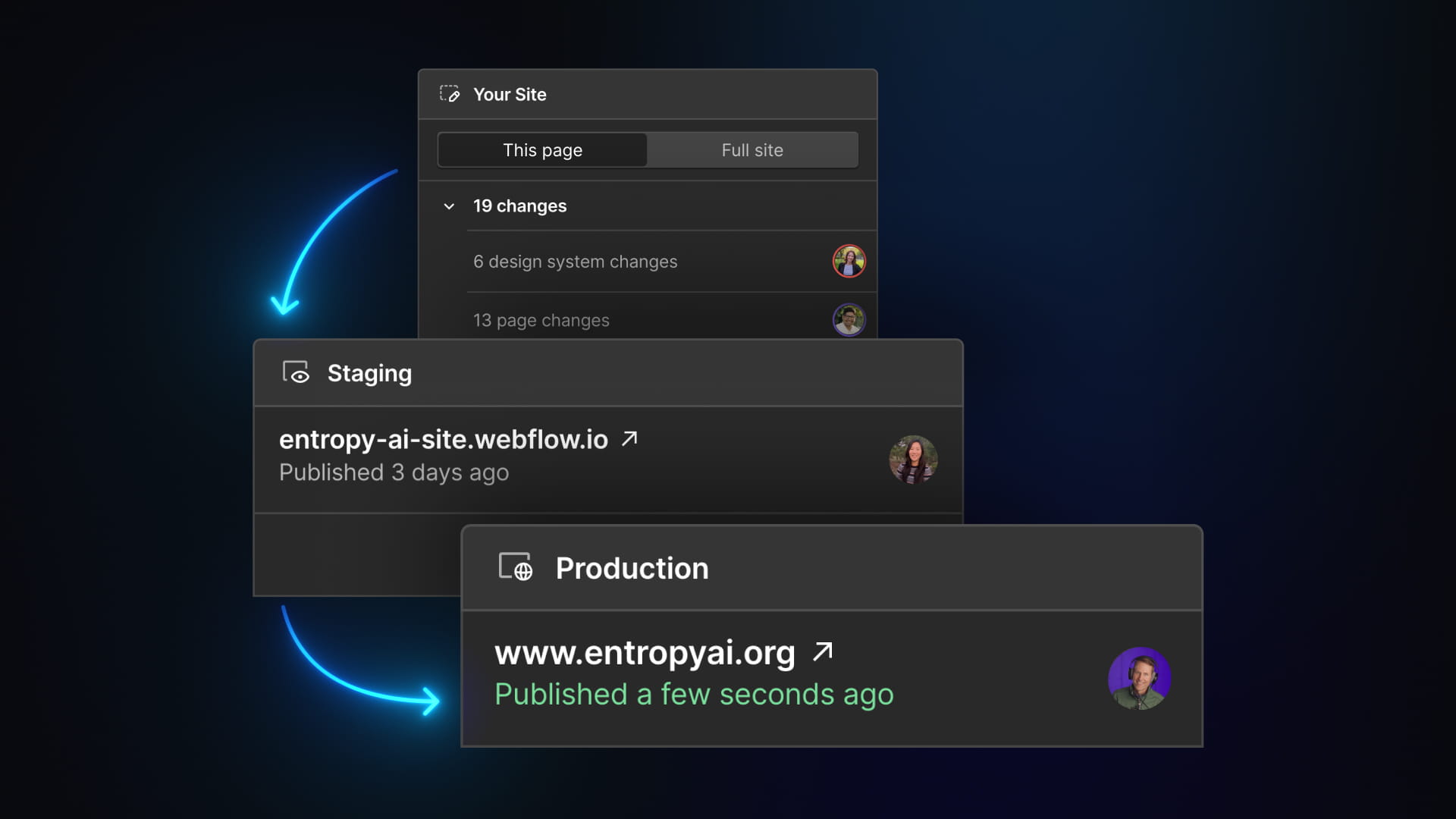
So here we are on our page, we're going to come up to publish. That, of course, brings up our publishing workflow. You'll notice here, it is now defaulted to this page. So it's going to publish just this one page.
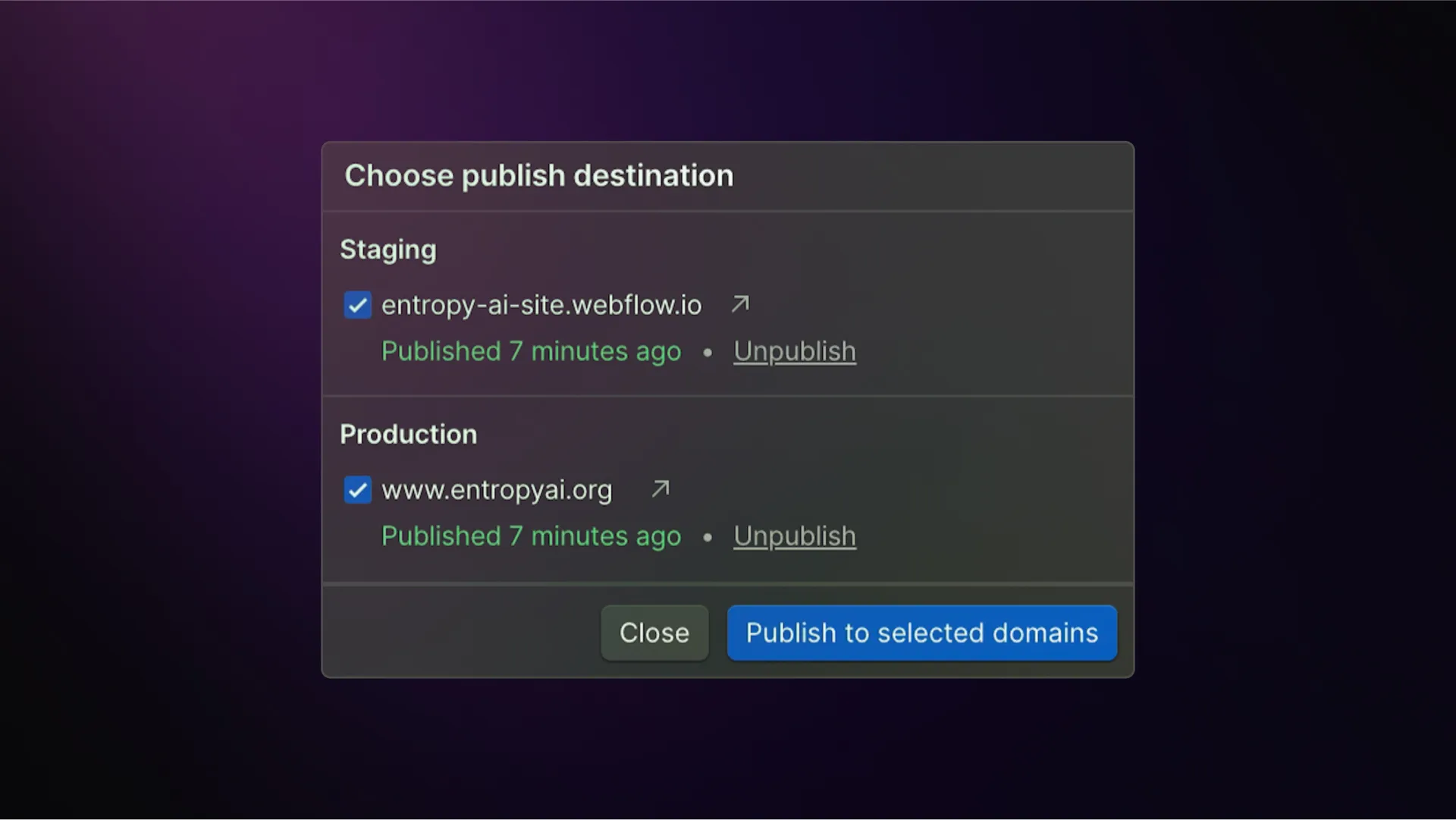
Of course, we can go to a full site publish if we need to do that. We can review our changes here, go ahead and check them out in detail. We still have the option here, we can publish to all domains or whichever domains you selected. In our case, we only have the one or we can just publish it to staging.
So let's go ahead and publish to staging. Now we can go and test on our staging site, make sure that the change is exactly what we wanted. And then when we're ready, we can go ahead and publish to our main domain or production site.
So there are a couple things to keep in mind with a single page publish. There are things that are included and things that are not. First of all, all page content is included, page level settings, optimize variations, and all localized versions of the page. All that gets published in single page publish.
What does not get published: CMS item data, site wide fonts, global custom code, or 301 redirects. you will need to do a full site publish for all of those.
And there is one thing to call out as far as global changes. So for example, if you make a change to a global style, one of your classes or a component that's used on multiple pages or an interaction that's used in multiple places, the publish summary will flag that. And you can still publish just this page if you want to do that. And it will take effect on that page, but all the other pages will stay in their current state until you do a full site publish or publish each of those pages.
A couple of limitations: There's no rollback. So to fix anything, if you did something wrong, and then you single page published it, you want to update the page and then single page publish again.
You can't unpublish via single page publish. So you'll need to set something to draft and then do a full site publish.
And then finally, you can only work in the main branch. This doesn't work for branches.
There we have it: One page going live without affecting the rest of the site.
Get out there and make some great experiences for your customers.