Write instructions that work
The strongest instructions capture decisions that might otherwise live in your head, your design system, or your team's habits. They're specific to your site, and they tell the agent what matters and when.
Whether you autogenerate a skill from your site or create an instruction another way, your job is to make sure that guidance reflects how you really work.
Choose how to start
You do not need to document everything at once. Start with one standard, workflow, or decision you want the agent to handle more consistently.
How you get there depends on where that knowledge already lives.
Autogenerate a starting point
Use Autogeneration when the guidance is already reflected in your site, such as your design system, assets, CMS structure, or brand patterns. Start with the generated skill, then review what it captured and add anything your site can't explain on its own.
Create or refine instructions
Create or expand an instruction when the decision depends on team knowledge, exceptions, outside documentation, or a workflow that is not visible from the site itself.
For example, your Blog Posts collection might include an Excerpt field for cards and search results, a Post Body field for the full article, and an SEO Description field for search engines.
If your team or agents regularly confuse those fields, make sure your CMS guidance explains what belongs in each field and when to use it.
Make the guidance specific
A specific instruction tells the agent when the guidance applies, what decision to make, and the details it needs to make that decision correctly.
For example, "Use our design system when building" names the goal but leaves the important choices open.
A more effective skill might say:
When you add a three-column feature section, use the Feature Card component. Use the Default variant for supporting features and the Highlighted variant for the primary feature. Set the CTA to Button/Primary.
Now the agent knows when the skill applies, which component to use, and how to configure it.
The same thing applies to rules. "Write in a professional and friendly tone" leaves the agent to decide what that means.
A more effective rule might say:
Write directly to the reader using "you" and "your." Use active voice and familiar language. Sound knowledgeable, not formal. Prefer "use" over "leverage" and "complete" over "execute."
Depending on the instruction, the details might include a component, class, variable, or field name, a condition or exception, or a short example.
Tip. Autogenerated skills can show what exists on your site, but not always why your team does it that way. Add that context where it matters.
Use references where they help
When an instruction mentions a resource by name, the agent still has to identify the right match. A reference connects the instruction directly to the resource on your site.
Instead of writing "use the primary button component," you can reference the actual component. Or instead of "use Instrument Sans for the body font," you can reference the body font variable. That gives the agent clearer context.
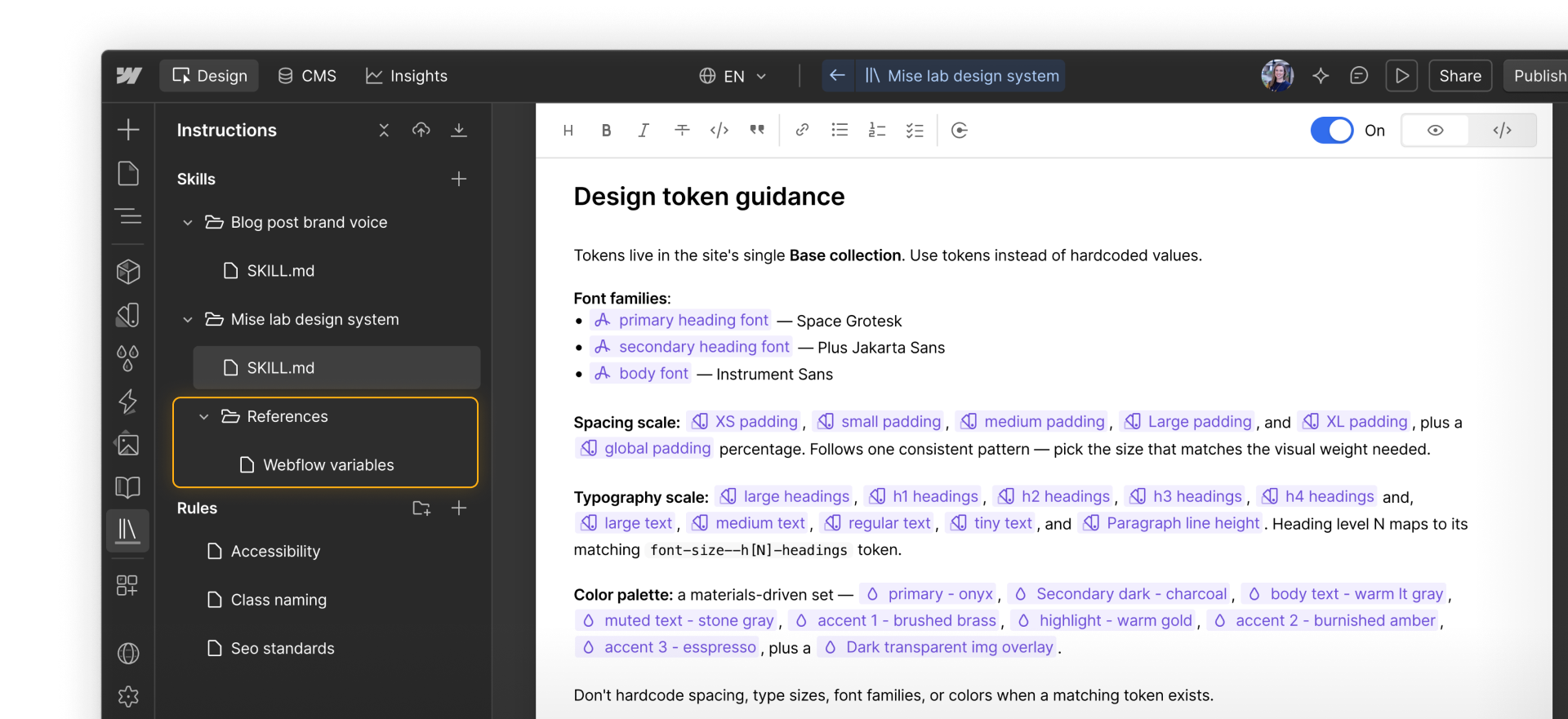
References can also make instructions easier to maintain because the agent can use the connected resource instead of relying only on a written name or description.
Tip. You do not need to reference everything. Use references when the exact Webflow resource matters.
Enable the instruction when ready
New instructions are saved as drafts by default. They appear in the Instructions panel, marked in orange, but your agent won't use them until you toggle them on.
That gives you time to review and refine the instruction first. You can also turn an instruction on temporarily, test the result, and turn it back off if it needs more work.

Test the result
Try the instruction on a task where it should make a visible difference. For a CMS skill, give the agent the content for a new blog post and ask it to place each piece in the right field. For an accessibility rule, give it one meaningful image and one decorative image and ask it to handle the alt text for each.
Then check the decisions it made:
- Did it put the right content in each CMS field?
- Did it write descriptive alt text for the meaningful image and leave the decorative image empty?
- Did it follow the conditions described in the instruction?
If not, look for what the instruction may have left unclear. You might define the situation more specifically, add an exception, or include an example. Keep in mind, even with solid guidance, an agent may not produce the same result every time.
Tip. If something doesn't go as planned, ask the agent what information would have helped it make a better decision. Use the response to improve the instruction.
Keep instructions current
Treat your instructions like the rest of your site documentation. Revisit them when you rename a component, change a CMS field, update a brand standard, or adjust a workflow.

If the agent makes a choice you thought you had already addressed, check whether the instruction still matches how your site works now.
If you autogenerated a skill from one of Webflow's templates, you can return to the generation flow and generate that skill again later. Webflow will rescan the current site and update the existing skill based on what it finds, then you can review the changes.
Ready for more?
Click Continue to next lesson to learn how to share your instructions across multiple sites using Shared Libraries.