Navigating your Dashboard
The Dashboard
When you log in to Webflow, you land on your Dashboard.
This is your home base — where your sites live and where you’ll start every time you open Webflow.
.png)
Your Workspace
Your work in Webflow is organized inside a Workspace. Think of a Workspace as a container for the sites, apps, people, and settings that belong to a team, company, or project.
At the top of your Dashboard, you'll see the name of your current Workspace.
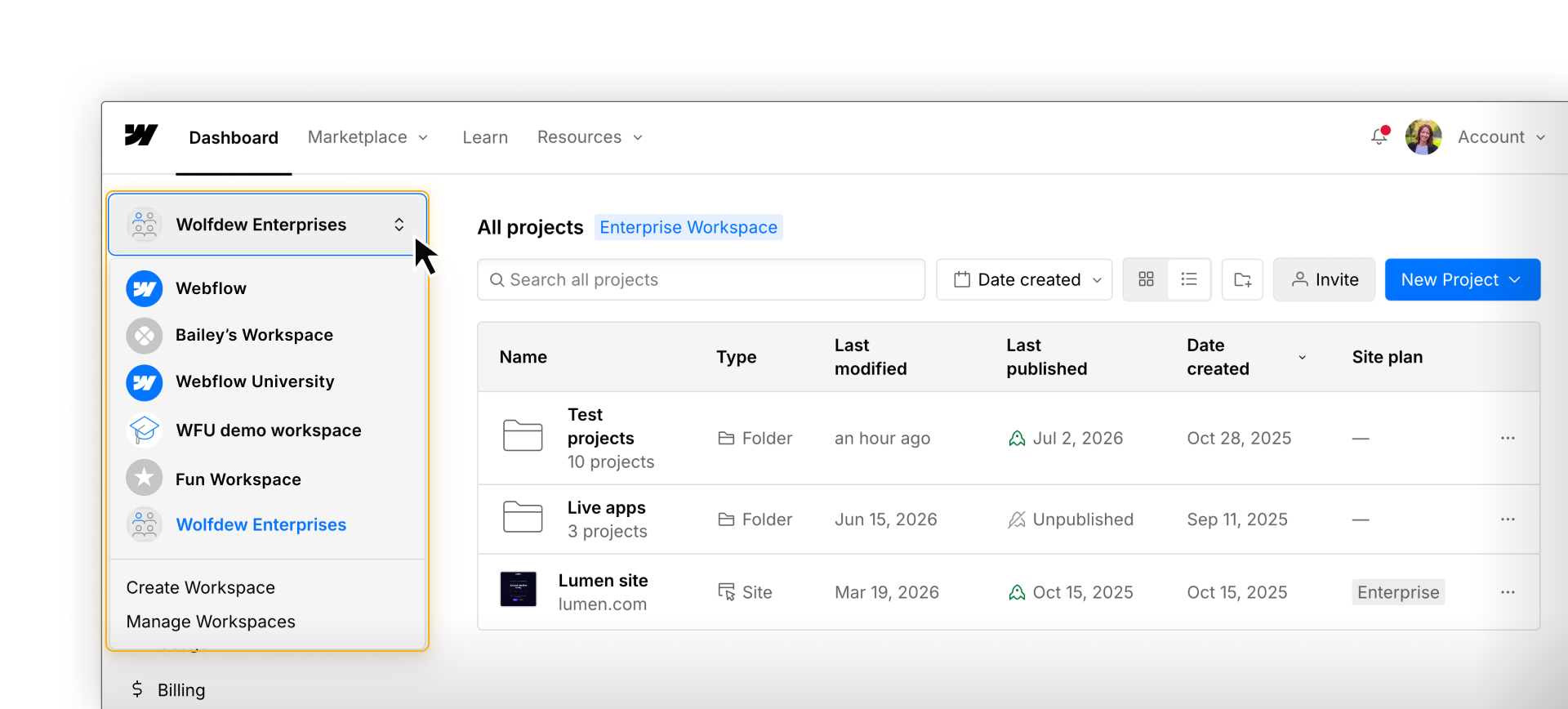
You might have access to just one Workspace, or several — for example, if you've been invited to a company Workspace alongside your own personal one. You can switch between them from the top of the Dashboard.
Your sites
Each site appears as a card showing its name, published status (whether and when it was last published), and site plan. To open one, hover over the card and click Open — that takes you into the canvas, where your work happens.
.png)
Don't see a site you expected? Visible sites depend on your workspace role and access. If one's missing, it's likely a permissions setting — check with your admin.
Site settings
Every site has its own settings, separate from the workspace. Hover over a site card and click the three-dot menu to reach site-level configuration: name, custom domain, hosting options, SEO settings, site-level access, site integrations, and more.

Most site settings are admin territory. Depending on your role, you may not go here often — but it's useful to know where it lives. Your learning path covers the settings relevant to you.
Getting back to the Dashboard
Inside a site, you can always return to the Dashboard from the main menu at the top of the left toolbar. This works the same for every role — your escape hatch if you need to switch sites or get your bearings.

Ready for more?
In the next lesson, we'll open a site and walk through the Webflow canvas, including the four main areas you'll work in every day and the key things you need to know to get up and running regardless of your role.