MCP for Marketers
Learn how to use an AI assistant connected to Webflow through MCP to update pages, bulk edit CMS content, and build campaign landing pages using approved components—all within your Marketer role permissions.
Video transcript
The webinar series goes live in two days. Fifteen CMS items still carry the old registration CTA, the series overview page is a running copy from last quarter, and the featured webinar, the one the whole event campaign is built around, doesn't have a landing page yet.
So we're basically [bleep]. Kidding.
We're going to get all of it done with an assistant connected to Webflow through MCP.
First, MCP stands for Model Context Protocol. In plain terms, it's a connection that lets an assistant work directly with your Webflow site, instead of you copying things back and forth. So as a marketer, we describe what we want in plain language, and the assistant works with what is actually on our site. The real content, the real components, the whole system. Nothing invented from scratch.
We'll do this in five chapters. First, we'll go over what needs to be in place before we start. Then three jobs on our example site: update a page, update CMS content, and build a new campaign page. Then we review and launch.
Chapter one. Before you start. Three things need to be true.
One, a connected assistant. Something like Claude, ChatGPT, or Gemini, connected to Webflow through MCP.
Two, site access. We're demonstrating with the Marketer role, and that matters more than it sounds like it does. The assistant works inside the permissions of the connected user. Our access is its access.
And about that role. A Marketer can edit content and build with approved components. A Marketer cannot change the design system or the page structure. Hang on to that, because it explains almost everything that happens next.
Three, a prepared site. This is Fernpath, our example site for this video. We've got the webinar series overview page, the webinar collection with our upcoming sessions in it, and a set of components the design team approved for marketers to use.
Okay. That's the setup. Next, the smallest change in the campaign.
Chapter two. Update a page.
Here's the series overview page. It's a static page on our site. The headline and the intro copy underneath it. Both written for last quarter's series. Both wrong now.
The fresh copy is in the brief, so let's hand it over.
"On the Webinar Series overview page, replace the headline and the intro paragraph with the copy below." Let's send it.
And while that's running, this is the part people expect to go sideways. New copy, and suddenly a redesigned hero.
Let's look. Back in Webflow, here's the page.
Copy's updated. Layout's unchanged. And it's worth saying why, because it isn't because we asked nicely. Changing structure and styling isn't in the Marketer role. The assistant is working with the same access we have, so it did the thing it could do.
Let's do one more pass. That second line is longer than we want, so we'll ask for a shorter version that matches our site's voice and tone. That back-and-forth is normal. First result, adjustment, done. Also, if you're already in Webflow and you want to quickly update it, you can always use the AI assistant right on the Canvas.
Okay, that's one page. Next, fifteen of them at once. Chapter three. Update CMS content.
Here's the collection, our upcoming sessions. And here's the registration CTA, repeating on each one, word for word, and out of date on every single one. Also, we have updated registration links for each event. These are no longer valid.
What we do not want is someone opening all these items and retyping the same sentence fifteen times.
What we also don't want is fifteen items changed at once before we've seen whether the first one came out right.
So we can ask for both.
Here's our prompt, and what's important here is that we only do the first two items, so we can review before we continue.
Here's the before in Webflow, so we have context on what was there before.
But while that runs, here's what we're going to check. The CTA copy repeats on every item. The registration link does not. Every webinar has its own. If those get overwritten, the whole campaign is broken, and it's broken quietly. We need those links to be correct.
Let's go look at those two. We'll just refresh.
And the copy is changed. And here's the thing to actually check: the CTA copy is updated, and the webinar's own registration link. Item one, its own link. Item two, its own link. That's great, let's ask it to update all of them. We'll paste it in from our Campaign Brief document.
Alright, let's fade to black and fade back in.
Good. Approve the rest. And through the collection, consistent copy, the new links from the spreadsheet I gave it. It's all there.
That sample-first pattern isn't a formality for the video. It's how teams run this in production. Draft, check, approve. We just did all three in about a minute.
And if we wanted to, let's say, change the event descriptions for all of them and we didn't have copy ready yet, we could even work with our agent to come up with the copy and add it to each item.
Okay. That's CMS content. Next, we'll build a static page that doesn't exist yet.
Chapter four. Build a page.
Each of our CMS event items has its own page from our CMS collection page template, but we want our featured webinar to have its own, specially designed landing page.
Here's the brief: the webinar details, the speaker, and a registration CTA.
Over in Claude, we'll ask it to create a new page based on this brief using our existing components and to keep it as a draft. Let's send it.
While it builds, a few things worth pointing at. First, a designer or agent has already built some reusable components for our site. Behind the scenes, our agent is building with them and changing properties like specific text or images shared in our brief. And there's an agent instruction on this site telling the assistant exactly which components to use for a page like this.
The instruction guides the work. The permissions decide what's possible. Two different things, both doing their job right here.
Let's look at the result. And the thing to check isn't "does it look nice". It's: did it successfully update our components with everything that our brief said? Here's the hero component. The speaker block. The registration CTA. It all looks like it matched.
One adjustment. Let's move the speaker section above the agenda. There we go.
Alright. Three jobs done. Let's look at the whole thing before any of it goes live.
Chapter five. Review and launch.
Webinar details, one more read. Dates, times, titles.
Registration links. Click them. All of them. It's important to make sure that your links work.
And the new page at different screen sizes. It's looking good. If yours is not, you can try working through this with your connected agent, but you might also need to work with your designer. Remember, they set the site's structure and style. Our agent is just using what it has and what we tell it to.
Then we can publish our changes or, if you don't have publishing permissions, hand it to whoever approves it. Depending on your role, publishing might not be yours to do. And that's the same thing we saw back in chapter two. The assistant can only do what you can do.
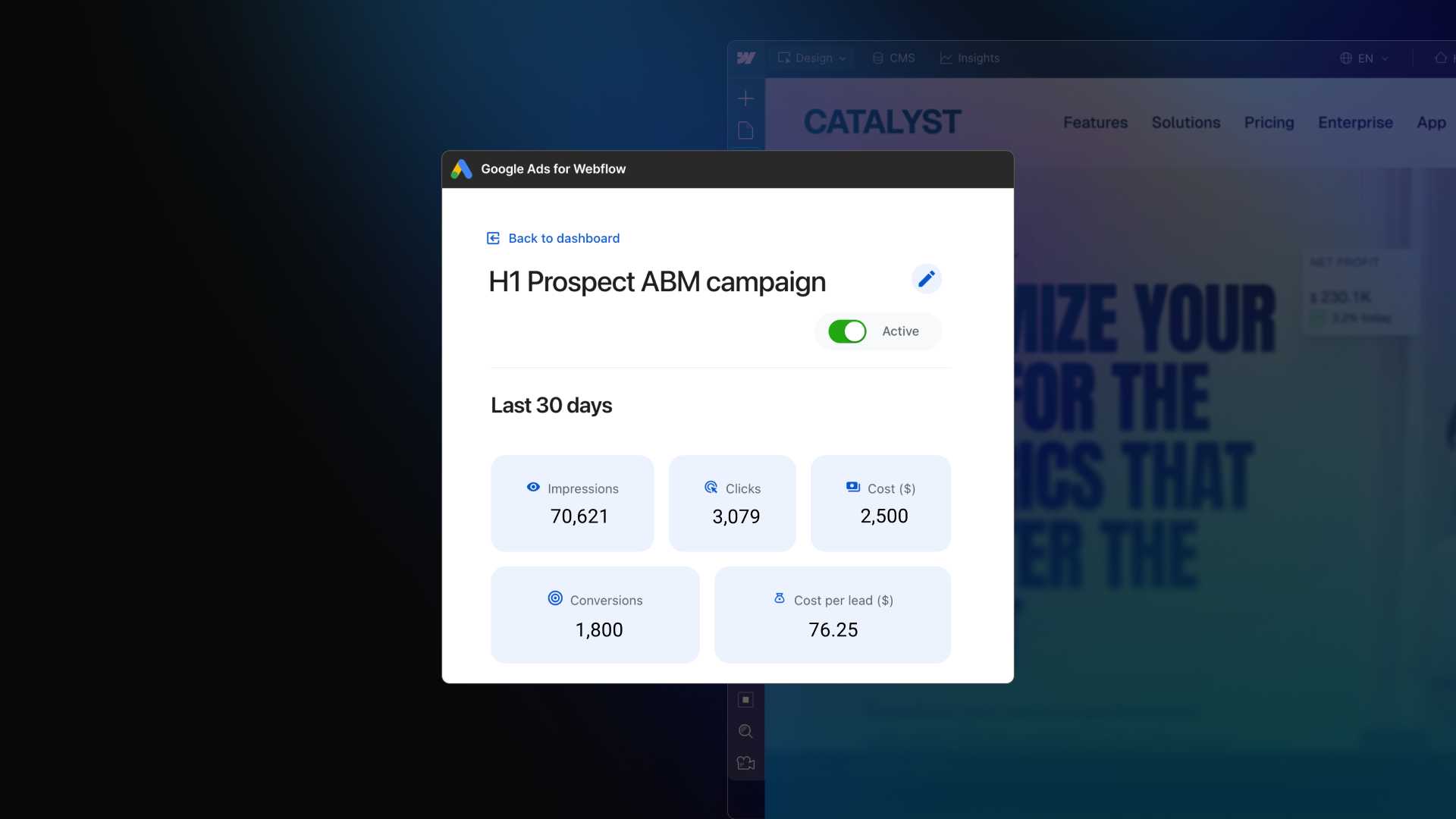
And a quick bonus: if your team has access to Webflow Analyze, after everything is launched, you can even ask your connected agent to tell you how your new pages are doing. Are they getting traffic? How long are people staying on the page? It's a great way to plan your next improvements.
Let's recap real quick. We covered what's needed. We made a targeted edit to one page. We updated the copy across the CMS without opening each item. We built a completely new page out of components the team had already approved. And finally, we reviewed the work and handed it off to publish.
Same pattern every time: show what needs to change, ask, then check the result in Webflow. The assistant works with our access, inside the structure our design team set up.
And there's a separate lesson on writing agent instructions, linked below. Check that out on Webflow University if you haven't already.
That's an intro to MCP for marketers in Webflow.