Designer role
A quick guide to using the Designer role to design, maintain, and scale your site in Webflow.
Role overview
As a Designer, you build and maintain your site’s layouts, styles, and content structures. You can create reusable components and templates that help Marketers and Content editors work independently while keeping the site consistent.
This guide covers what you can do in Webflow, the workflows you’ll use most, and how to collaborate with your team.
Permissions & guardrails
What you can do
You work visually on the canvas, so you can make and review changes in context as you go.
- Build and modify page structure and layouts
- Create, edit, and manage components, classes, and variables
- Set up and maintain the design system
- Create static page templates for Marketers
- Configure component props for Marketer and Content editor use
- Collaborate in real time with other Designers and teammates
- Create and work on page branches (on Enterprise plans)
- Create and manage CMS Collections
- Add, edit, and publish CMS items
- Build & configure forms
- Update page-level SEO and visibility settings
(e.g. SEO title tags & meta descriptions) - Build pages and edit content across secondary locales with Webflow Localization
- Review site performance & analytics in Webflow Analyze
- Test and optimize content using Webflow Optimize
- Publish to staging and production
What you cannot do
These guardrails are intentional. They help you move quickly while protecting Workspace-level settings managed by Admins.
- Manage Workspace-level settings or billing (this requires the Admin or Site manager role)
- Invite or remove members from the Workspace (this requires the Admin role)
What you'll do most
The Designer role is designed around a few core workflows. These are the responsibilities you'll return to most often.
Build and maintain the design system
Building and maintaining the design system as a Designer means creating and managing the classes, variables, components, page templates, and libraries that define your site's visual language. This includes setting up reusable styles, maintaining consistency across pages, and ensuring the design system scales as your site grows.
You'll work directly on the canvas, editing classes, updating variables, and refining components to reflect brand decisions and design standards. Because changes to shared classes and variables cascade across the site, it's important to communicate with your team before making system-level updates — especially when other Designers or Marketers are actively working on the site.
When making changes that could affect multiple pages or teammates' work, consider using a page branch (available on Enterprise plans) to isolate those changes until they're ready to review and merge.
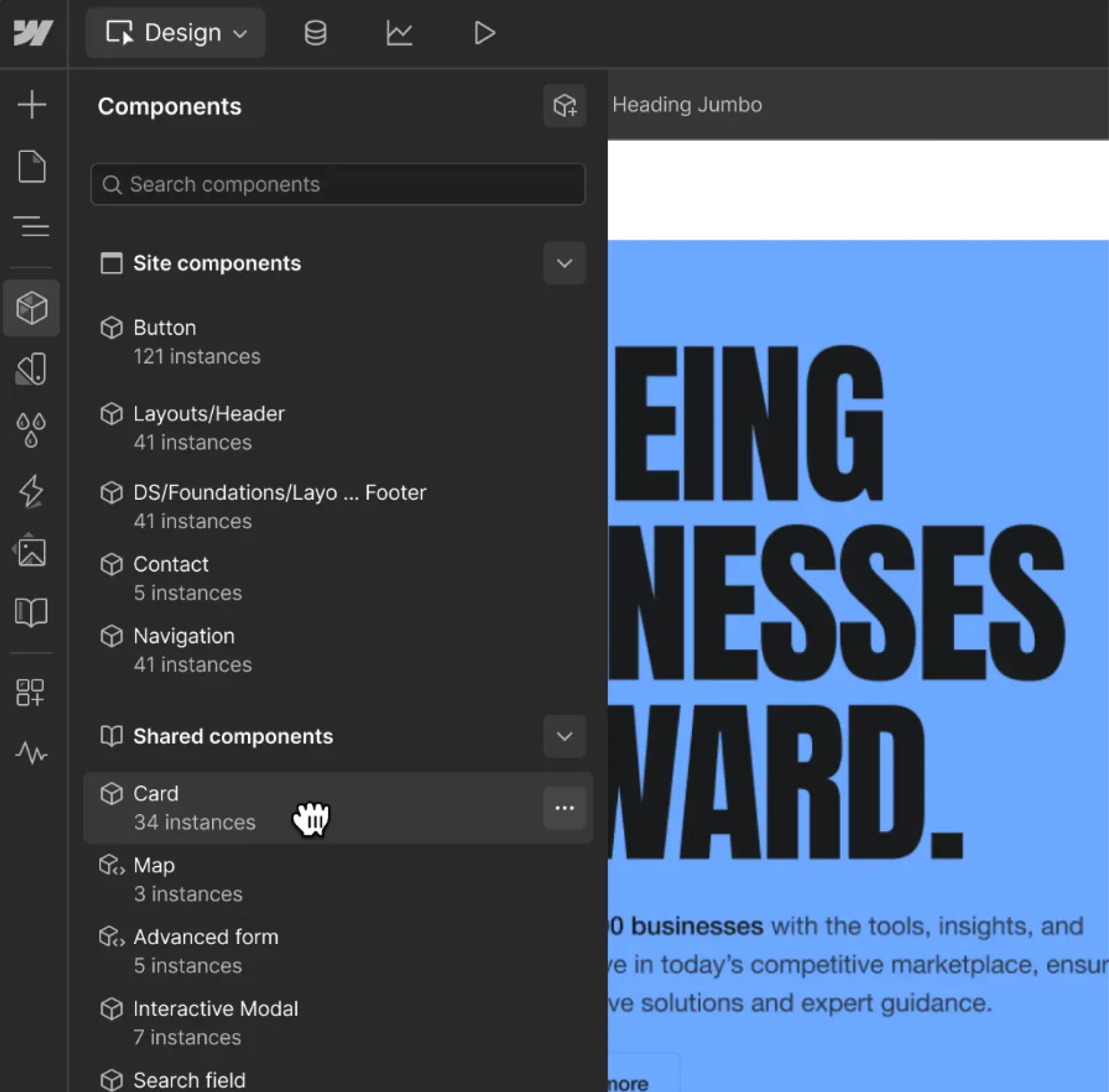
Create and manage components
Creating and managing components as a Designer means building the reusable building blocks that your team uses to assemble pages. This includes designing component layouts, connecting props for editable content, and organizing your component library so Marketers can find and use what they need independently.
You'll build components as self-contained sections — heroes, feature grids, CTAs, footers — and configure props to expose the right content fields to Marketers. Well-built components are what allow Marketers to build pages without touching the design system, so the time you invest here directly determines how independently your team can move.
When a Marketer needs a new layout or visual treatment that doesn't exist in the component library, that's your signal to build it. Once it's in place, they can reuse it across as many pages as they need.
Collaborate with other Designers
Collaborating with other Designers in Webflow means coordinating how and when people work on shared pages, classes, and components. This includes deciding when to work in real time versus on a branch, communicating changes to shared elements before making them, and reviewing branch work before it's merged back into the main site.
Real-time collaboration works well for isolated, low-risk updates. Page branching (available on Enterprise plans) is better suited for exploratory or complex work — especially when changes involve shared classes or components that could cascade across the site. The key is making the right call before starting work, not after a conflict has already happened.
On Enterprise plans, design approvals add a formal review step to the branching workflow, ensuring changes are signed off before they merge.
Learn more about real-time collaboration ->
Design and build forms
Building forms as a Designer means adding native Webflow form blocks to your pages and configuring them to capture the information your team needs. This includes setting up form fields, labels, and validation, styling forms to match your design system, and connecting form submissions to notification emails or third-party tools.
Once a form is built, Marketers and Content editors can view and manage form submissions without needing to touch the form's structure or styling. If a form needs new fields, updated validation, or changes to integrations, that's when to involve a Designer.
Set up and design with CMS content
Setting up and designing with CMS content as a Designer means building the Collections, Collection page templates, and Collection list layouts that power your site's dynamic content. This includes creating CMS Collections with well-structured fields, designing Collection template pages for things like blog posts or case studies, and building Collection list layouts that pull in and display dynamic content across the site.
The structure and field names you choose directly affect how easily Content editors and Marketers can work with CMS content. Clear, descriptive field names make it obvious what each field is for. Logical Collection structures make it easy to find and manage content over time.
Once Collections and templates are in place, Content editors can create, edit, and publish CMS items confidently, without needing to understand how the underlying structure works.
Audit the site for accessibility, SEO, and performance
Auditing the site as a Designer means using Webflow's built-in audit panel to identify and fix issues before they reach production. This includes reviewing accessibility issues like missing alt text or insufficient color contrast, checking SEO settings like missing meta descriptions or broken links, and flagging performance concerns that could affect load times or user experience.
Running an audit before a major publish is a good habit — especially after significant design changes or before a site launch. The audit panel surfaces issues across the site so you can address them systematically rather than discovering them after something has gone live.
Preview, stage, and publish
Previewing, staging, and publishing as a Designer means owning the process of getting changes from the canvas to the live site, and making sure the right review steps happen along the way.
Before publishing, use Preview mode to check how your site looks and behaves across breakpoints. Publish to staging to test custom code, check responsiveness across devices, and share a link for team review. Once everything looks right, publish to production.
On Enterprise plans, the Enterprise publishing modal gives you a detailed summary of unpublished changes (including who made them) before anything goes live.
Add, respond to, and resolve comments
Working with comments as a Designer means using in-context feedback to coordinate with your team, review work in progress, and keep conversations tied to the specific elements they're about.
You'll use comments to leave feedback on Marketer-built pages, respond to questions from Content editors, and coordinate with Reviewers during review workflows. On branches, you'll use comments to communicate change requests or sign off on work before it merges. Because comments live directly on the canvas, feedback stays in context — which makes it faster to act on and easier to track.
Once feedback has been addressed, resolve comments to keep threads clean and signal that work is ready to move forward.
Working with your team
Here's how the Designer role collaborates with other roles across key stages of designing, building, reviewing, and publishing.
Designers and Marketers work together most closely around page building. Designers create the components, templates, and slots that Marketers use to build pages — and Marketers rely on that system to launch campaigns, events, and landing pages independently.
When a Marketer needs a new layout, component, or template, that's the right time to loop in a Designer. Once the building blocks are in place, Marketers can build and iterate quickly without needing design involvement for every page.
Designers set up the structure that Content editors work within. This includes organizing CMS Collections clearly, naming fields descriptively, and ensuring that editable content is easy to find and update on the canvas.
When a Content editor needs a new field, a structural change to a CMS template, or a layout update to a page they're editing, that's when to involve a Designer. Once the structure is in place, Content editors can manage and update content confidently without touching design or layout.
Designers work with Reviewers to get feedback and sign-off before changes go live. In Webflow, this typically happens through comments left directly on pages or branches — Reviewers flag issues, ask questions, or request changes, and Designers address them before merging or publishing.
On Enterprise plans, Designers can request formal approval from Reviewers before merging a branch, creating a clear record that review happened and that changes were signed off before going to production.
.png)